

Open the Share dialog
On the Templates page, open the menu on a template’s card or row and choose Share. You can also hover over the avatars on the card and select Manage access (or Share, if it isn’t shared yet). Both only appear if you own the template or have Manage access to it.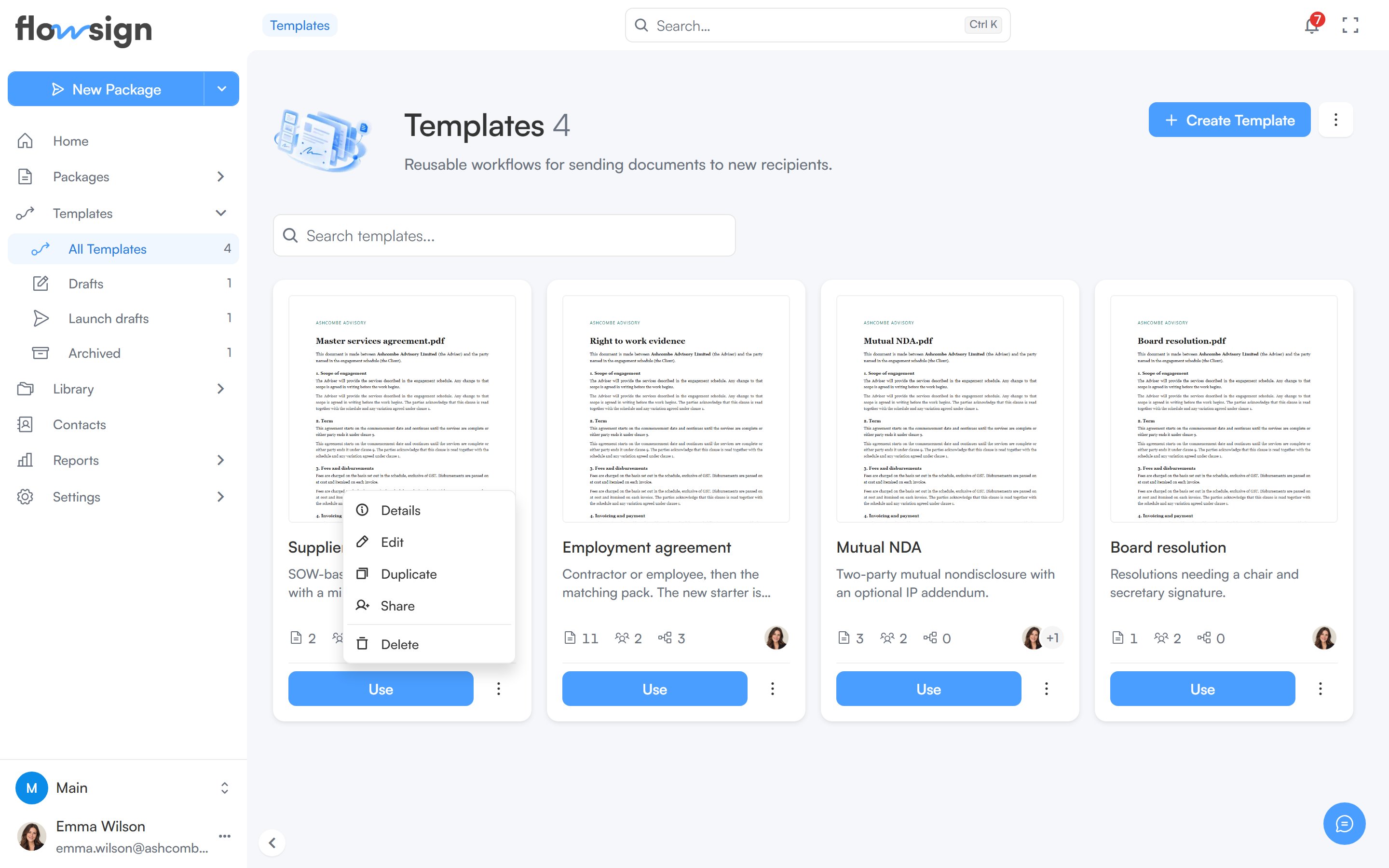
Share and Details are in the menu on each template.
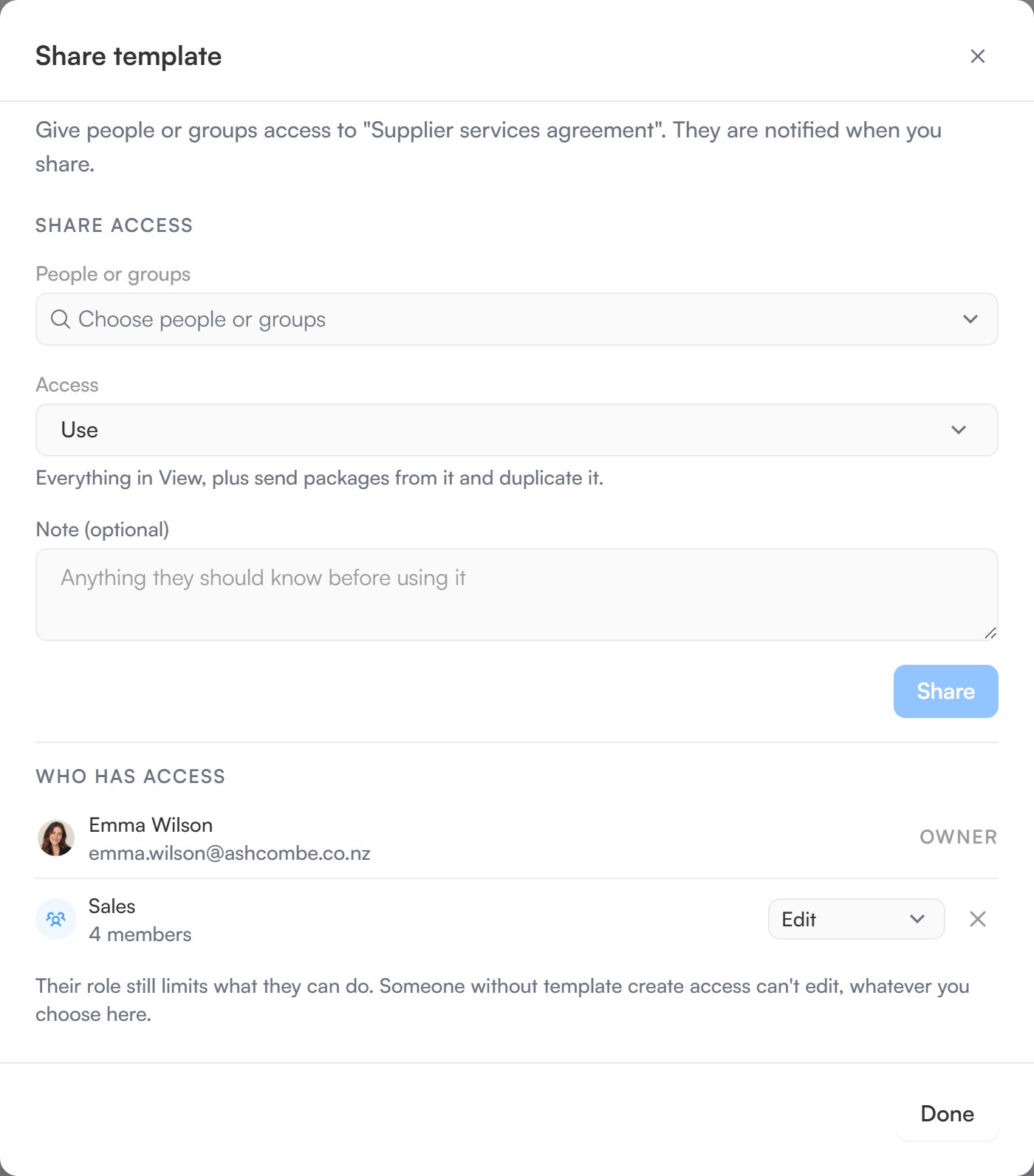
The Share template dialog: who to add, at what level, and who already has access.
Access levels
- View: see the template and its documents. Can’t send from it.
- Use: everything in View, plus send packages from it and duplicate it. This is the default.
- Edit: everything in Use, plus change its documents, fields, roles and settings.
- Manage: everything in Edit, plus delete it and choose who it’s shared with.
Share with people or groups
- In People or groups, pick one or more members or groups. Groups are listed first. People who already have access, and deactivated members, aren’t offered.
- Choose a level from Access. The line under it says what that level allows.
- Add a Note (optional), up to 300 characters, for example which version to use.
- Select Share, or Share with N when you’ve picked more than one.
Change or remove access
Who has access lists the owner, then groups, then people.- To change a level, pick a new one from the row’s selector. Changes are held until you select Update access (N), where N is how many rows you’ve changed; Cancel discards them.
- To remove access, select the cross on the row and confirm Remove access. This takes effect straight away.
Template details
Details on the same menu shows the template’s owner, your access, status, dates and counts, and a read-only Who has access list. If you can share the template, Manage access opens the Share dialog.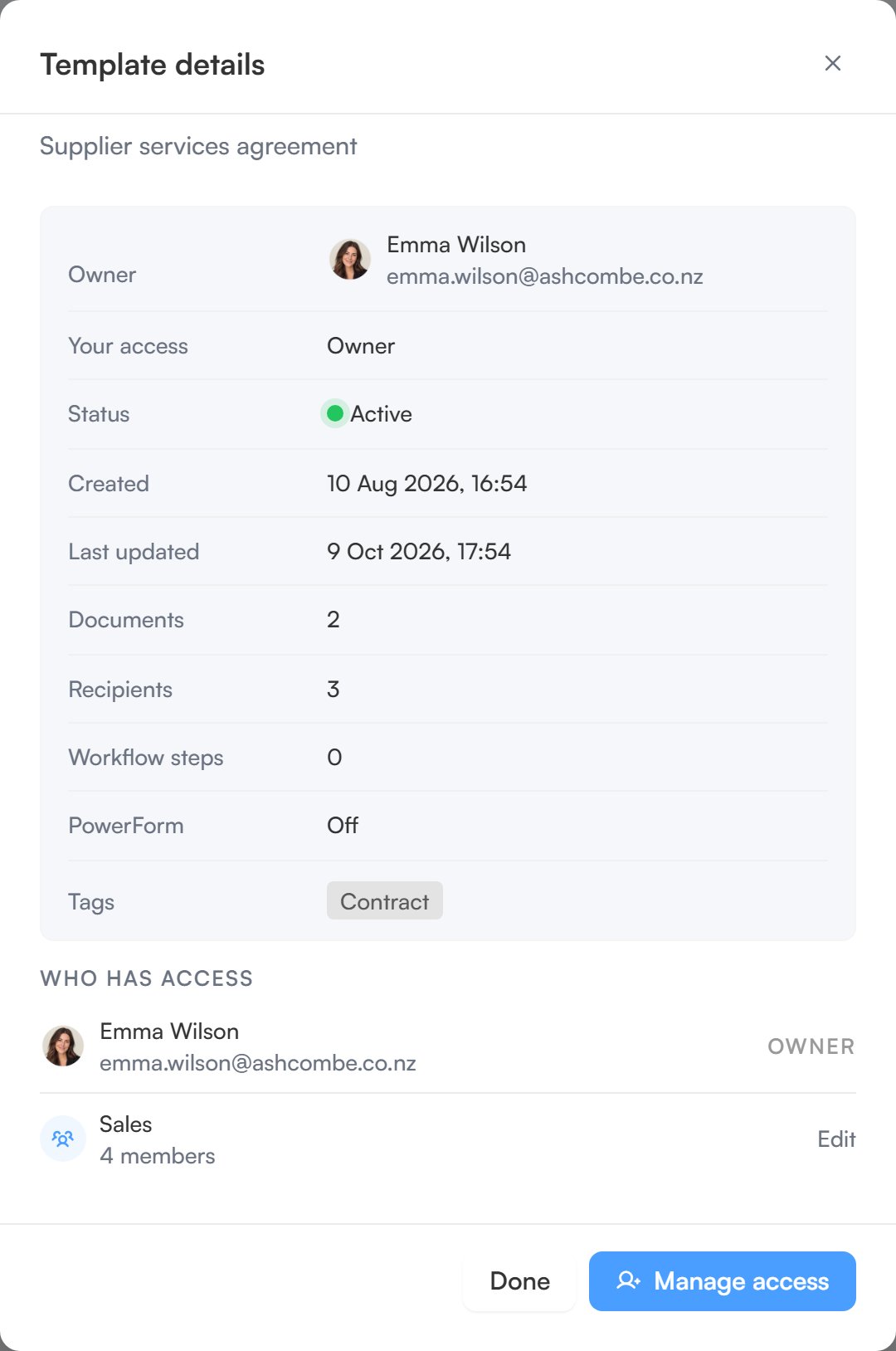
Template details, with who has access.