

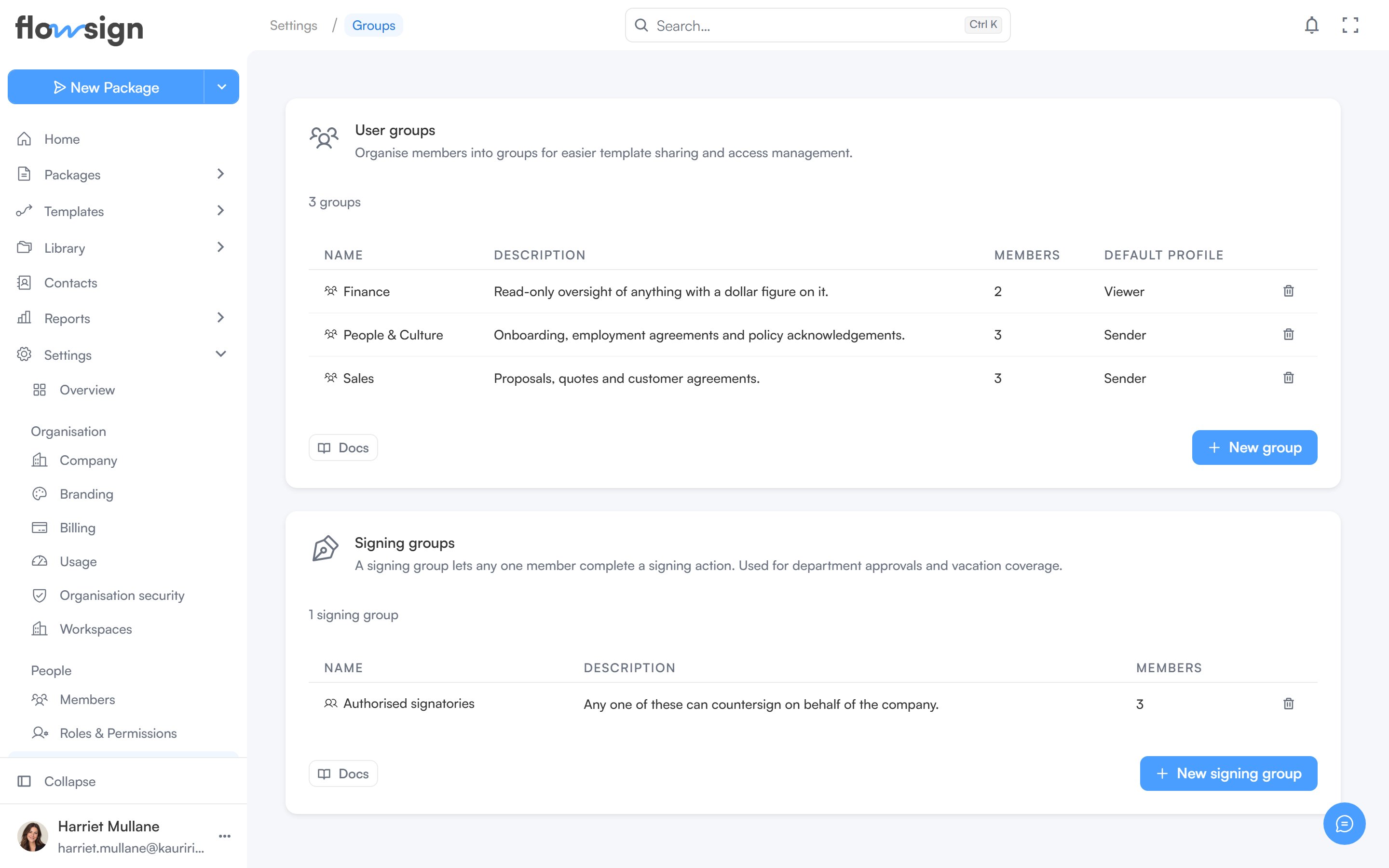
Groups, used to address several members at once.
User groups
Groups of members, used to organise your team. A group can be chosen as the host for in-person signing: any member of the group can then host that recipient’s session. The list shows each group’s Name, Description, Members and Default profile. New group opens Create group.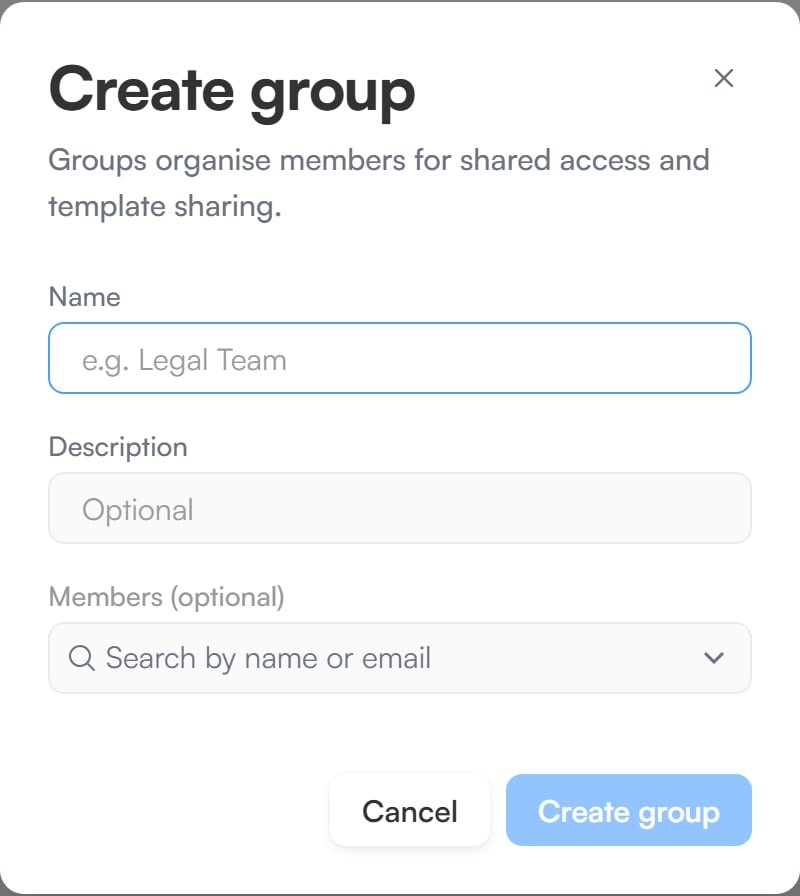
Create group, for organising members into a user group.
Signing groups
A signing group is a set of members intended to complete a recipient’s step between them, so that any one member can sign instead of naming a specific person. New signing group opens Create signing group, and a group shows No members in the list until someone is added. Packages cannot yet be addressed to a signing group: the recipient step in the package builder and the API only take named people. Signing groups and their members can be managed now, in the app and through the API, ready for when that lands.Members and details
Both kinds of group can take members when you create them. To change a group later, click its name in the list. The panel that opens shows its members, where you can:- Add several people at once with Add members, searching the workspace’s members by name or email.
- Remove a member.
- Edit the name and description with Edit details.