

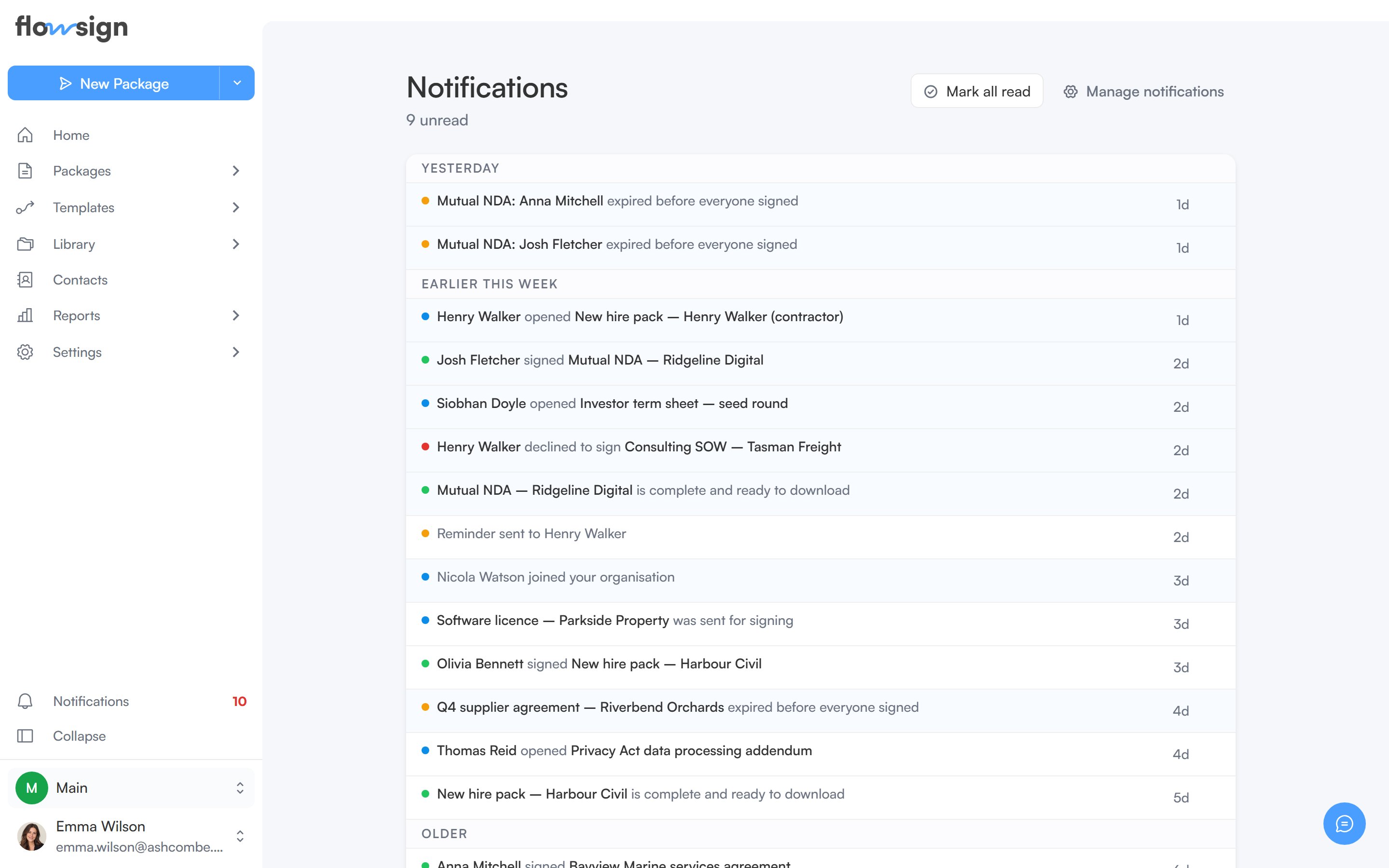
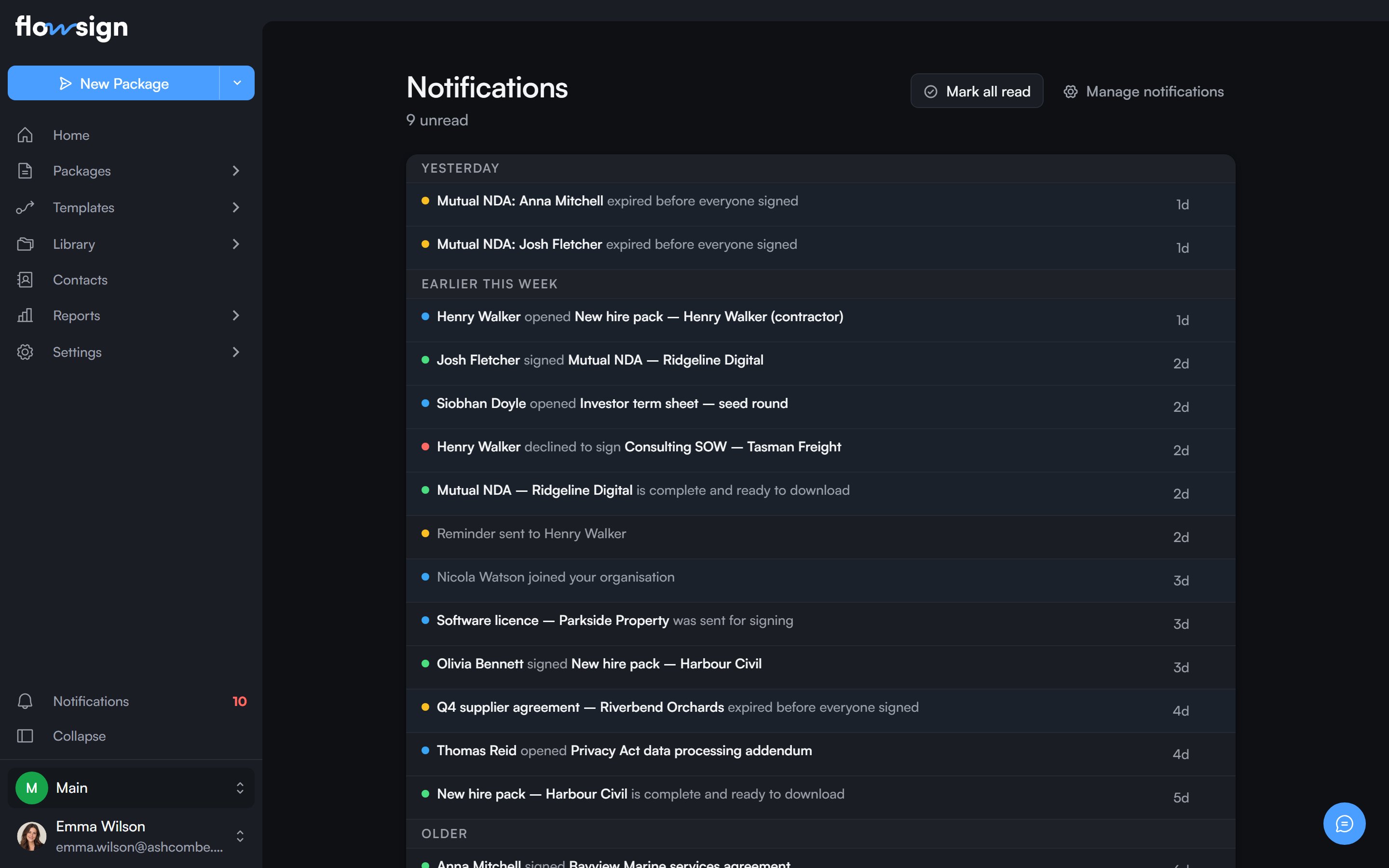
The notifications feed, grouped by category.
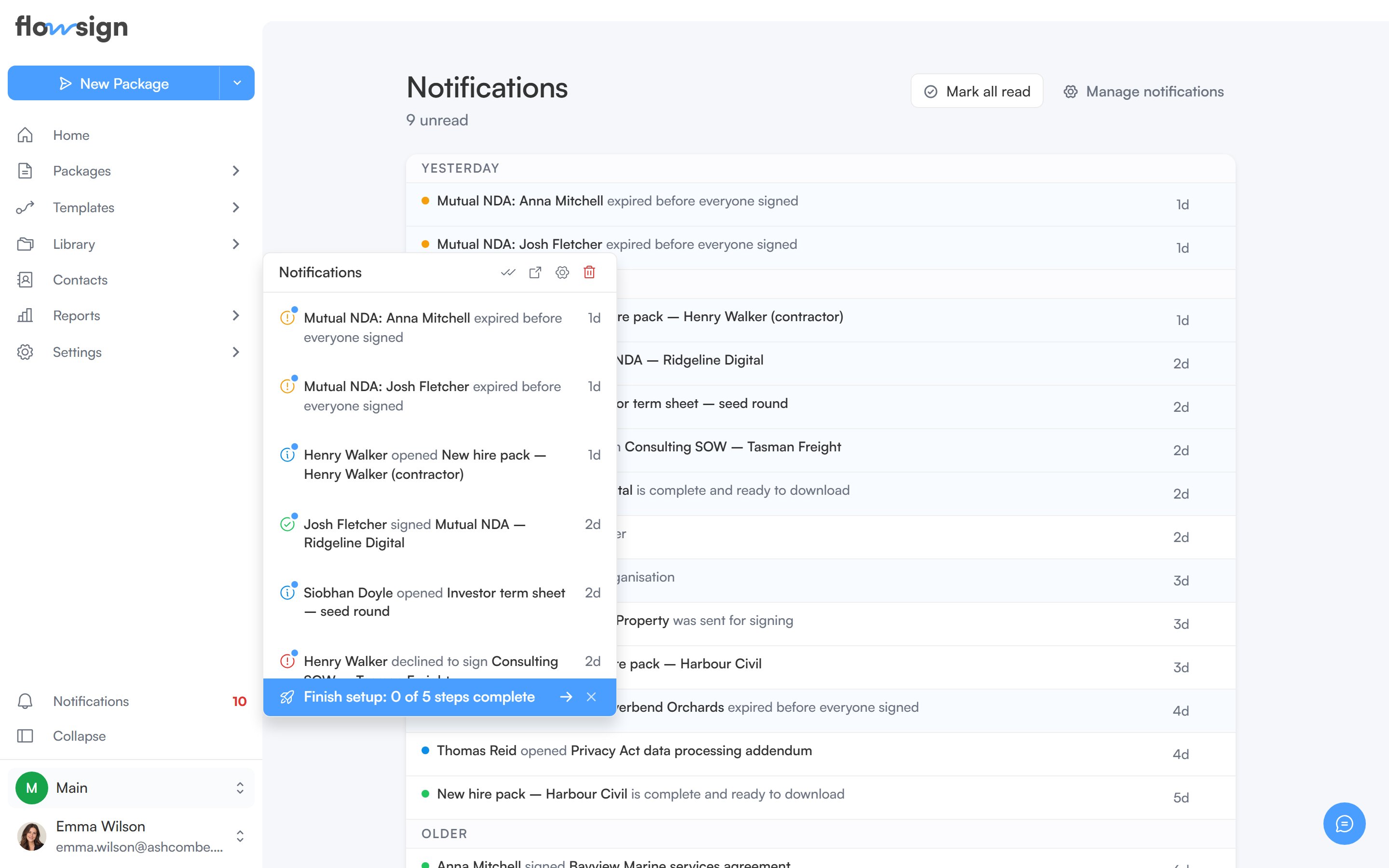
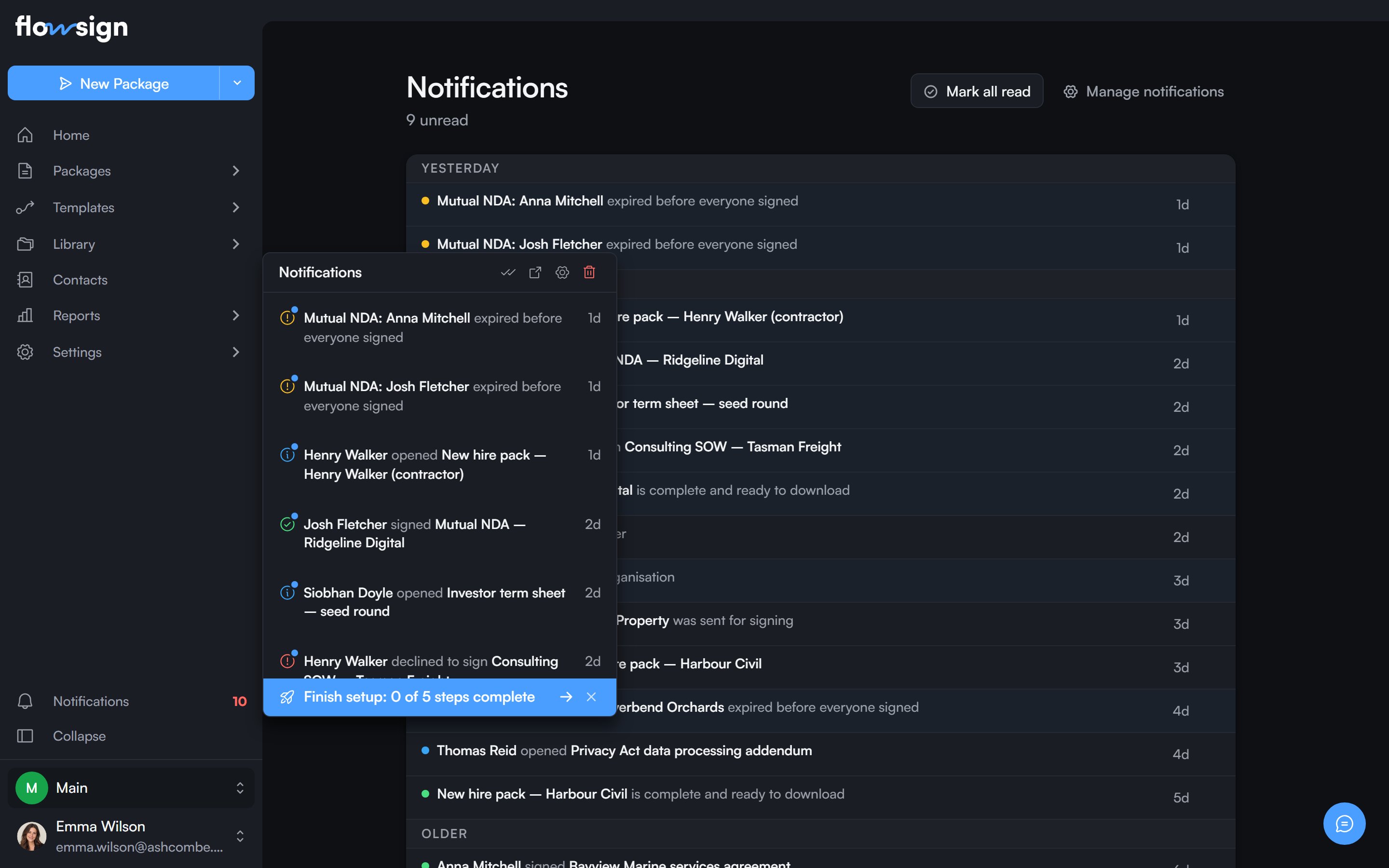
The notifications dropdown, open from the sidebar.
Header
The header shows how many notifications are unread (or You’re all caught up at zero). Two actions sit alongside it:- Mark all read, shown only when there are unread notifications.
- Manage notifications, which opens your notification preferences.
Feed
Each row shows a coloured status dot, the notification’s content, and a relative timestamp. Unread rows are highlighted. Clicking a row marks it read and, if the notification links somewhere, navigates you there. An Archive button on each row removes it from the feed.An empty feed shows No notifications yet, with a hint that updates about your documents and packages will show up here.