

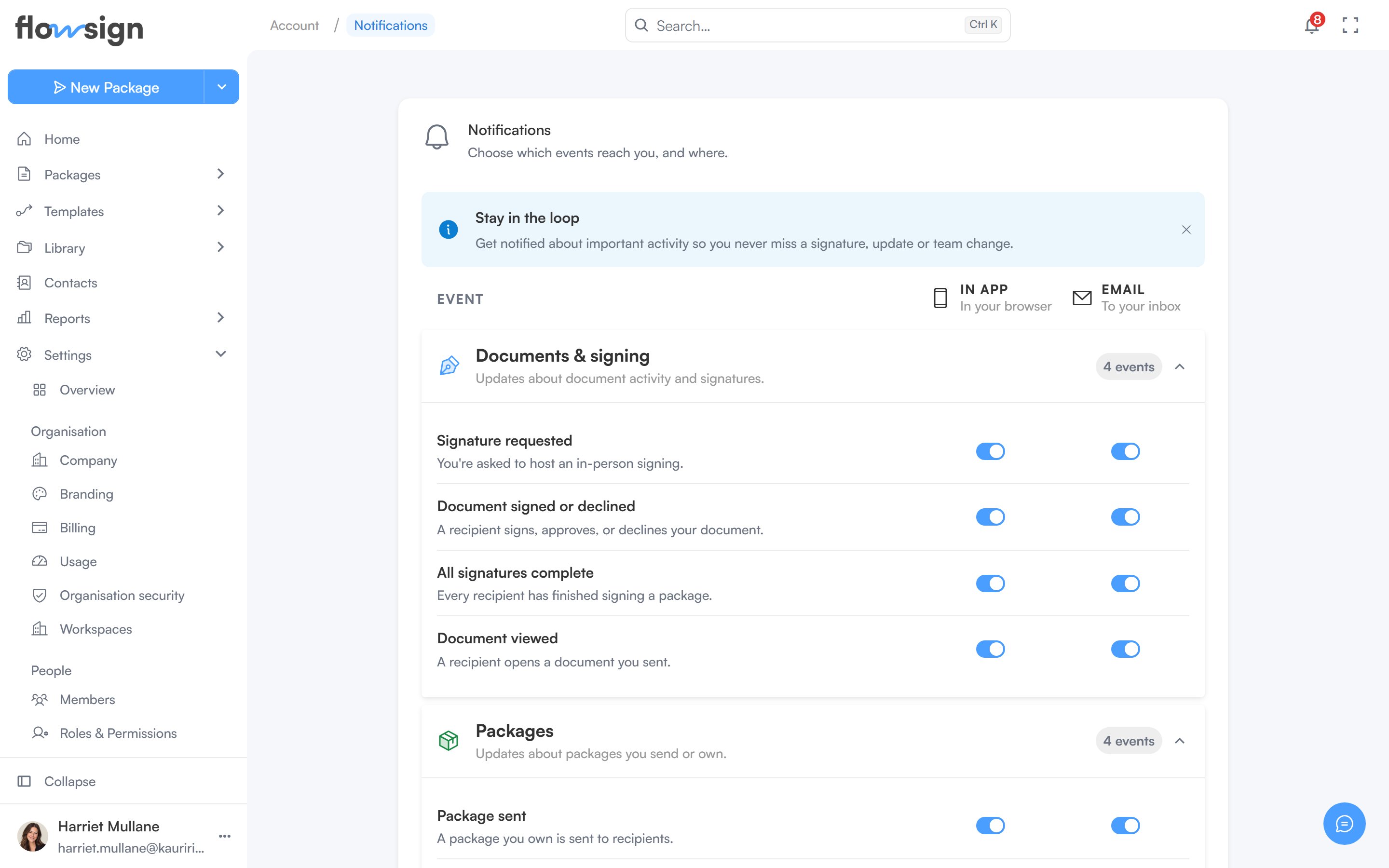
Notification preferences, per category.
Channels
- In app (“In your browser”): the bell in the top bar and the notifications feed.
- Email (“To your inbox”): messages to your inbox. Every event is on until you switch it off. A switched-off email is not sent, and it shows as Switched off in the package’s Emails tab and in Email history.
Events
- Signature requested: you are asked to host an in-person signing.
- Document signed or declined: a recipient signs, approves or declines your document.
- All signatures complete: every recipient has finished signing a package.
- Document viewed: a recipient opens a document you sent.
- Package sent: a package you own goes out, including when a colleague sends it for you. A bulk send tells you once for the whole batch.
- Package expired: a package reaches its expiry date before everyone signs.
- Package shared: a colleague shares a package with you.
- Email not delivered: an email to one of your recipients bounces or fails. The message names the recipient, the package and the reason.
- Members joining or leaving: someone joins your organisation, or your identity provider adds or deactivates a member. Owners receive this.
Saving
- Save changes enables once you have changed something and shows how many switches differ from what is saved, for example Save changes (2).
- Cancel appears once you have unsaved changes and puts every switch back to its saved state.
- Reset to default turns every switch on; it is disabled when nothing has been turned off.
- Leaving the page with unsaved changes asks whether to save or discard them first.