

.docx kept as Word content rather than flattened to a PDF. It shows real pages at real page size, laid out as they will print, and the text reflows across pages as you type.
Dynamic documents are labelled Experimental, so how they work may change as we improve them. See Release labels. They also need the Enterprise plan; see flowsign.app/pricing.
Opening the editor
In the template builder, click Edit document on a Dynamic document. The template is saved first, so name it before you open the editor.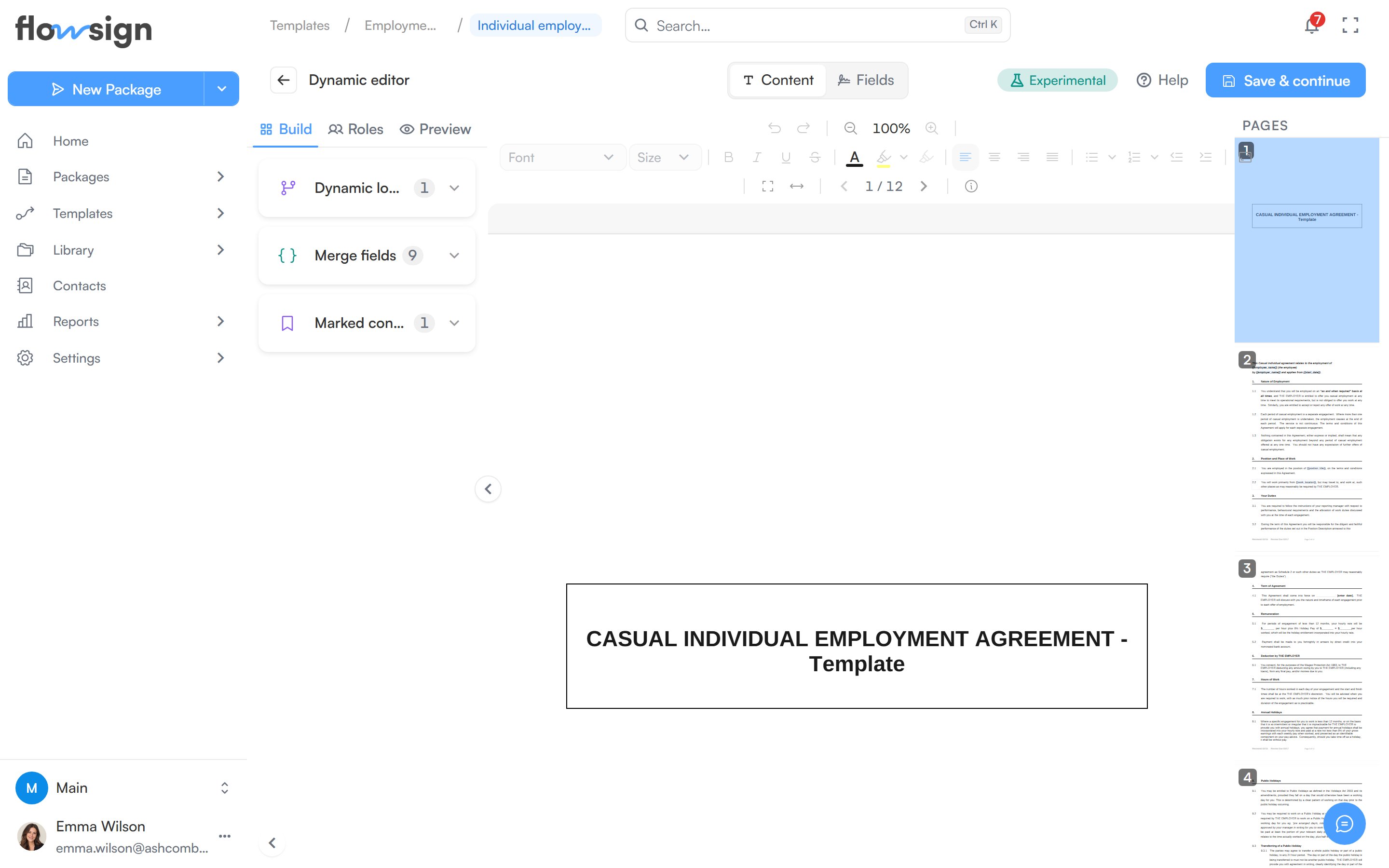
The Dynamic editor in Content mode, with the formatting toolbar above the page and the Build rail beside it.
Content and Fields
The switch in the top bar decides what the page means:-
Content (“Edit the document text, formatting and merge fields”): you type into the pages as you would in Word. The rail on the side has three tabs: Build holds Dynamic logic, Merge fields and Marked content; Roles lists the template’s roles with their recipient type and delivery, and lets you add, edit or remove one (signing order and in-person hosts are still set in template setup); Preview shows the document with merge fields filled and answers applied. The Document details button at the end of the toolbar lists the page setup and the file. Role changes made in the Roles tab are saved straight away. Removing a role deletes its fields on every document in the template, leaves any merge field filled from that role’s name or email empty until you choose another source, and can’t be undone.
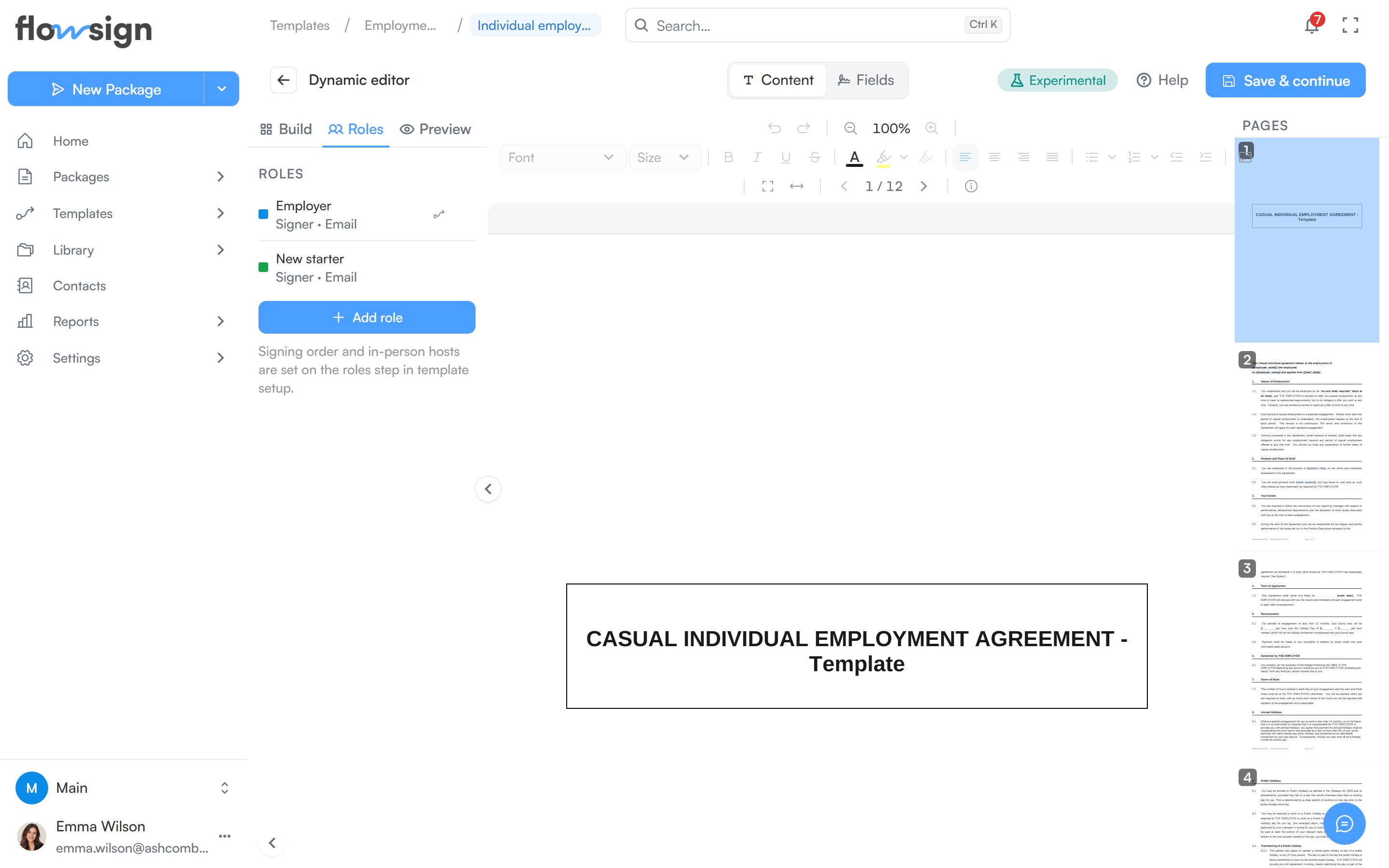
The Roles tab in the editor's rail.
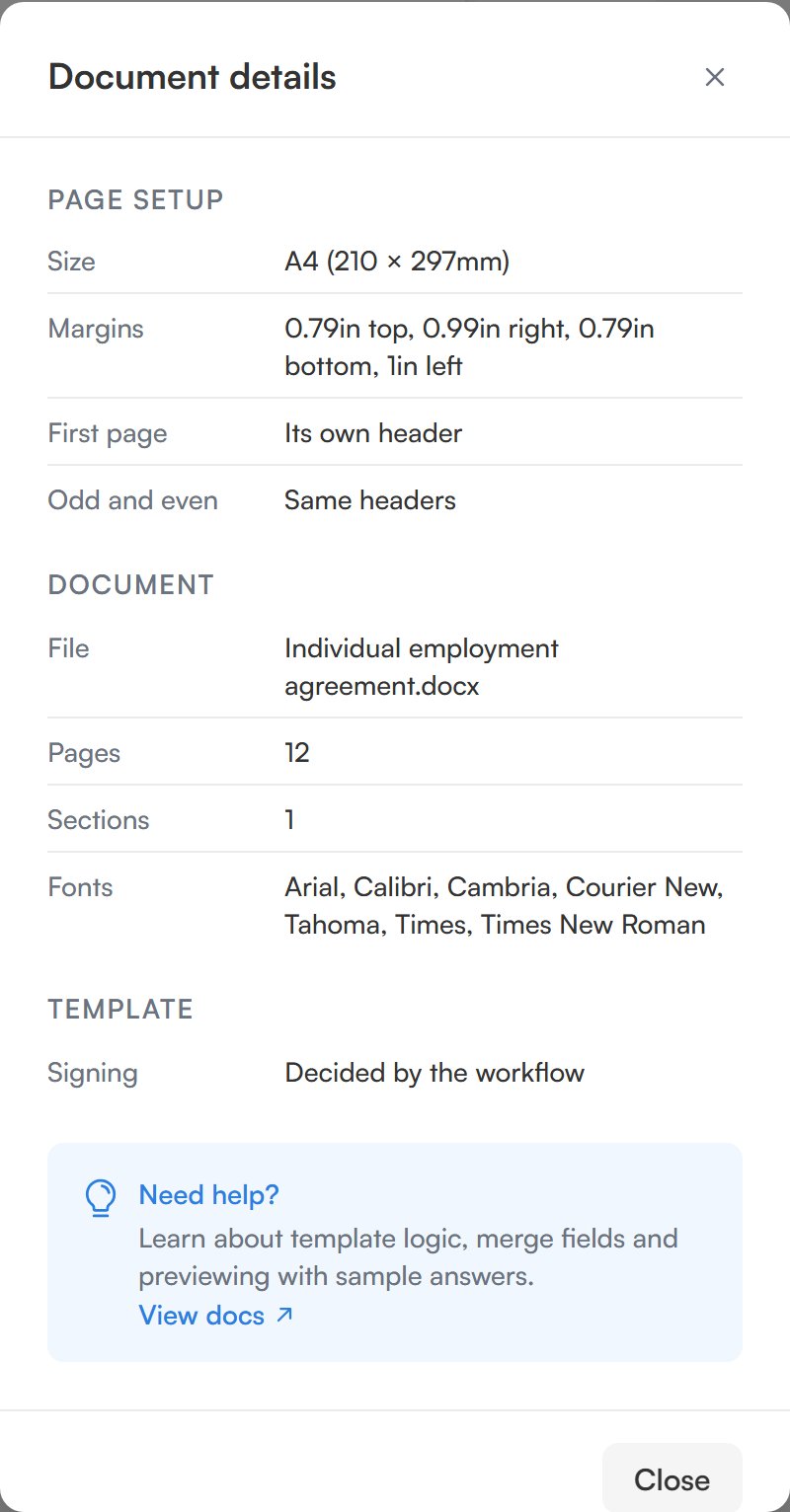
Document details, opened from the toolbar.
- Fields (“Place signature and input fields on the document”): you place signature, date and input fields for each role, as in the template field editor. Conditional logic and Test logic work here too. Leaving Fields mode closes any pick or test in progress.
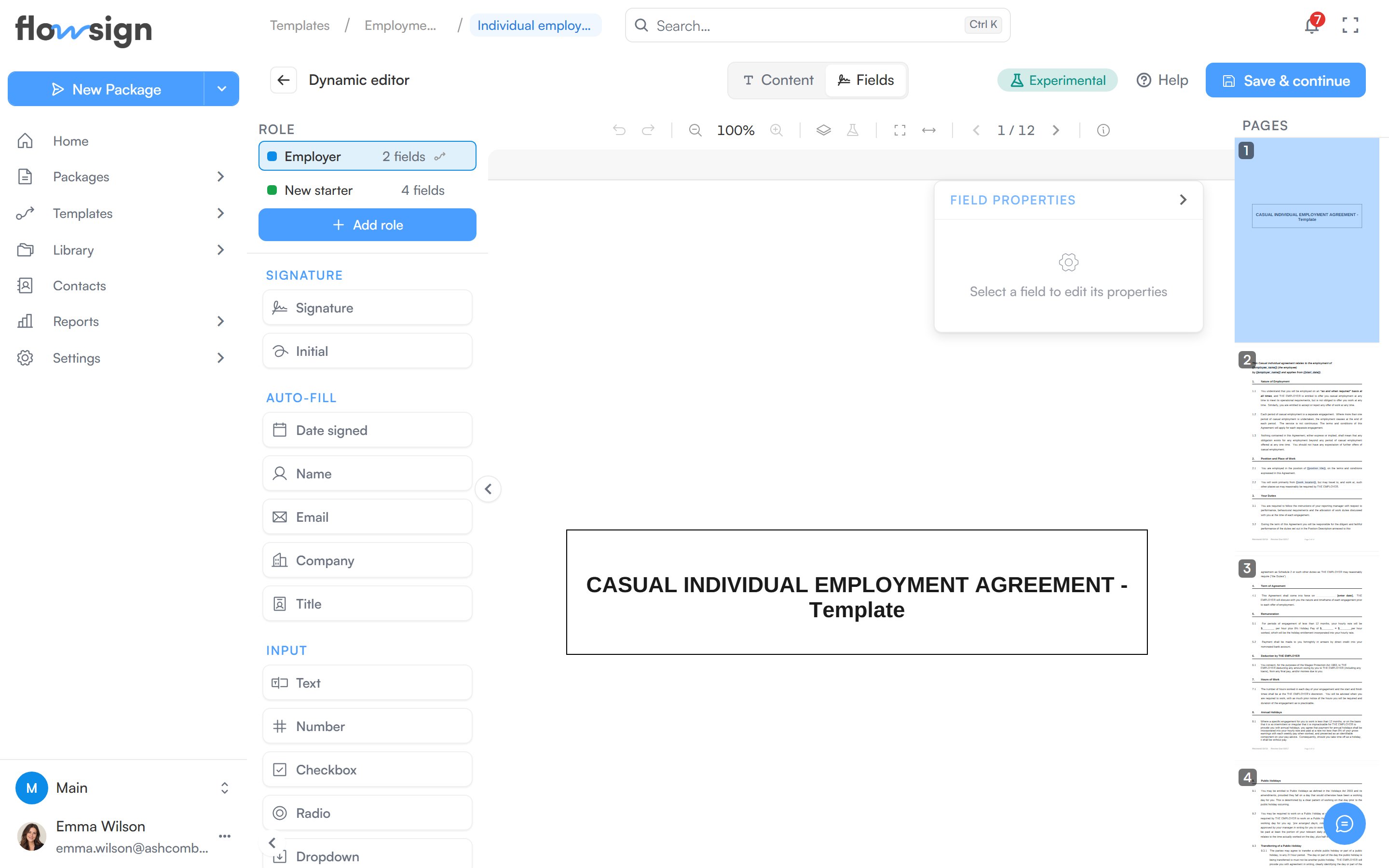
Fields mode, with the role chips and field palette in the rail.
Formatting
The toolbar above the pages works on the text you have selected. Alongside font, size, Bold, Italic, Underline, Strikethrough, Text color and alignment, it has:Lists and outline numbering
Bullet list (Ctrl+Shift+8) and Numbered list (Ctrl+Shift+7) each have an arrow beside them that opens a set of styles. Bullet style offers discs, diamonds, arrows, ticks, dashes and stars. Numbering style offers1., A., I., a. and 01. lists, and three outline presets that number levels as 1., 1.1 and 1.1.1. The outline presets differ only in their third level: 1.1.1, a. or i..
Increase indent (Ctrl+]) and Decrease indent (Ctrl+[) move an item down or up a level, and it is renumbered from the list it lands in.
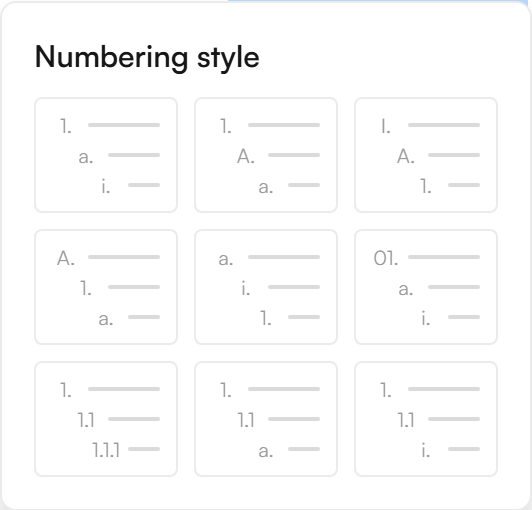
Numbering styles, including the three outline presets.
Highlights
Highlight applies the last colour you used. The arrow beside it (Highlight colors) opens a grid of swatches. Under Custom, the + button opens a colour picker with a hex box; the colour is only added (and applied to the selection) when you click Apply, and your last four custom colours stay in the grid. Clear highlight removes it.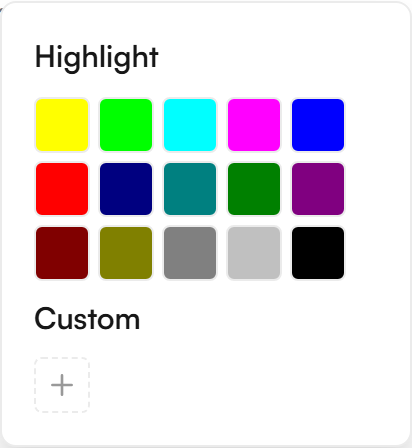
Highlight swatches, with custom colours below.
Images
Click an image to select it.- Drag a corner handle to resize it in proportion. Hold Shift to resize freely. A side handle stretches one side only.
- A floating image (one placed in front of or behind the text, as Word places it) can be dragged to a new spot. The arrow keys nudge it, and Shift with an arrow key moves it further.
- Delete or Backspace removes the selected image.
Page margins
Page margins in the toolbar opens Margins. Choose All sides to set one value, or Each side for Top, Bottom, Left and Right separately, in inches. Tables scale with the text width, so they stay inside the new margins.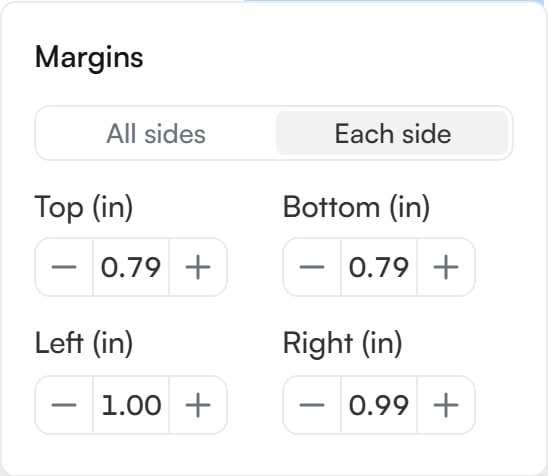
The Margins control, set for each side.
Zoom and pages
Zoom in (Ctrl++), Zoom out (Ctrl+-), Reset zoom (Ctrl+0), Fit page and Fit width change only how large the pages look. Where each page breaks stays the same at every zoom. Previous page and Next page step through the document, and the thumbnails jump to a page.Merge fields
In Content mode, select text in the document and choose Make merge field from the bubble that appears (or right-click). Use existing merge field links the selection to one the template already has. The rail’s Merge fields section and both Use existing merge field menus list every merge field on the template, including ones from the template setup screen and other dynamic documents. One that isn’t placed yet reads Not in this document yet: select text and choose Apply to selection to place it. Placing one copies its type, choices, required setting and default. Once it’s placed, the template setup screen follows this document’s copy of that field. Click a placed merge field in the rail to set how it is filled in. In that dialog, New role beside Filled in by adds a role without leaving the document. See Merge fields on PDFs for the Filled in by options. The same bubble offers Show only sometimes (Make conditional in the right-click menu) and Offer alternative wording, which mark content for Dynamic logic to act on from an answer given at send time. Either one also starts a rule for the marked content: with no rules yet the Create rule dialog opens, and otherwise What decides this content? lets you pick an existing question or New question. In Fields mode, the rail’s Merge fields section lists the template’s merge fields and the ones placed in this document, ready to place on the page. Merge fields a signer fills in are left out, because they have no value until signing.Dynamic logic
In the rail’s Dynamic logic section, Add rule opens the Create rule dialog (Edit rule for an existing one). A rule asks the sender a question, then says what each answer does to the document.- Sender question: required. Done won’t close the dialog until it is filled in, though Delete rule is always available.
- Answer options: the answers the sender picks from. A new rule starts with Yes and No, and two answers is the minimum. Add answer adds one. One answer is the default (No to begin with): it is preselected when sending and used if the question is skipped.
- When to ask: shown from the second rule onward. Choose Always, or an earlier question and the answer it must have.
- What each answer does: each answer has its own card with an Add effect button. Its menu is grouped:
- Content: Show content, Hide content and Swap content, which act on marked content. Select in document marks the content from the dialog, so it need not be marked first.
- Merge fields: Ask the sender, which asks for a merge field only when that answer is given (tick Required to make it compulsory), and Fill in now, which sets the merge field to a fixed value so the sender isn’t asked for it.