

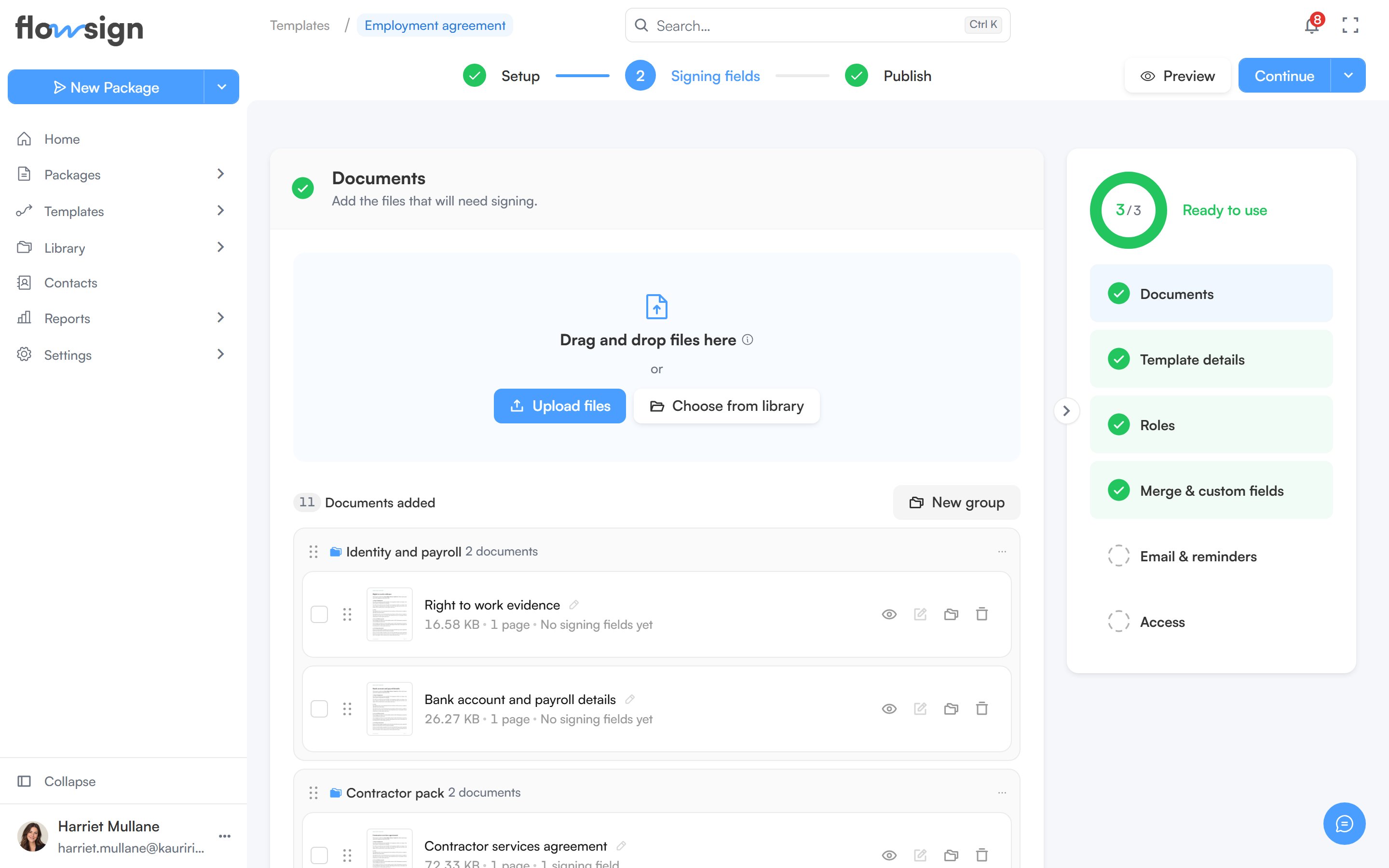
The template builder, with the template's roles and documents.
Steps
The top bar tracks three steps: Setup (name the template, add its documents and roles), Signing fields (place fields for each role, shown once the template has documents that need them) and Publish.Sections
Setup is organised into sections: Documents, Template details, Roles, Merge & custom fields and Email & reminders. A summary panel on the side tracks each section’s progress and lets you jump to any of them. In Roles, choosing Workflow as the signing mode adds a canvas that opens the workflow builder: see Workflow signing.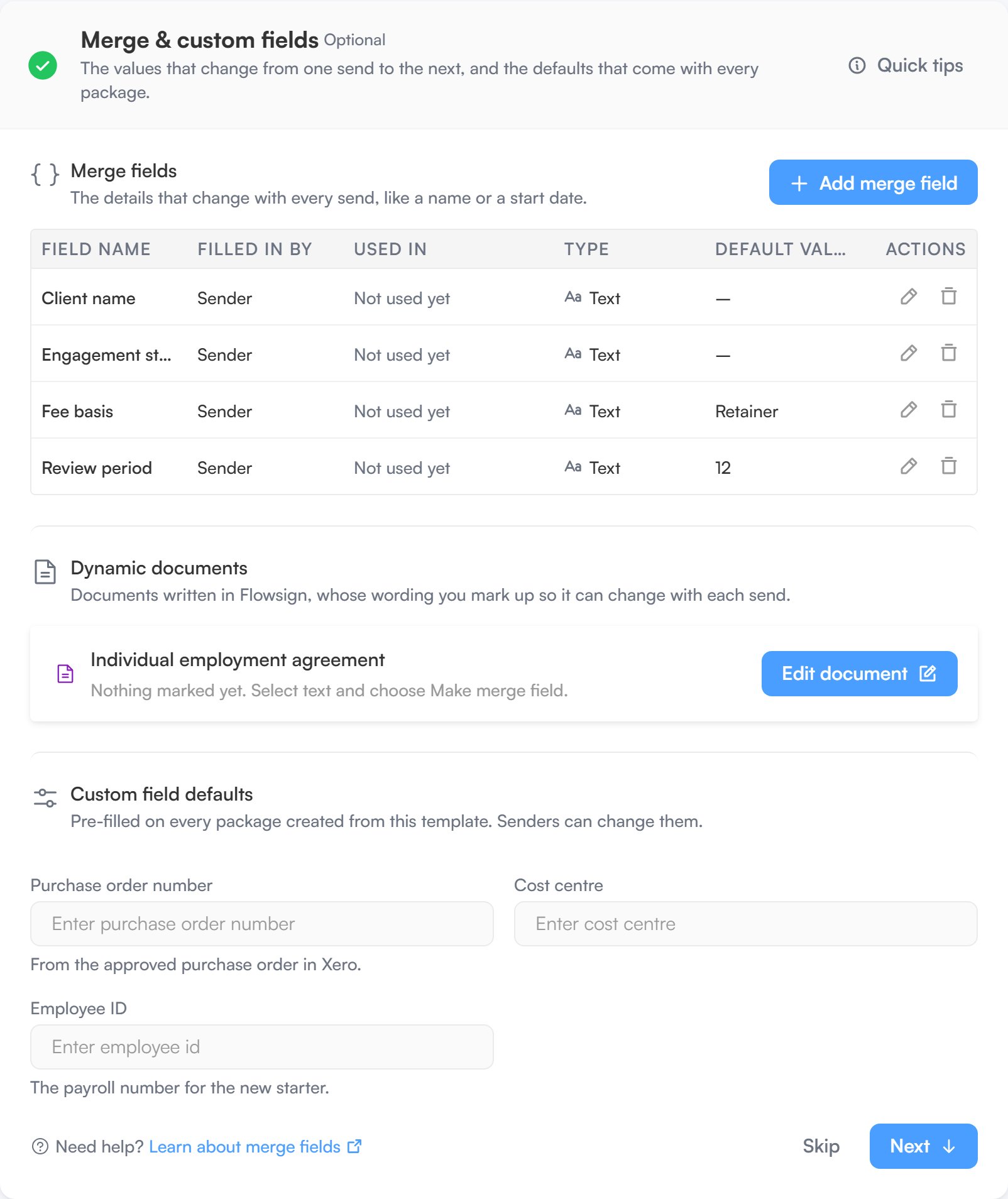
The Merge & custom fields section.
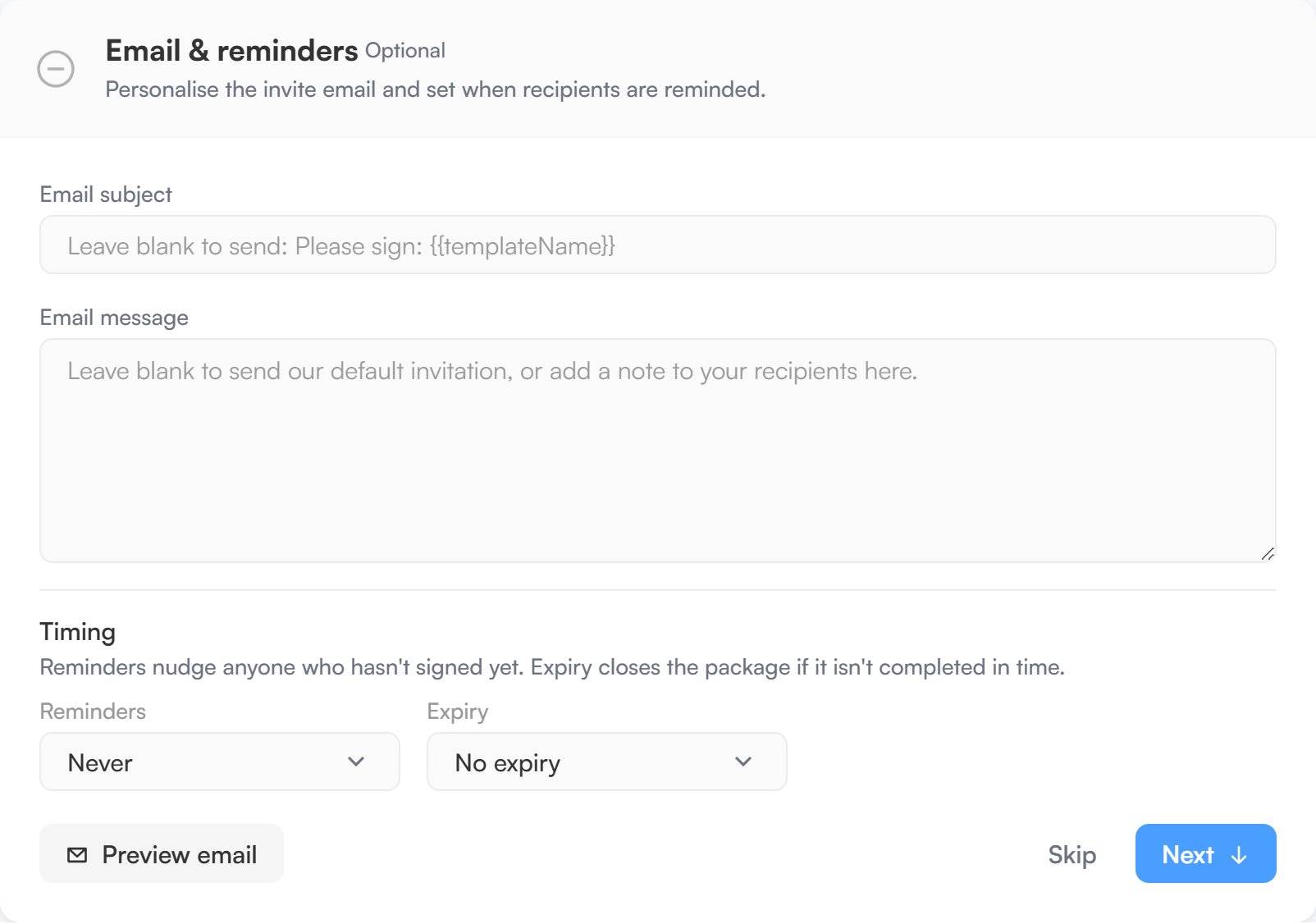
The Email & reminders section, with the invitation and its timing.
Fields
The Signing fields step moves you to a dedicated page for placing fields per role. See Template fields.Publishing
A new template is a draft until you publish it. Drafts are listed under Drafts and can’t be sent.- Preview opens the template as it will be sent. Save the template first to preview it.
- The main button moves you on: Continue while documents still need fields, then Publish, then Send once the template is published and saved.
- Its menu also offers Publish & send (publish, then go straight to Send from template) and Save draft, which saves without publishing.