

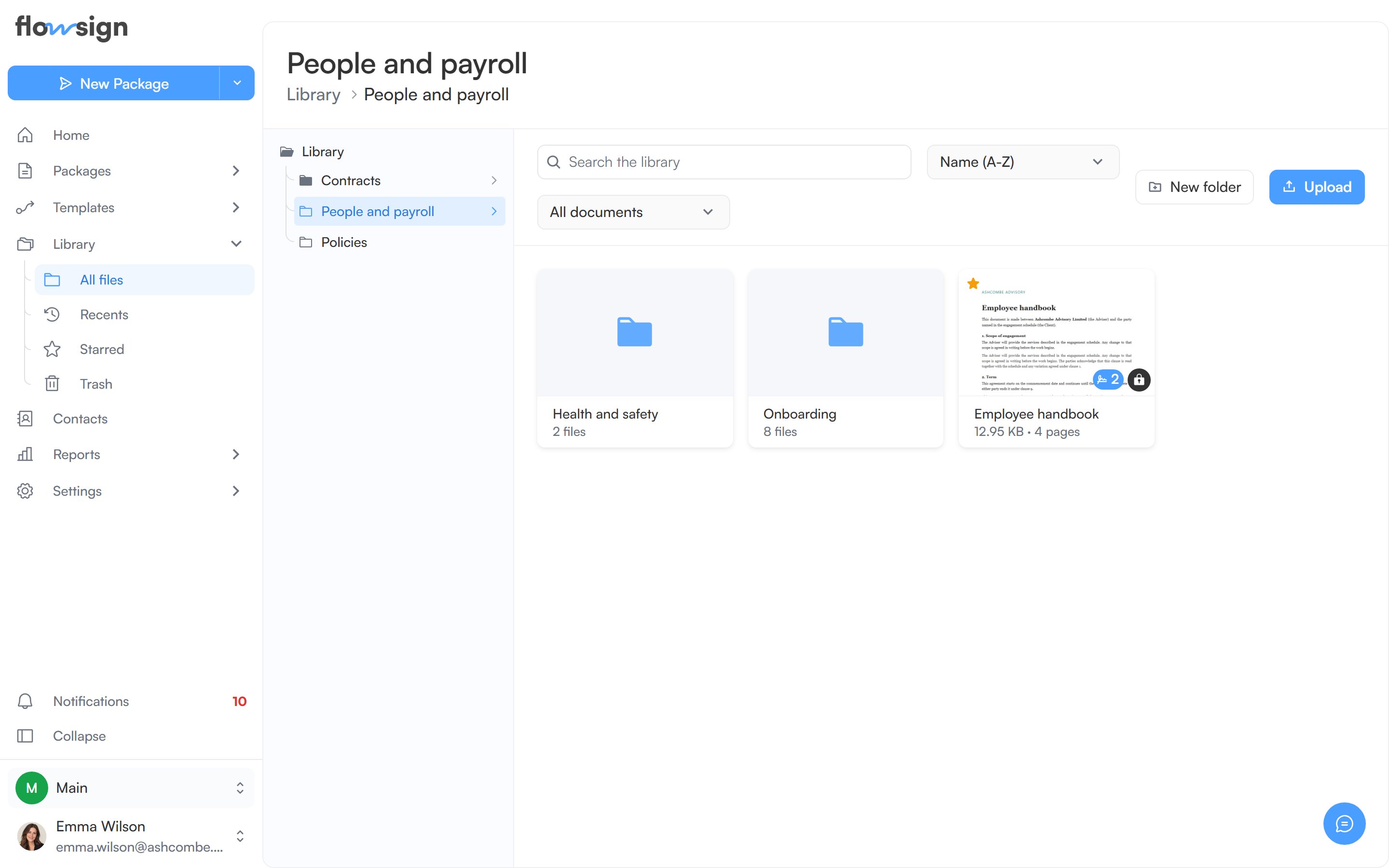
A library document with fields, showing its field-count badge.
Prepare fields in the library
Open a document card’s actions menu in the Library and choose Prepare fields. This opens the field editor for the library document, where you add roles and place fields just as you would in a template. Prepare fields needs the Manage the library permission. The palette’s Merge fields section adds merge fields to a PDF: see Merge fields on PDFs. Cards with fields show a small badge with the number of fields placed. Editing a library document’s fields or roles always needs Manage the library, even when you can edit a template that links it.Document details
Details in a document card’s actions menu opens Document details. Anyone who can open the library can use it. It shows the document’s type, pages, file size, recipients, fields, location, who uploaded it and when it was created and last updated. Used in lists each template that links the document, one per line, or reads No templates. With Manage the library, the dialog also offers Prepare fields (or Edit document for a Dynamic document).
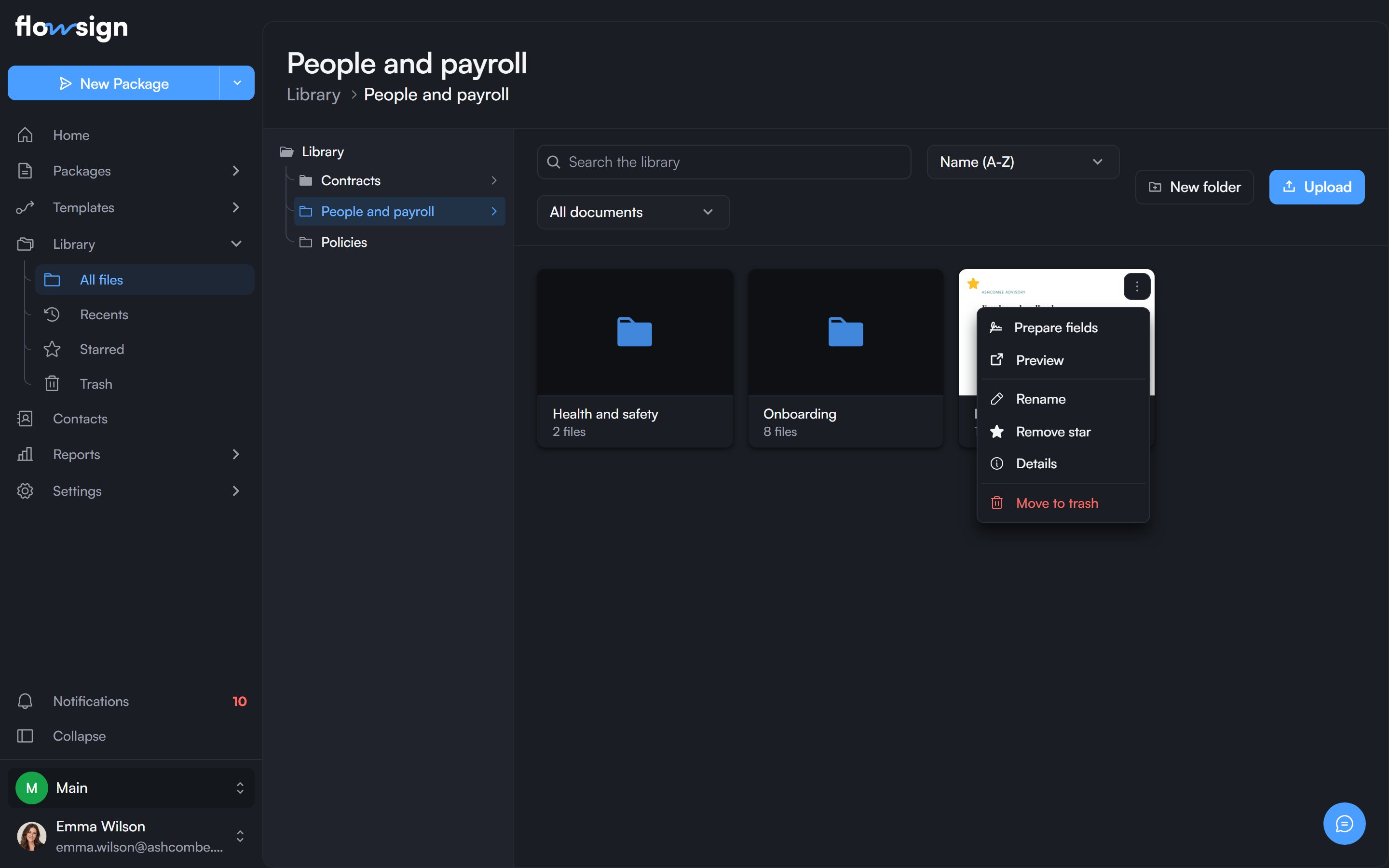
Prepare fields in a library document's actions menu.
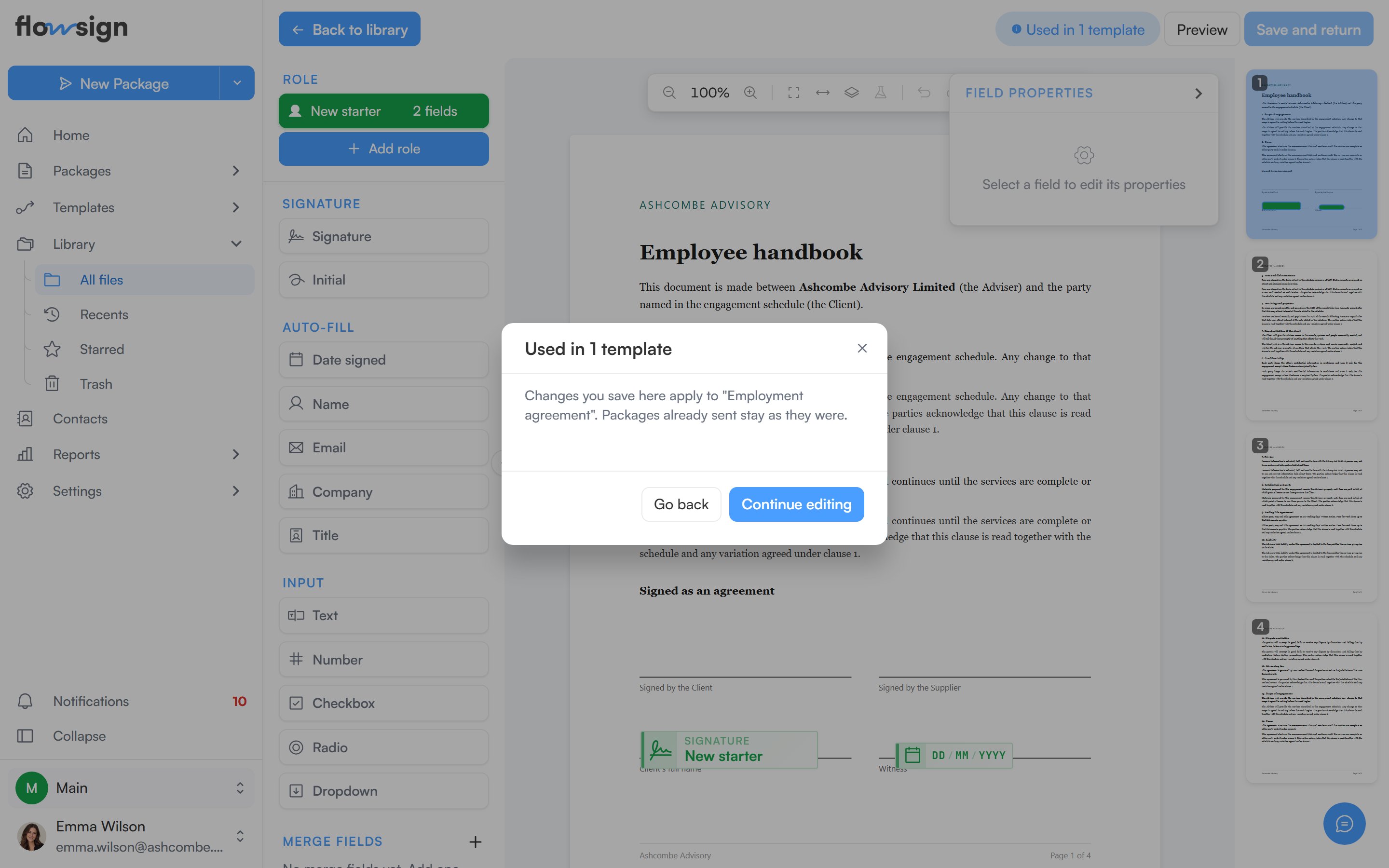
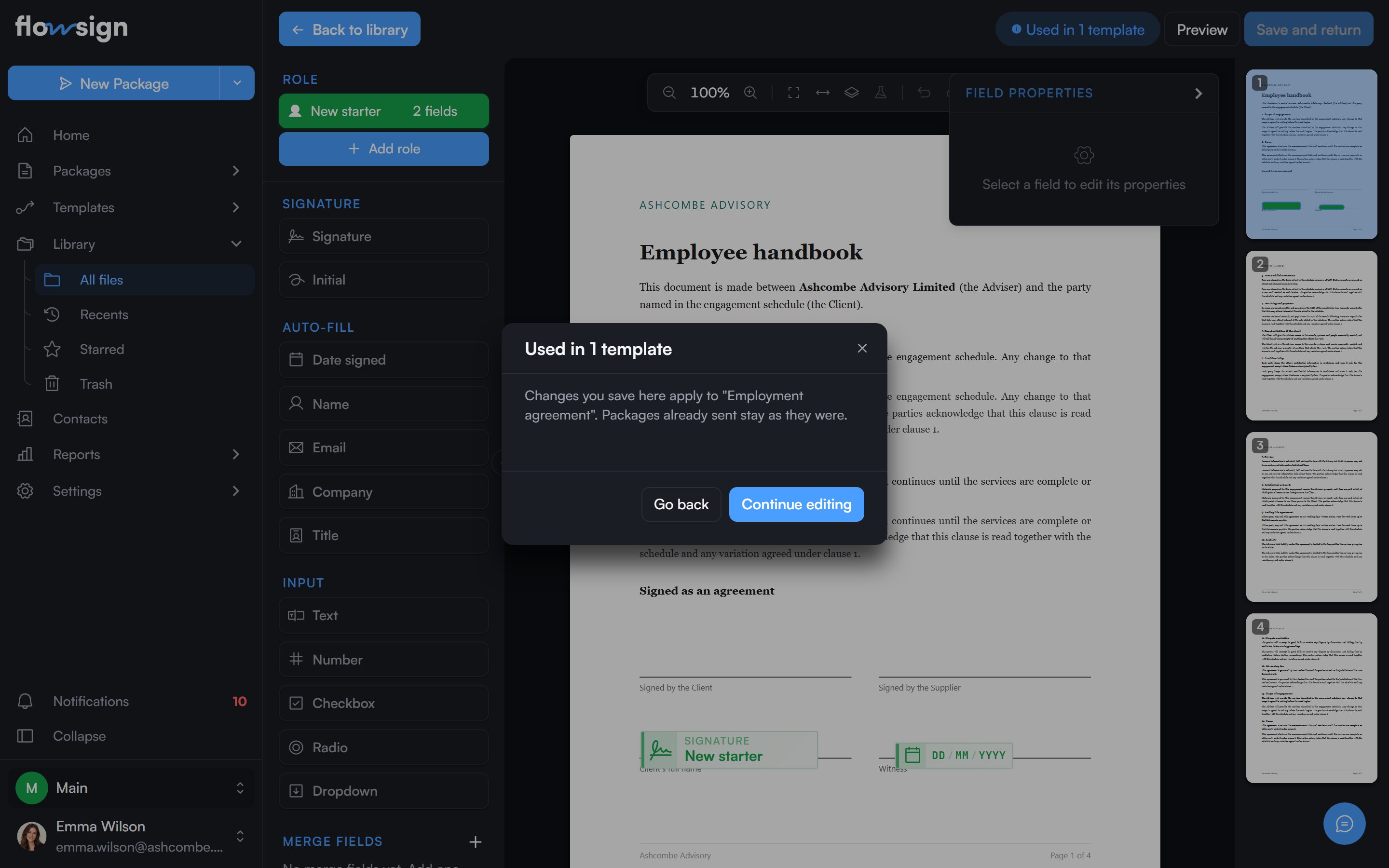
The field editor for a library document, with its own roles.
Link a document into a template or draft
Pick the document from the library when adding documents to a template on the template setup screen, or to a draft package. It appears in the document list with Library in its Source column. In a template, picking library documents that have roles always opens the Choose roles step. It lists every role in the picked documents. For each one, pick an existing template role to fill it, or choose its New role option (for example New role: Client) to add it to the template as a new role. A template role with the same name is already selected for you. An unnamed role, like the blank one a new template starts with, is chosen for a library role with no match and takes its name. Then choose Add documents, or Back to change your pick. Anyone who can edit the template can do this. In a draft package, the same step is called Choose recipients. For each library role, pick an existing recipient, or choose its New recipient option (for example New recipient for Client) to add one. Then choose Add documents. A recipient with the same role name is already selected for you. In a template, Rename in this template gives a linked document its own name in that template only. The library and other templates keep theirs. The name can include merge fields: type{{ to pick one. Use library name goes back to the library name. In a package, a linked document can’t be renamed.
A linked document can’t be edited inside the template’s or package’s field editor. Its fields come from the library, so you change them there.
The linked document’s menu
A linked document’s menu offers:- Rename in this template: name the document for this template only. Templates only.
- Use library name: drop this template’s own name and go back to the library name. Shown once you’ve renamed it.
- Edit in library: opens the library field editor for the document. Only people with Manage the library see this.
- Choose roles: decide which of your roles or recipients fills each library role.
- Detach to customise: give this template or draft its own copy of the document and its fields.
- Clear fields: breaks the link to the library first, then removes every field from this copy. Dynamic documents don’t offer this.
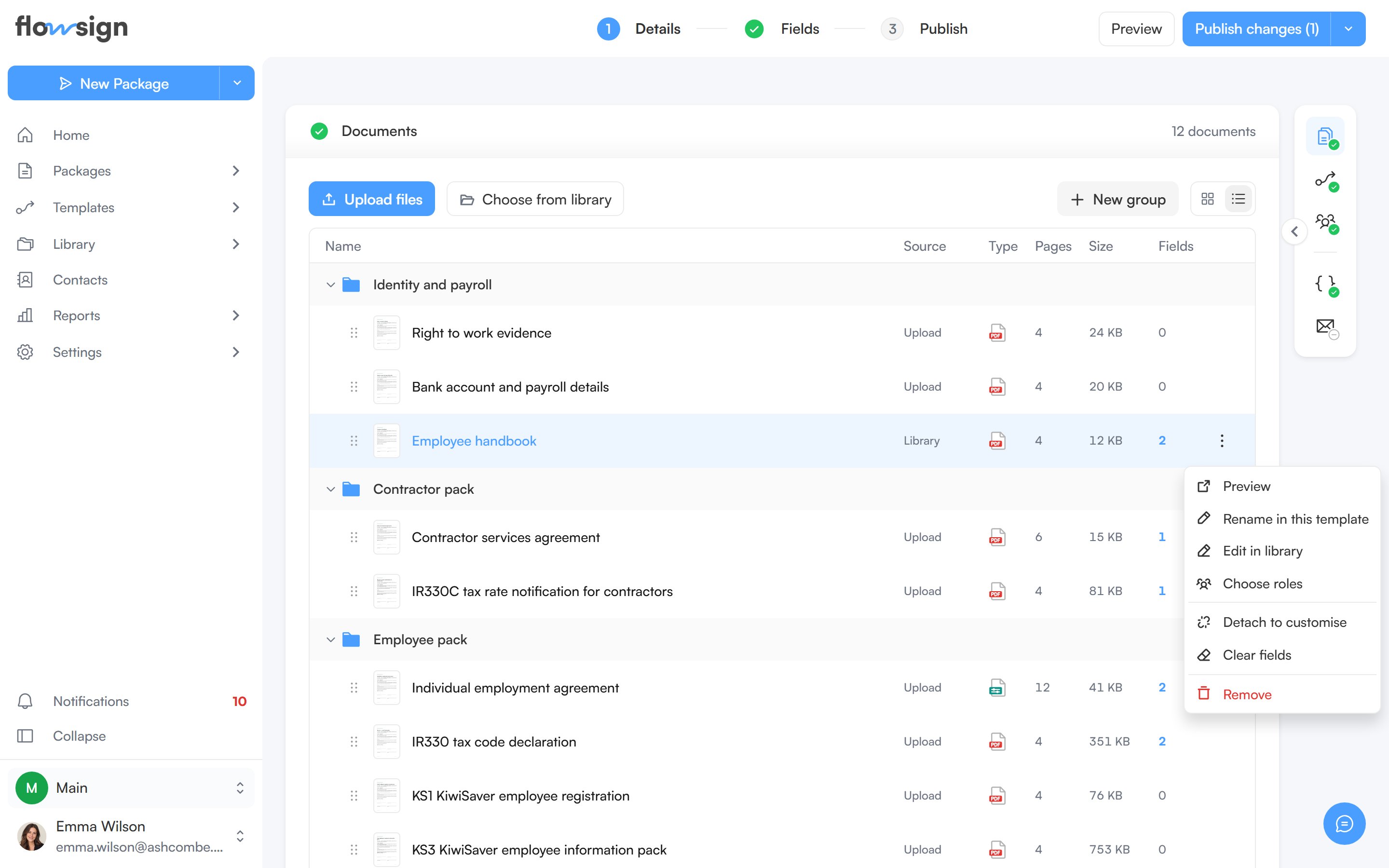
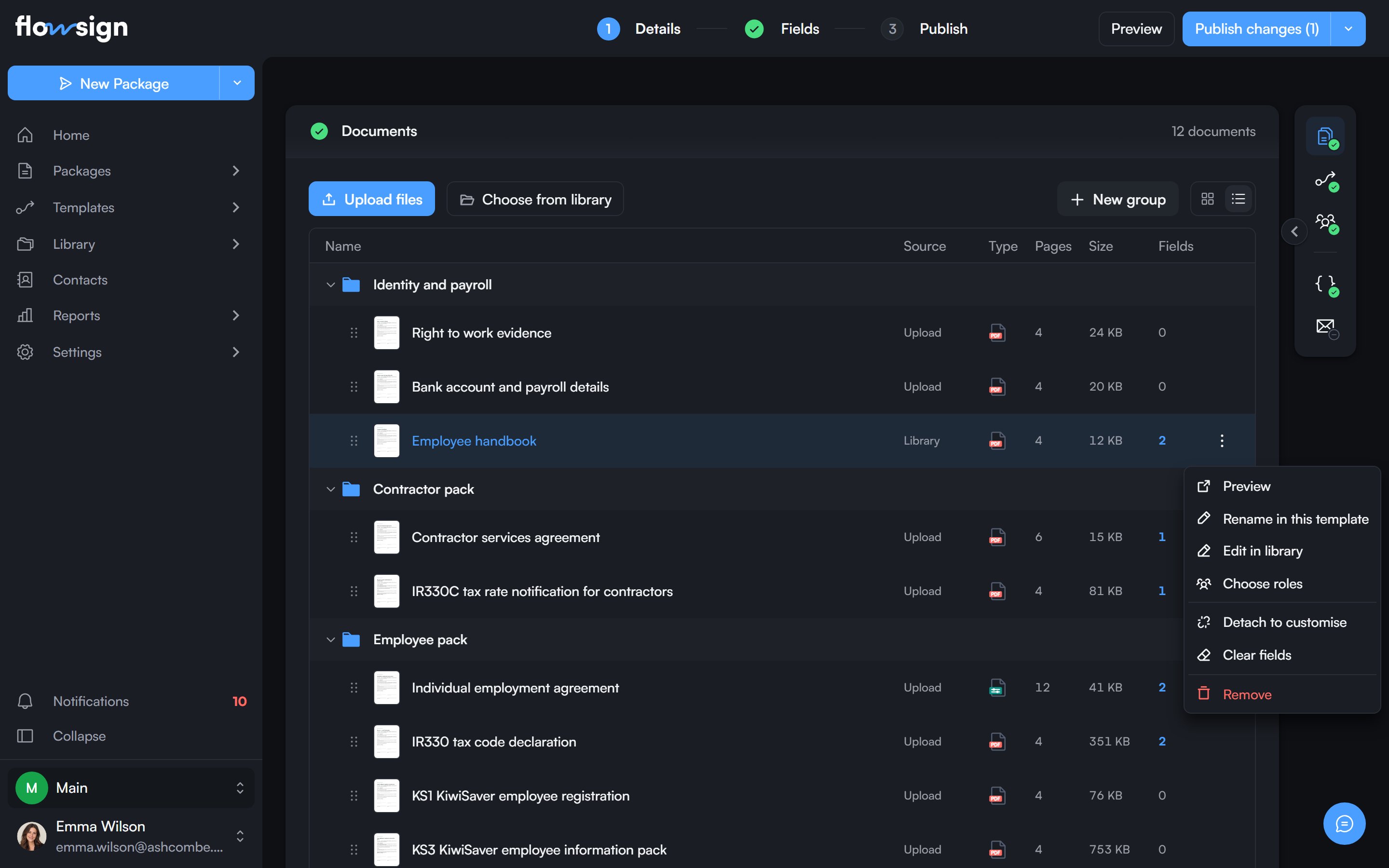
The menu on a linked document in a template.
Choose roles
Each template or draft keeps a map from the library document’s roles to its own: template roles in a template, recipients in a package. Roles match by name automatically, and a library role with no match in a template becomes a new template role. To change the mapping, choose Choose roles. The Choose who fills each role dialog lists every library role with a picker beside it. Choose a role or recipient for each one, then Save roles. Merge fields on the document that read a library role use whichever role or recipient you choose for it. A role or recipient that fills a library role shows a link icon. Click it to see which documents and roles it fills, and choose one to jump to that document. It can’t be removed while it fills a library role: choose someone else for that role first, or remove the document. In the library field editor, a role that a merge field reads from can’t be removed either.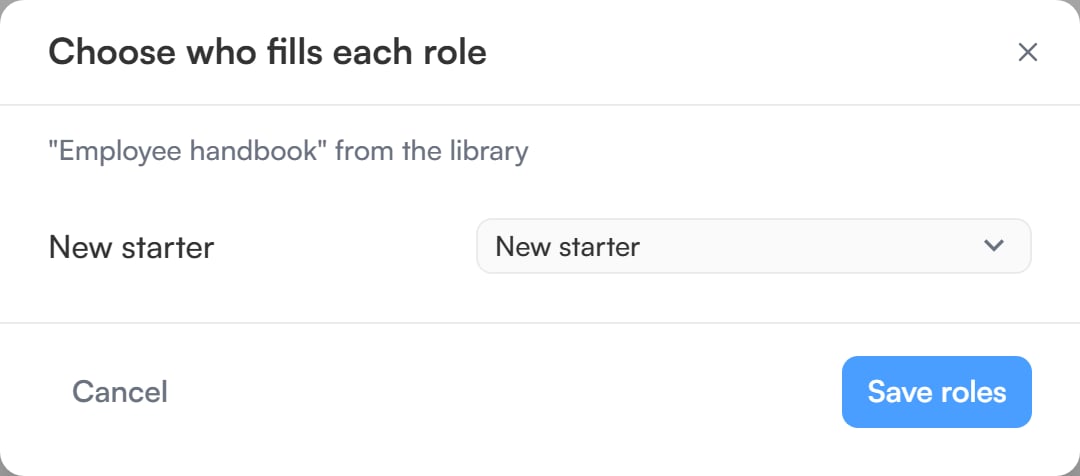
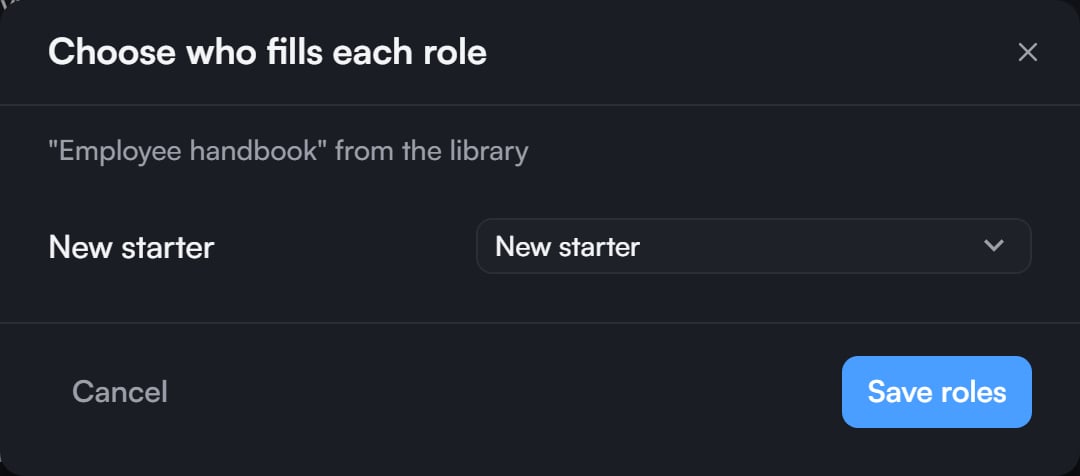
Choose who fills each library role.