

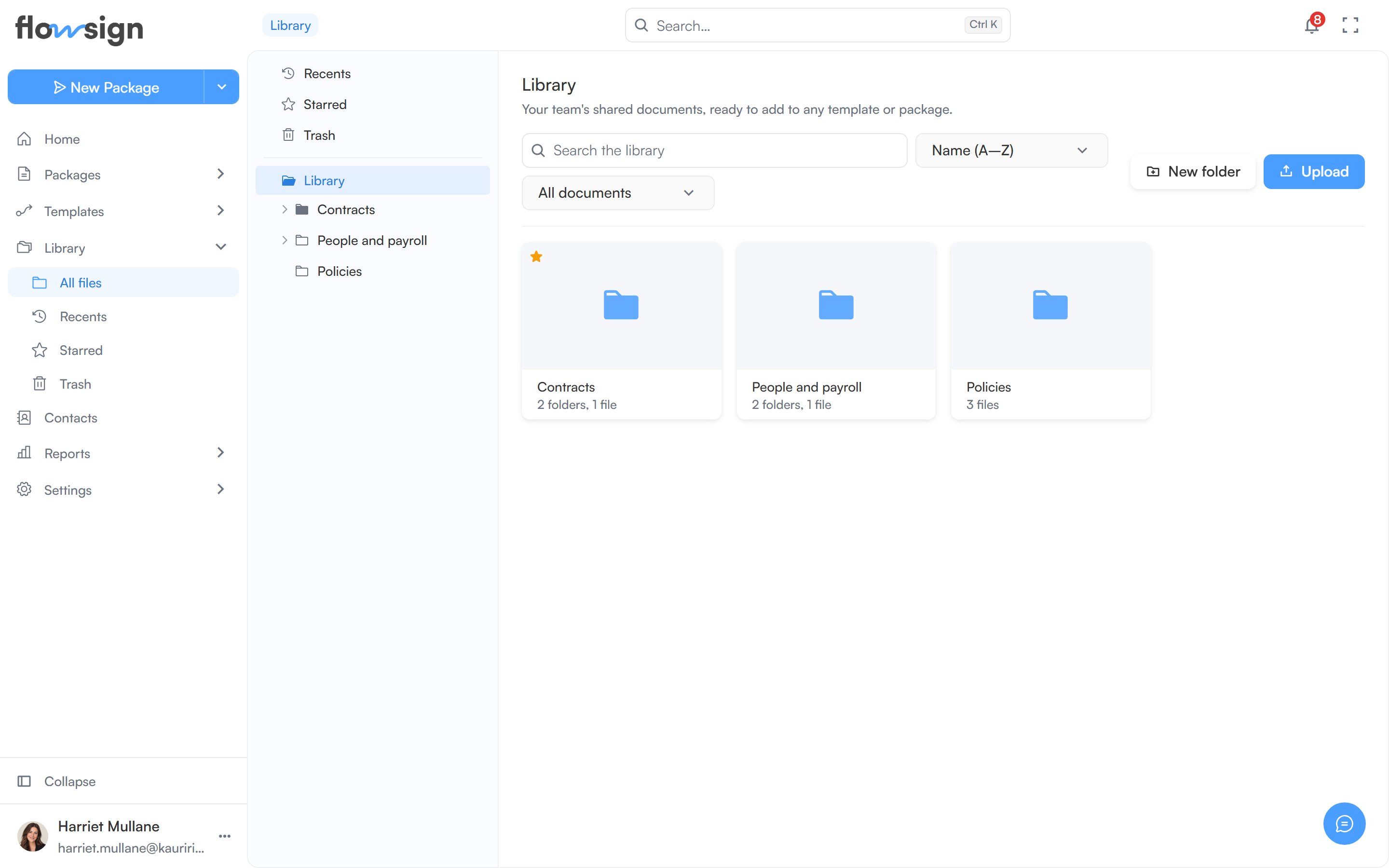
The library, with its folder tree and documents.
Layout
A folder tree sits on the left, with Recents, Starred and Trash alongside your folders. The main panel shows breadcrumbs for the current folder, its contents as a grid of folder and document cards, and a toolbar.Toolbar
- Search the library searches every folder.
- A sort control: Name (A–Z), Name (Z–A), Last modified, Oldest first, Largest first or Smallest first.
- A type filter: All documents, PDFs or Word documents.
- New folder and Upload. You can also drag files onto the page to upload them into the current folder.
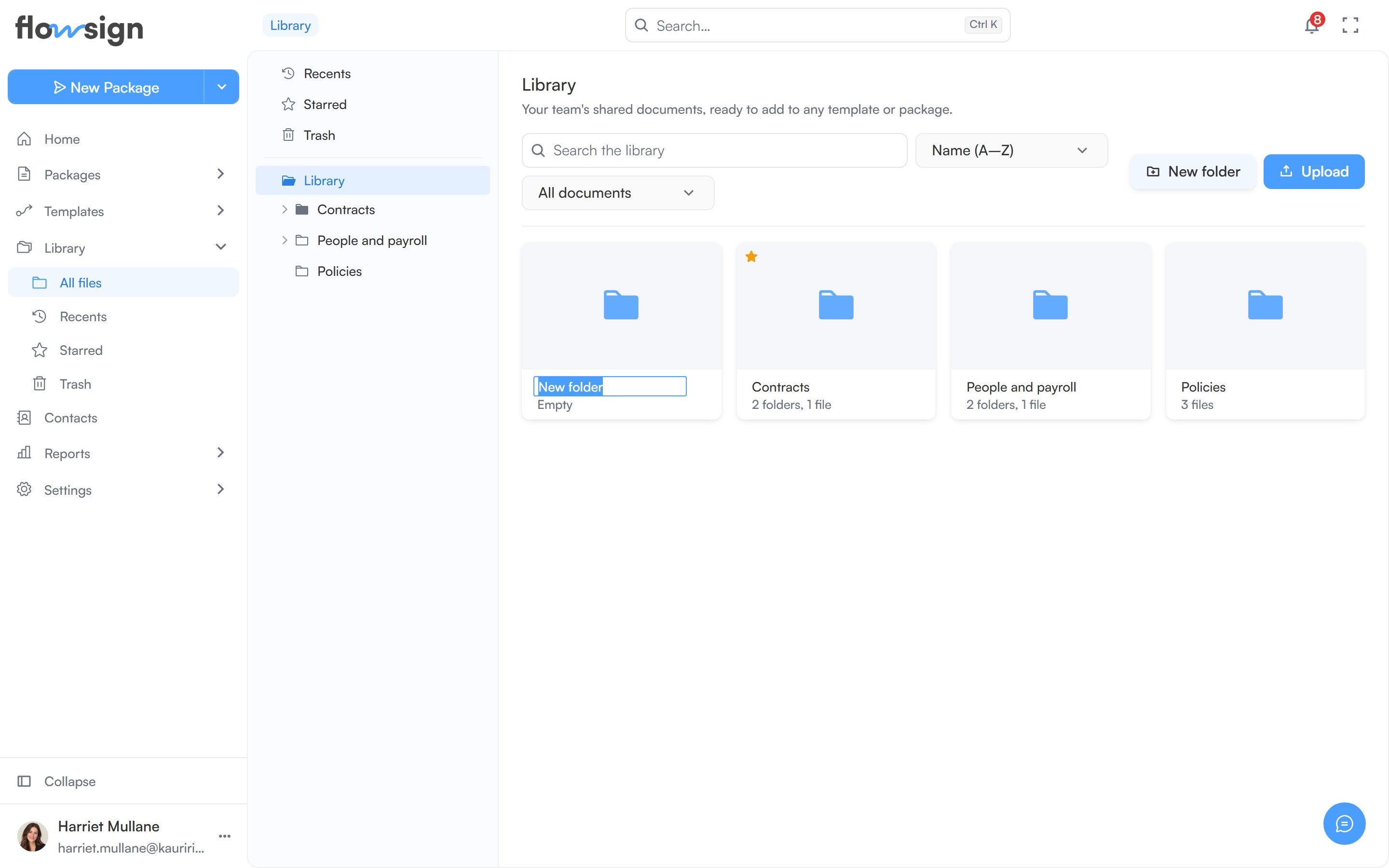
New folder, ready to name before it's created.
Working with items
Click a document to open it. With Manage the library, each card also has an actions menu:- Rename.
- Add star or Remove star. Stars are shared with the whole team.
- Move to trash.
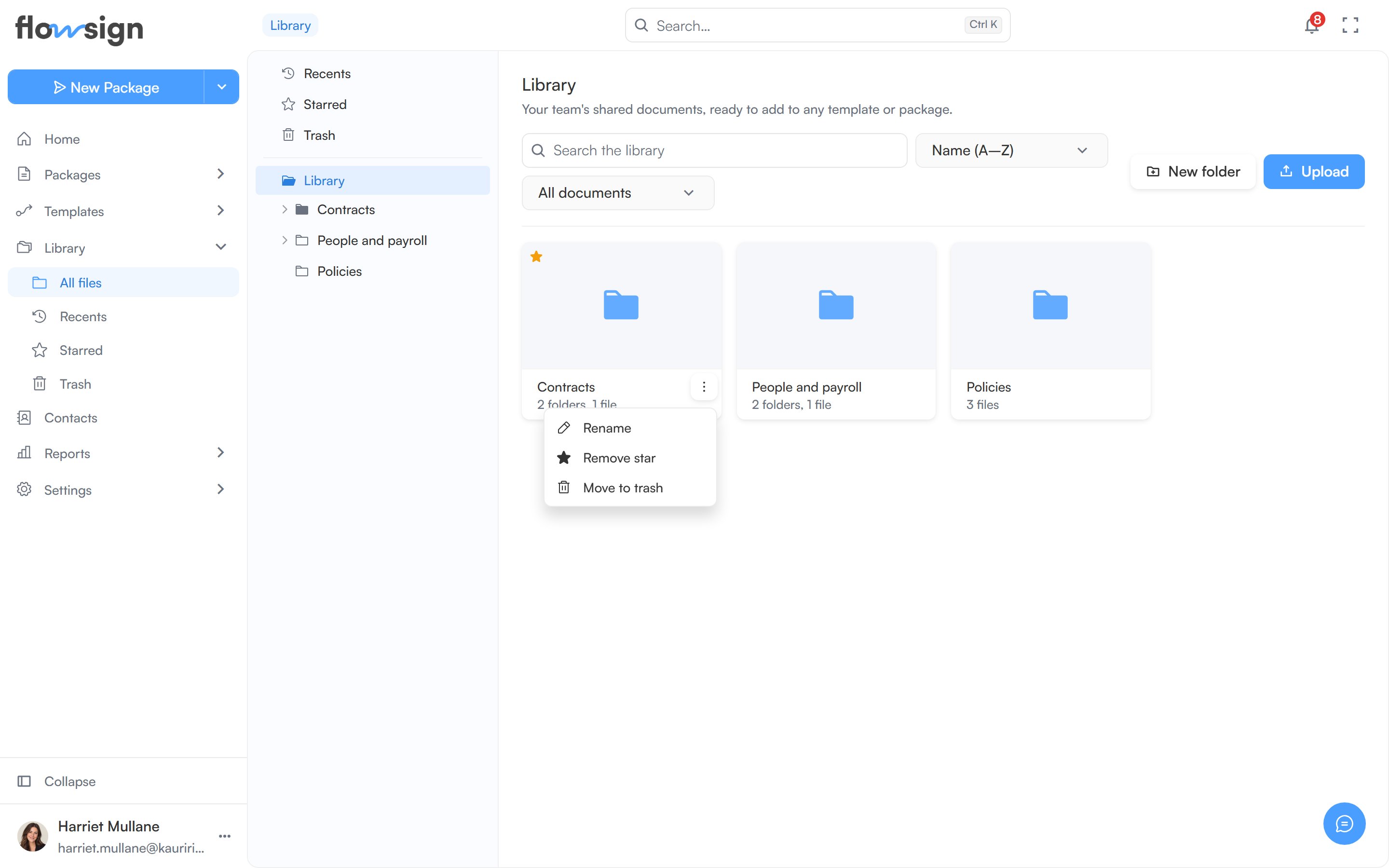
A document's actions menu.
- Moving to trash asks you to confirm: “You can restore it from Trash any time.” For a folder: “Everything inside goes with it.” Trashed items stay there for 30 days unless you restore them or delete them forever first, then are deleted for good.
- In Trash, the menu offers Restore and Delete forever. Deleting forever warns: “This can’t be undone. The file is removed from storage.”
Empty states
- Empty folder: This folder is empty: “Drag files in, or use the Upload button above.” with a New folder button (or, without manage permission, “Nothing has been filed here yet.”).
- No search matches: Nothing matches ”…”: “Try a shorter term, or clear the filter.”