

Before you start
Merge fields are created in the template builder’s Merge & custom fields section first. Each one you add there appears in the field editor, ready to place.Placing a merge field
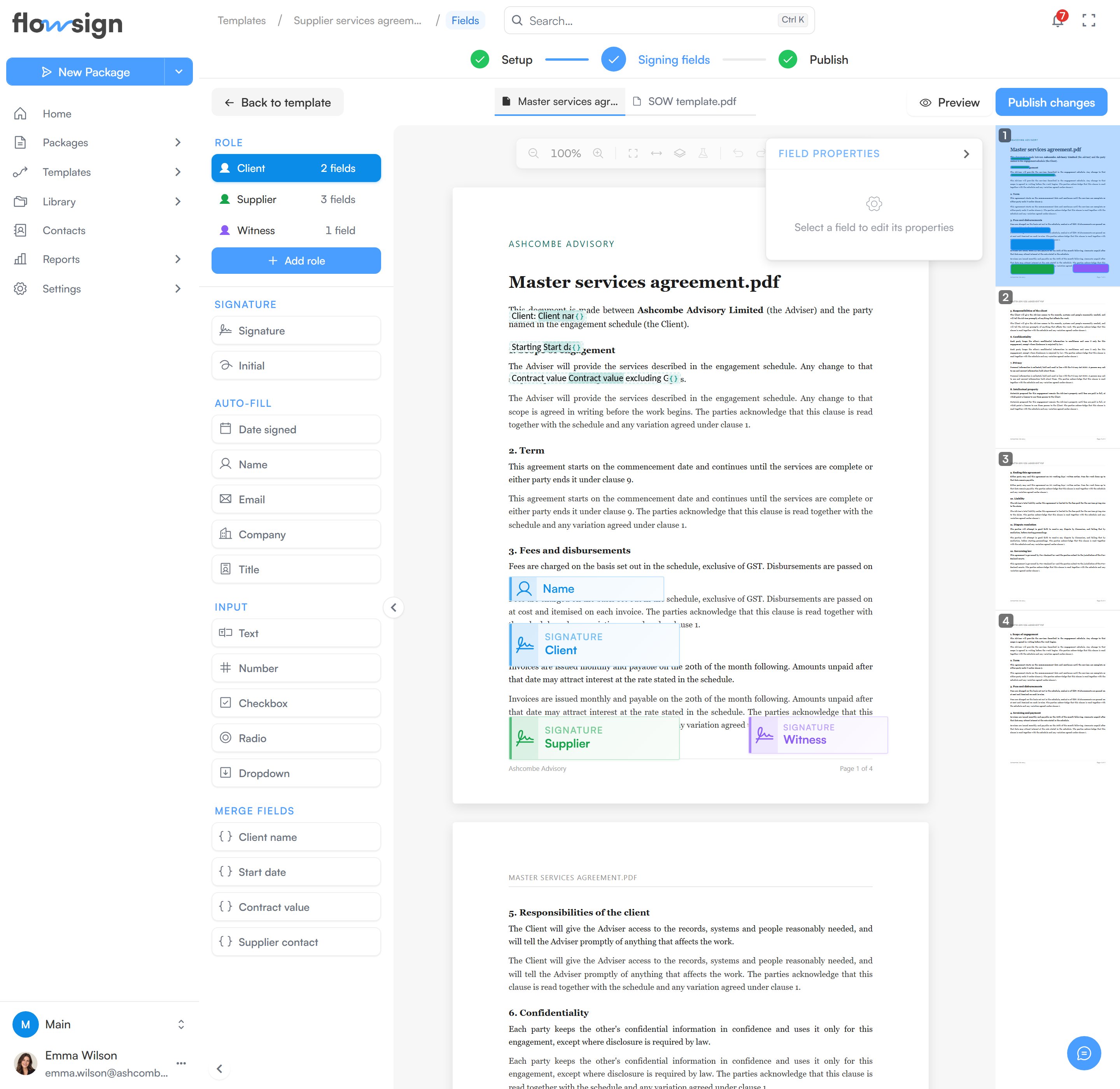
The Merge fields section of the palette, with three merge fields placed on the page.
1
Open the field editor
Click Signing fields in the template builder’s top bar to open the template field editor.
2
Pick a merge field
The left palette has a Merge fields section listing the template’s merge fields. Click one, or drag it onto the page, to place it.
3
Edit its text
Select the placed box to open Field properties, then edit its Display text box. Typing
{{ opens a list of the template’s merge fields, and the Insert a merge field chips add one where the cursor is.Client: {{client_name}}.
In the editor, each merge field shows its default value as a stand-in, or its name if it has no default.
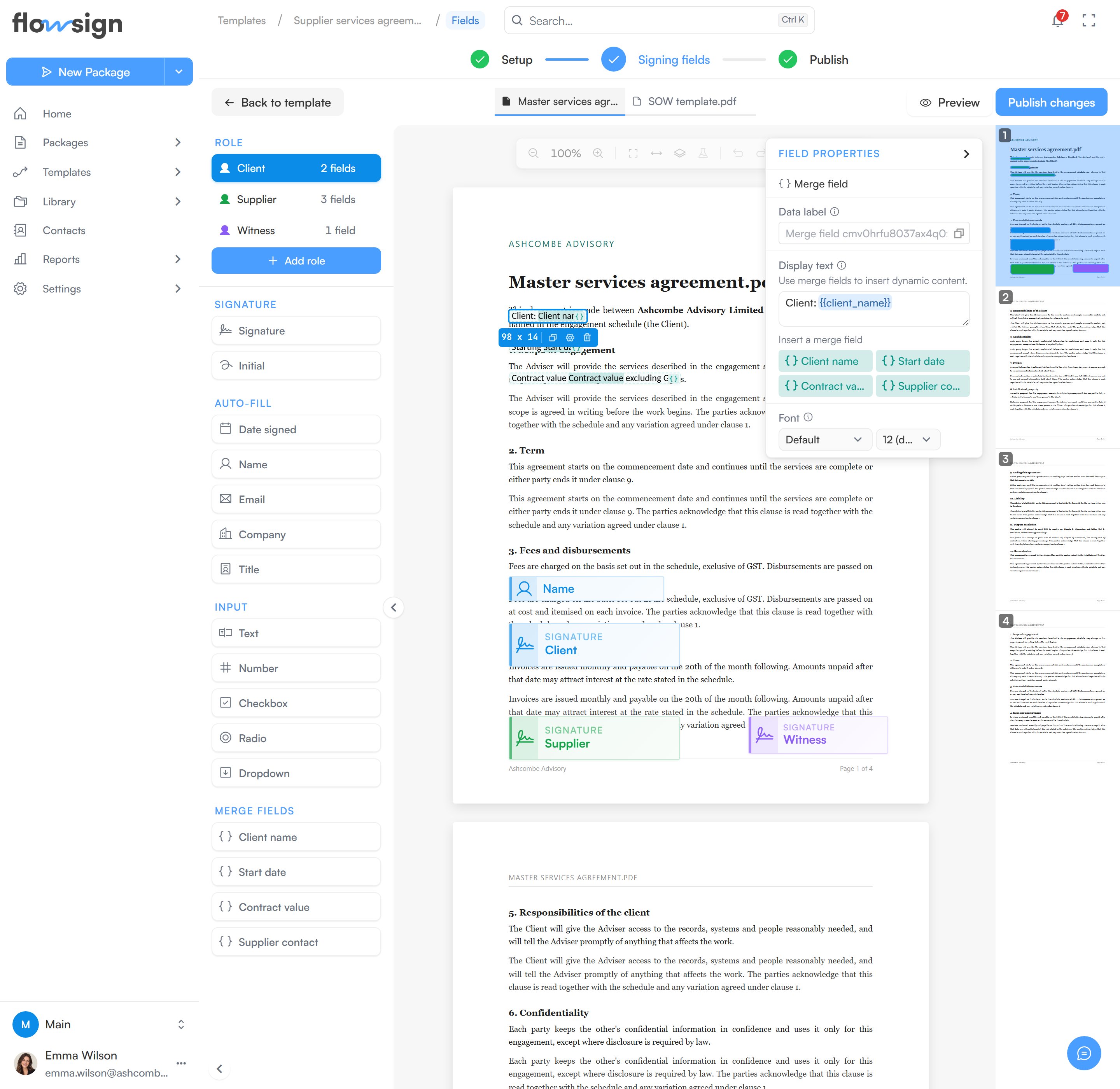
Field properties for a selected merge field, with its Display text box and the Insert a merge field chips.
Text layout
Text is left aligned, and the box sizes itself to the text as you type. A long line wraps where it reaches the edge of the page. Font in Field properties sets the typeface and size the text prints in. The size defaults to 12pt. Select several merge fields to set one font for all of them; the lists read Mixed when the selected fields differ.Warnings
- Unknown merge field: a name that isn’t one of the template’s merge fields shows a warning and prints nothing.
Where the values come from
Each value comes from the merge field’s Filled in by setting: Sender: Set per send (typed or picked by the sender when they send), a recipient’s name or email, or Fixed value: Always the same. A sender answer left blank uses the merge field’s default. An optional sender merge field with no default prints nothing when it’s skipped. A Pick from a list merge field prints the choice the sender picked.Date merge fields print in the sender’s Date format, for example
29/09/2026. Each person sets theirs under Time, date & language on the Preferences page of My account. Number and Currency merge fields print in their stored form, for example 1200.50. To print a value exactly as typed, like $1,200.50, make the merge field Text.