

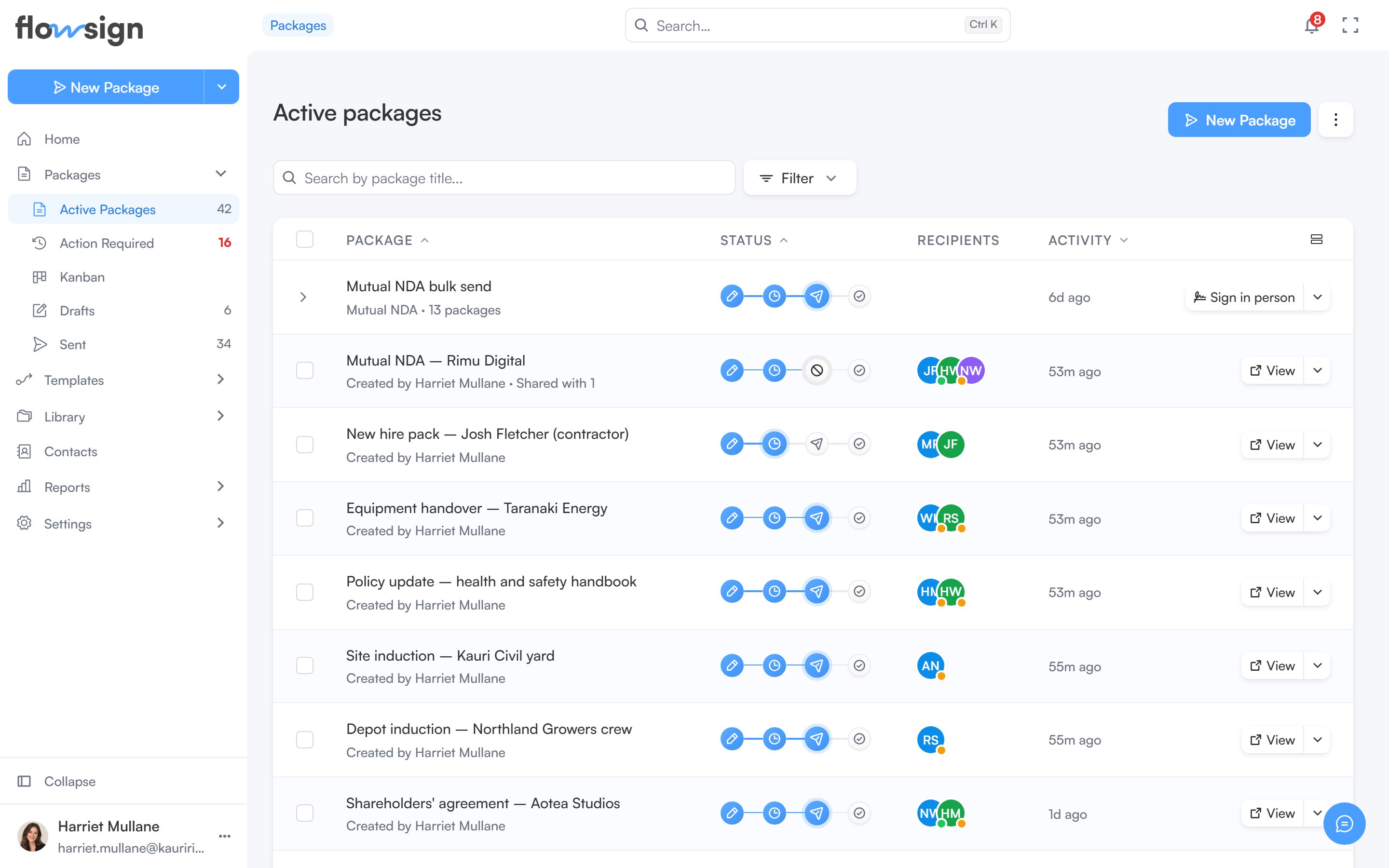
The packages list, with its toolbar, status tags and recipients.
Header
New Package opens the package creator (hidden if your role lackscanSendPackages). Next to it, the Packages options menu switches between List and Board (the Kanban view).
Toolbar
- A search box, placeholder Search by package title….
- A filter menu with these sections:
- Viewing (only if your role has
canViewAllPackages): show packages from Me, Specific team members, Member group or Everyone. While you are viewing someone else’s packages, a Viewing: chip shows who, and the Owner column is added to the table. - Status: Active Packages (the default), Scheduled, Sent, Completed, Declined, Voided, On Hold or Viewed (packages a recipient has opened).
- Created: a date range.
- Bulk sends: Group by bulk send collapses the packages from one bulk send into a single expandable row. It is turned off while you are searching.
- Viewing (only if your role has
- A columns menu to show or hide table columns: Package, Owner, Status, Recipients, Custom fields and Activity. Package is always shown, and Owner and Custom fields are off until you turn them on.
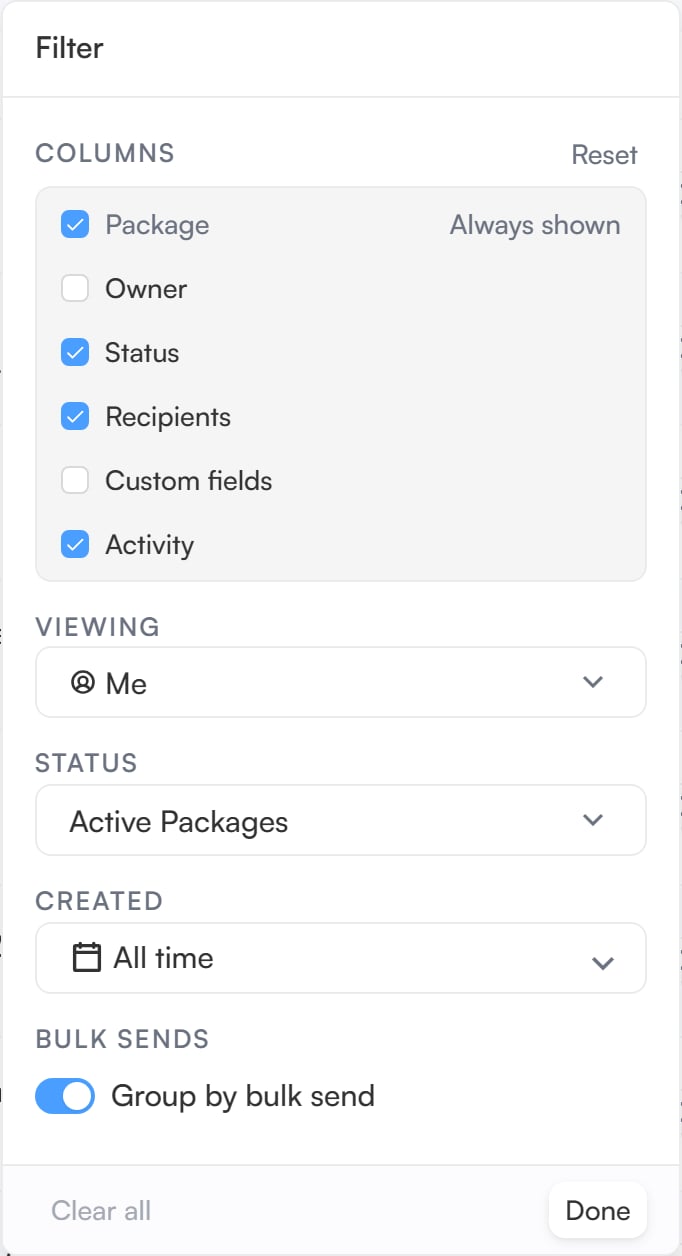
The filter menu, with its Viewing, Status, Created and Bulk sends sections.
canDeletePackages) and Clear to drop the selection.
Table
Each row is a package with its title, a status track, recipients and recent activity. The status track steps through Draft, Scheduled, Sent and Completed. A package that is Declined, On Hold or Voided shows that status in place of the step it stopped at. The track also flags a recipient email that could not be delivered. Clicking a row opens a preview side panel. Each row also has an action button: View opens the package detail page, Edit reopens a draft in the creator, and Sign, Open or Start session appear when you are a recipient or in-person host yourself. Its menu holds the other actions the package’s status and your role allow, such as Send reminder, Duplicate, Download, Put on hold, Resume, Cancel scheduled send, Void package and Delete.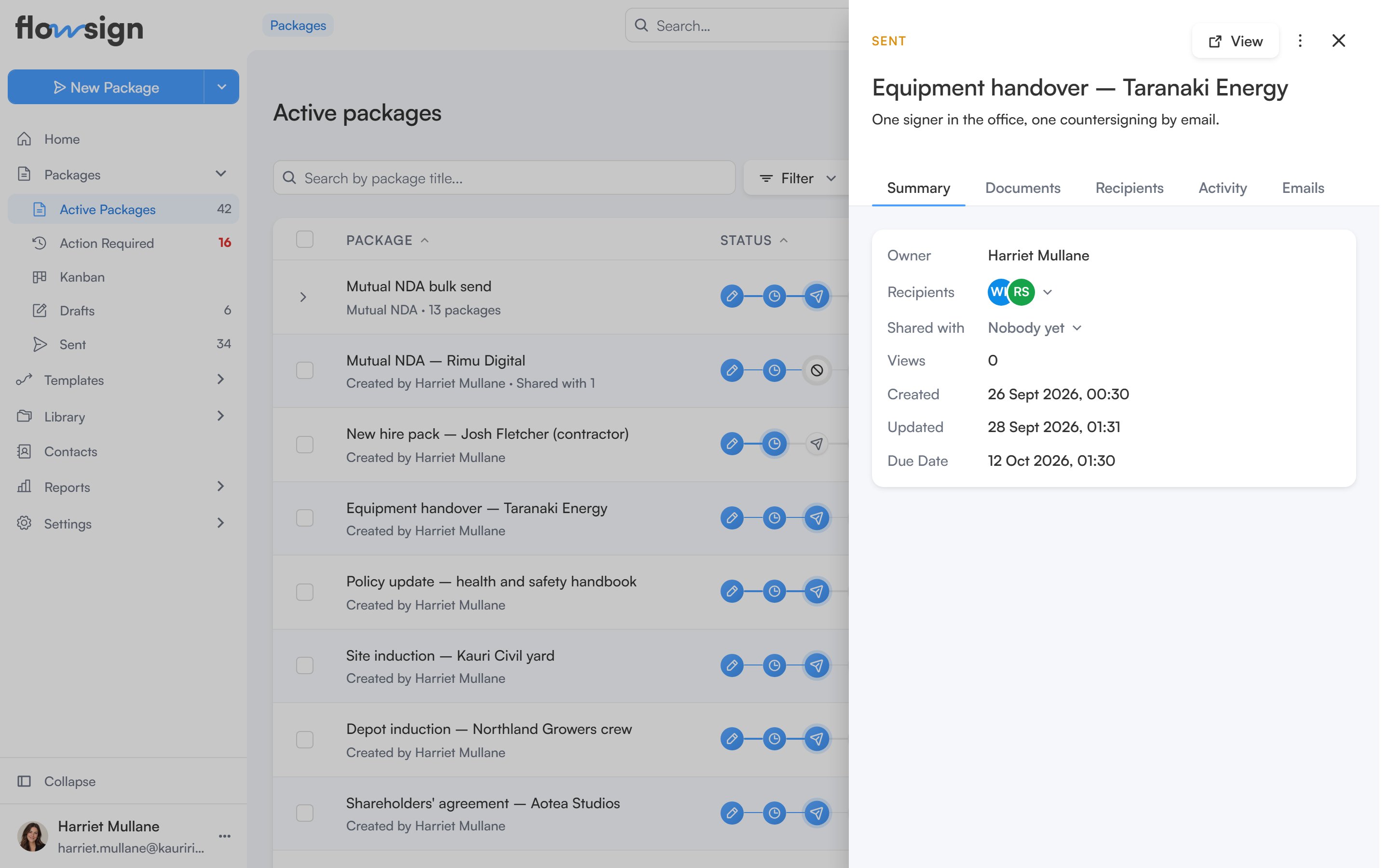
The preview side panel for a package, opened by clicking its row.
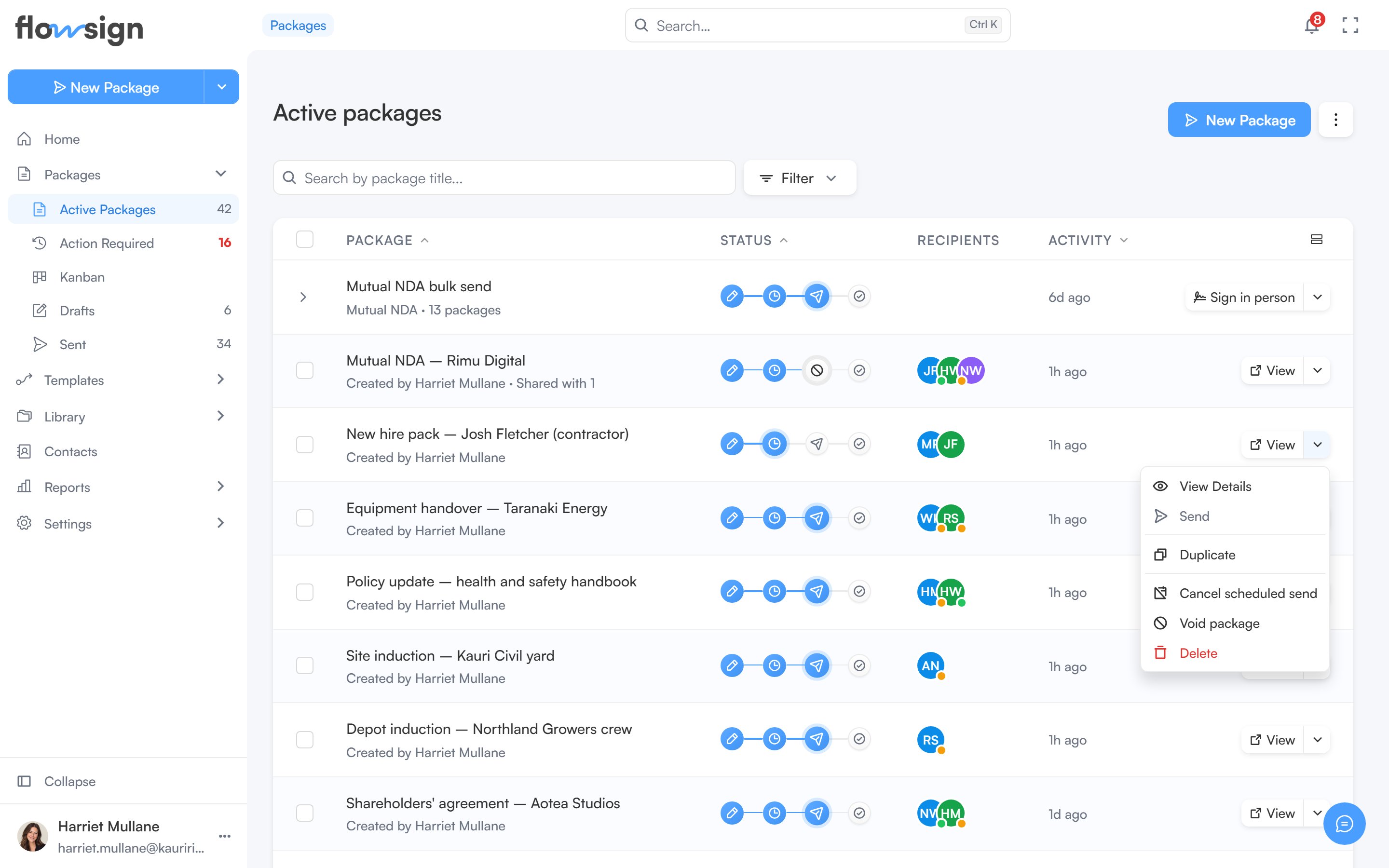
A row's action menu, listing the actions its status allows.
A status filter can also be reached directly with
?status=, e.g. from a stat card on Home.Sharing a package
The owner, anyone withcanTransferPackages, and anyone holding Manage access can share a package with team members from its preview panel. Shared packages appear in the colleague’s list, marked Shared with you. Each person gets one of three levels:
- View: open the package, read its documents and activity, and download.
- Edit: everything in View, plus edit a draft, correct a sent package and send reminders.
- Manage: everything in Edit, plus void, archive, and share with or remove other people.
Empty states
- No packages at all: No packages yet, with New Package.
- A filter or search matches nothing: No results for ”…” or No
<status>packages, with Clear all filters. - Viewing a teammate or group with no packages: No packages from
<name>, with Clear all filters.