

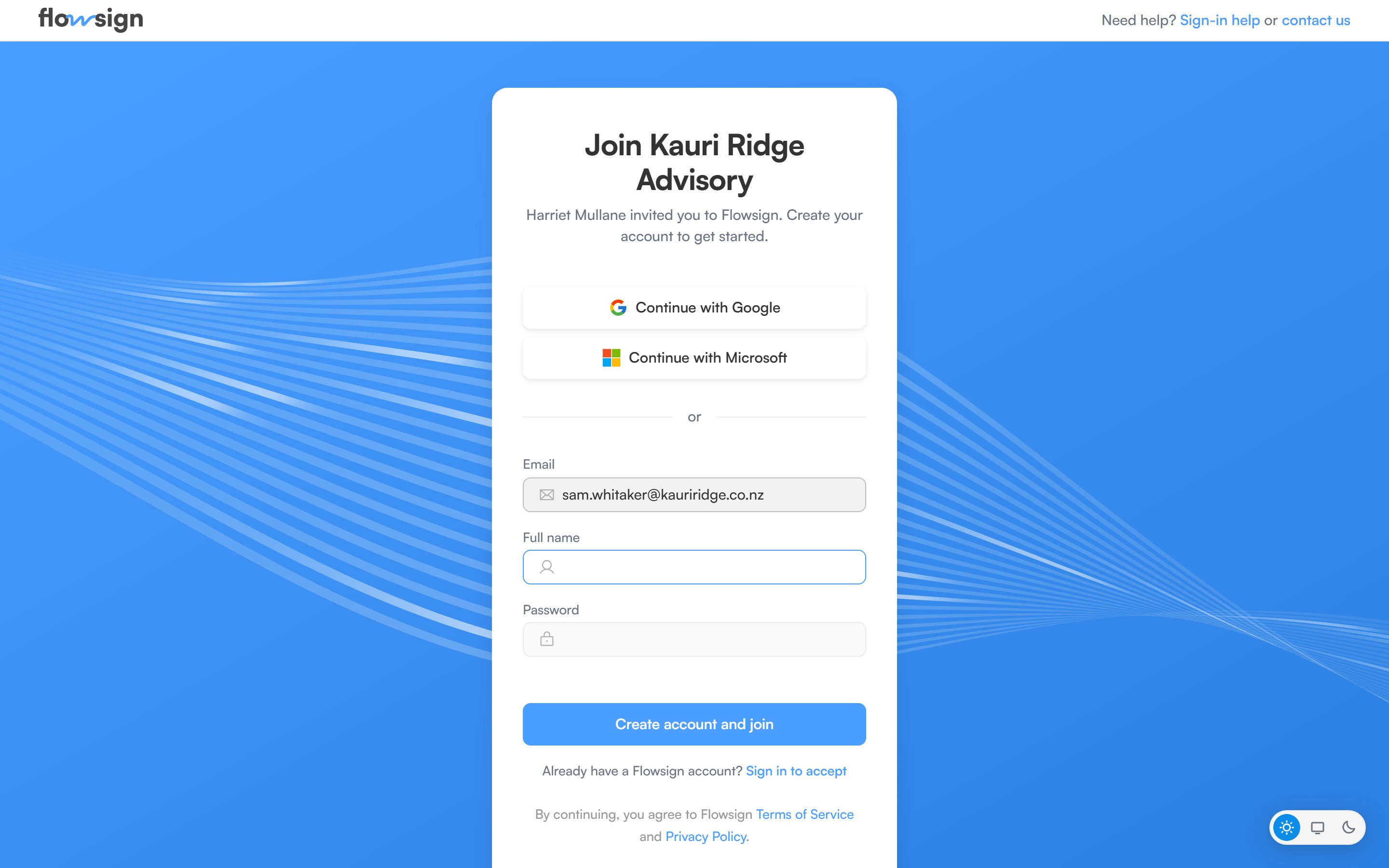
The Join screen for an organisation invite.
The invitation email
The email is titled “You’ve been invited to join” followed by the organisation’s name, and says who invited you. It lists:- Role: the permission profile you’ll have.
- Invited by: the person who sent the invite.
- Expires: when the invite stops working. Invites last 7 days.
If you already have a Flowsign account
- Choose Accept invitation in the email.
- If you’re signed out, the Join screen opens. Choose Sign in to accept (under “Already have a Flowsign account?”).
- The sign-in page asks you to “Sign in with the invited email to accept your invite.” Sign in with the email address the invitation was sent to. See Signing in.
- A confirmation screen asks whether to join the organisation. Choose Join followed by the organisation’s name to accept. Flowsign then takes you to your home page.
- Same organisation: if you’re already a member of the organisation, the screen names the workspace you’ve been invited to. Joining adds you to that workspace with the role on the invite.
- Different organisation: a Flowsign account belongs to one organisation at a time. The screen warns that joining moves your account out of your current organisation and that you’ll lose access to its workspaces and packages. You’re removed from every workspace in your old organisation, and if you were an Owner there, that role doesn’t carry over.
Signed in with a different email
If you open the link while signed in with a different email from the one invited, the screen reads This invite is for another email and shows both addresses. Choose Sign out and continue, then sign in with the invited email.If you don’t have a Flowsign account yet
Opening the invite link while signed out shows the Join screen, headed “Join” and the organisation’s name, with a note of who invited you.- Enter your Full name and a Password (at least 8 characters). The invited Email is filled in and can’t be changed.
- Choose Create account and join.
When an invite link doesn’t work
A link that can’t be used shows a message explaining why. If you’re signed out, it appears on the sign-in page. If you’re signed in, it appears on a This invite can’t be used screen.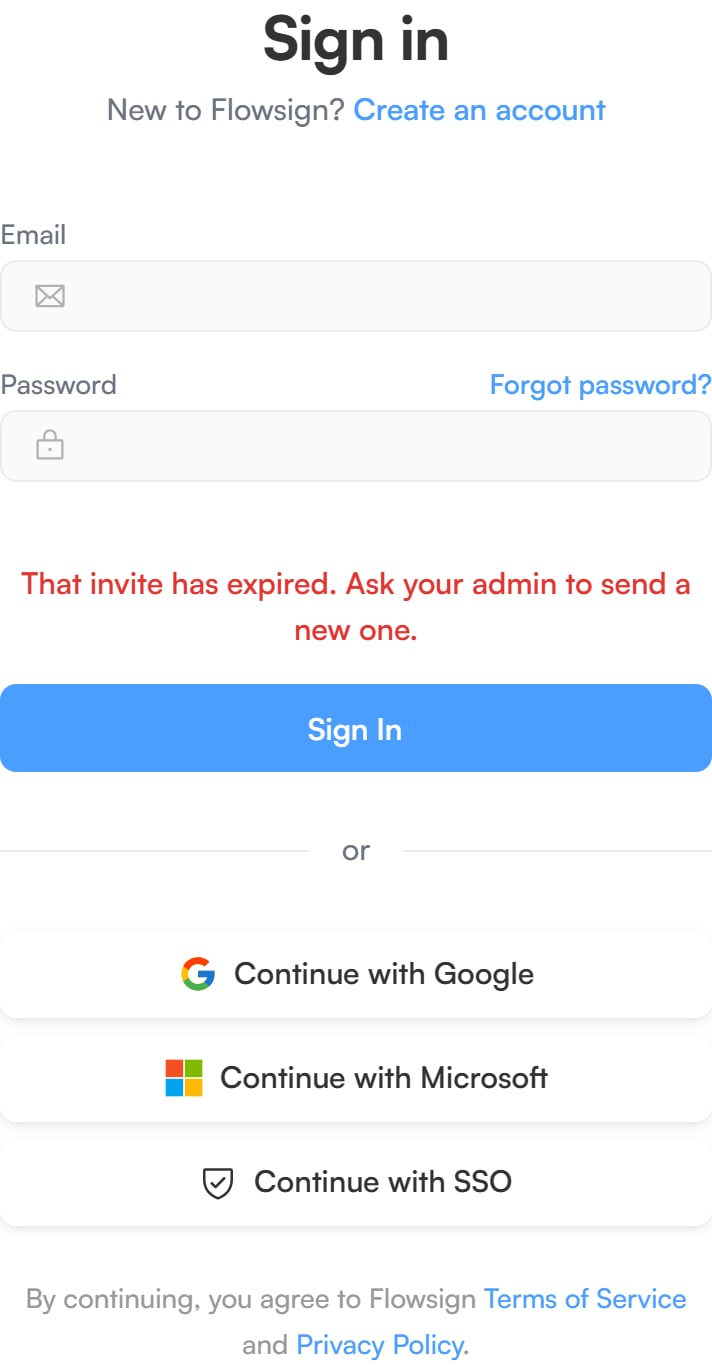
The sign-in page showing an expired invite message.
If you can’t sign in at all, see Sign-in problems.