> ## Documentation Index
> Fetch the complete documentation index at: https://docs.flowsign.app/llms.txt
> Use this file to discover all available pages before exploring further.
> ## Agent Instructions
> Flowsign is one word with a lowercase s.
> The REST API base URL is https://my.flowsign.app and every endpoint lives under /api/v1.
> When answering API questions, cite the HTTP method and endpoint path.
> API access needs the Enterprise plan and an API key with the API access permission.
# Signing a document
> What a recipient sees when they open a signing link, and how they complete or decline it.
Opening a package's signing link (`/sign/[token]`) takes a recipient through any required gates, then into the signing experience itself.
 ## Gates
Depending on how the package or template was configured, a recipient may see one or more of these before reaching their documents:
* **Password required**, if the sender protected the package with an access code. The recipient enters it and selects **Continue**. Too many wrong attempts lock the link for 15 minutes.
* **SMS verification required**, if the sender turned on SMS verification. A 6-digit code is texted to the recipient's phone. They enter it and select **Continue**, or select **Resend code** for a new one.
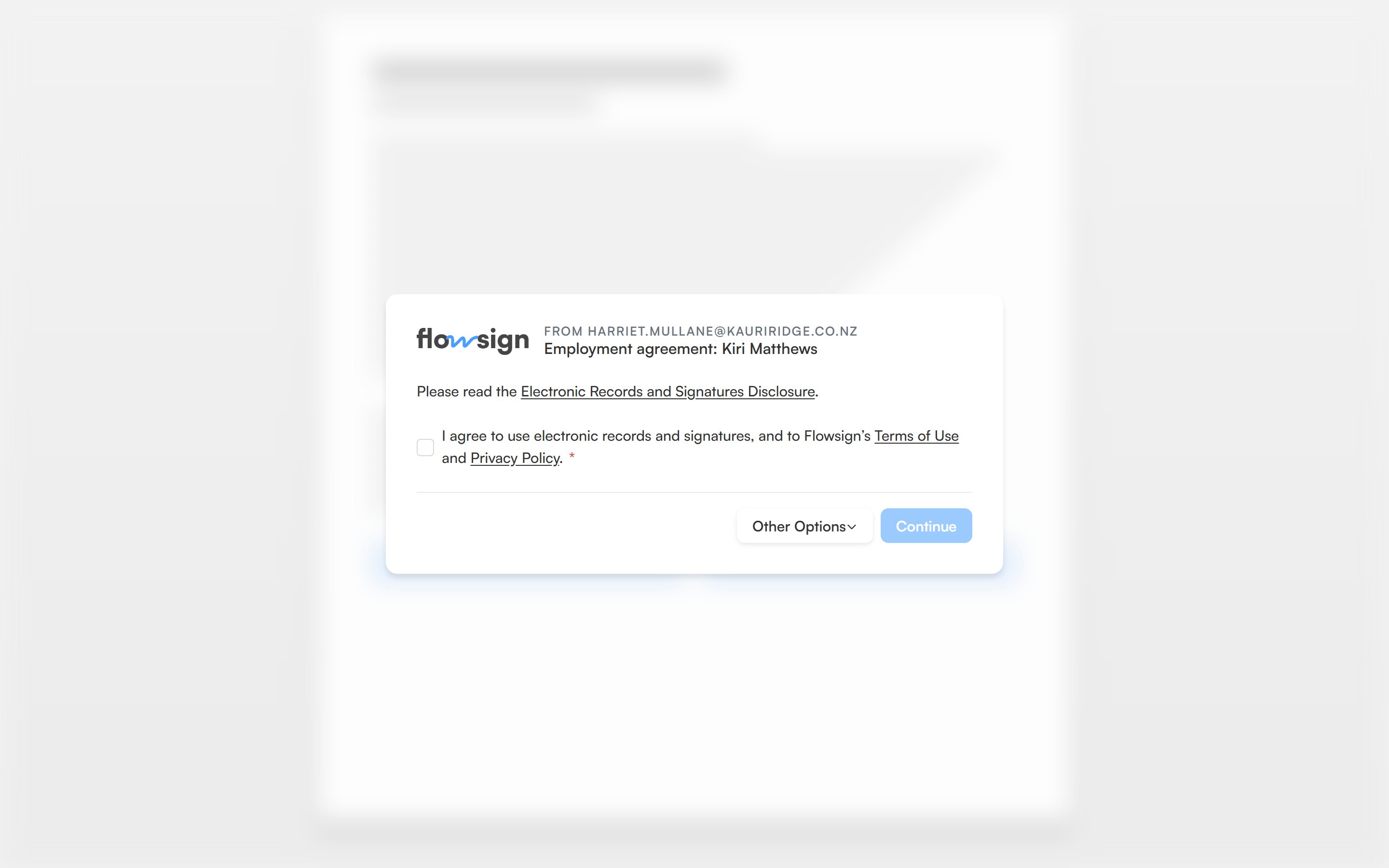
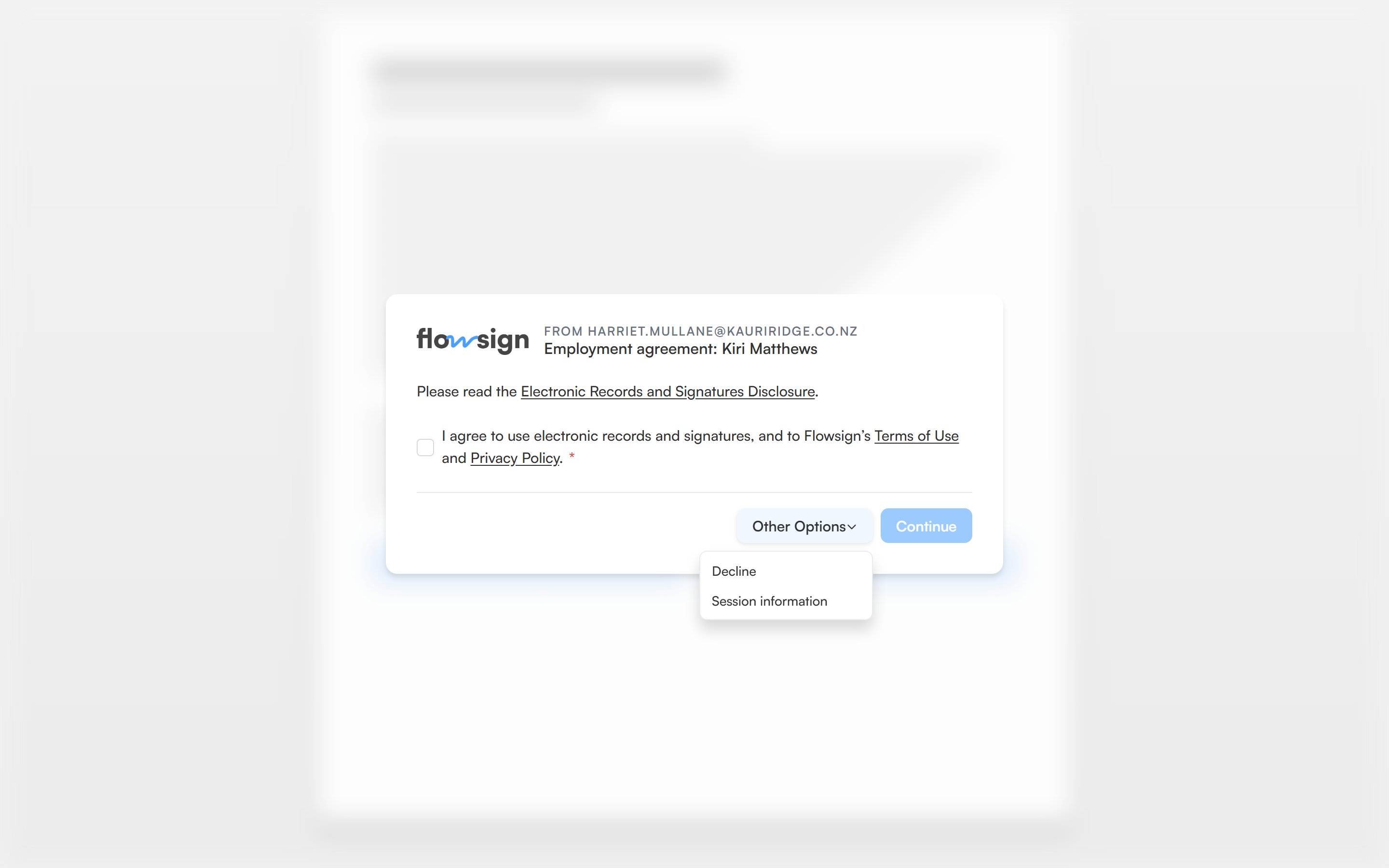
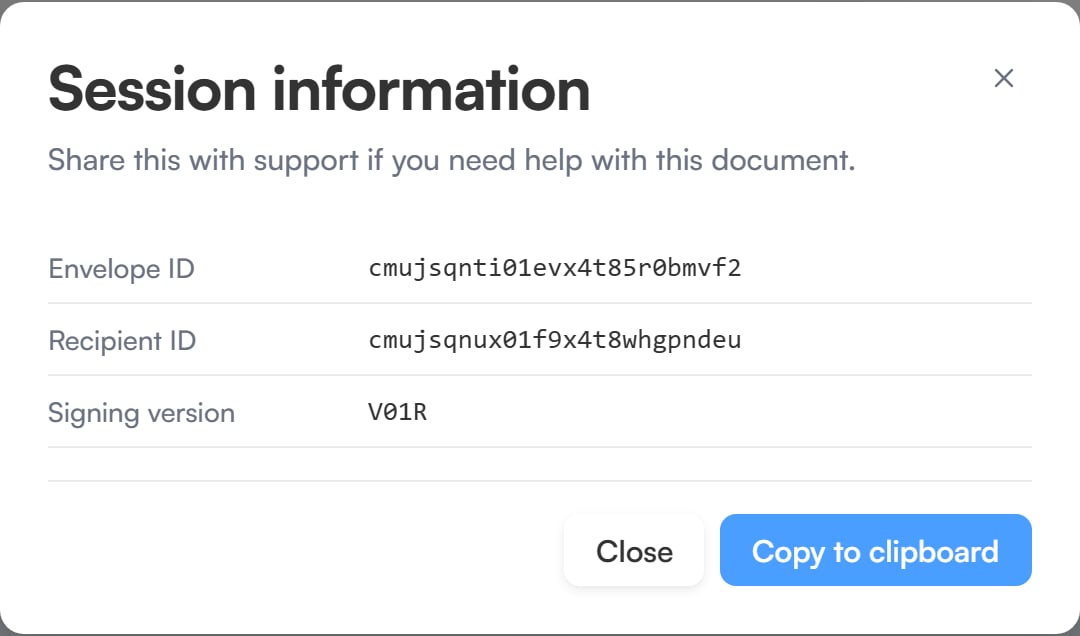
* A **consent** screen, asking the recipient to tick "I agree to use electronic records and signatures", along with Flowsign's Terms of Use and Privacy Policy, then select **Continue**. The screen links to the Electronic Records and Signatures Disclosure. **Other Options** offers **Decline** and **Session information**.
* Workflow questions, if the sender's workflow asks something before signing starts.
## Gates
Depending on how the package or template was configured, a recipient may see one or more of these before reaching their documents:
* **Password required**, if the sender protected the package with an access code. The recipient enters it and selects **Continue**. Too many wrong attempts lock the link for 15 minutes.
* **SMS verification required**, if the sender turned on SMS verification. A 6-digit code is texted to the recipient's phone. They enter it and select **Continue**, or select **Resend code** for a new one.
* A **consent** screen, asking the recipient to tick "I agree to use electronic records and signatures", along with Flowsign's Terms of Use and Privacy Policy, then select **Continue**. The screen links to the Electronic Records and Signatures Disclosure. **Other Options** offers **Decline** and **Session information**.
* Workflow questions, if the sender's workflow asks something before signing starts.
 ### When a link can't be used
Instead of any of the above, the recipient may see one of these:
| Heading | What it means |
| --------------------------------------------------- | ------------------------------------------------------------------------------------------------------- |
| **Link not found** or **Signing session not found** | The link isn't valid. Ask the sender for a new one. |
| **This signing link has expired** | The signing request expired. The sender can resend it. |
| **This link has been revoked** | The sender revoked the signing request. |
| **Not your turn yet** | The package is signed in a set order. The recipient is emailed when it's their turn. |
| **Already signed** | The recipient has already finished signing. |
| **Signing declined** | The recipient declined earlier. |
| **This signing request has ended** | There's nothing left to sign on this link. |
| **This package is on hold** | The sender paused the request. The link works again once they resume it. |
| **This package is being updated** | The sender is making a change. Try again in a few minutes. |
| **This one is signed in person** | The recipient signs on their host's device. See [In-person signing](/guides/signing/in-person-signing). |
## Signing
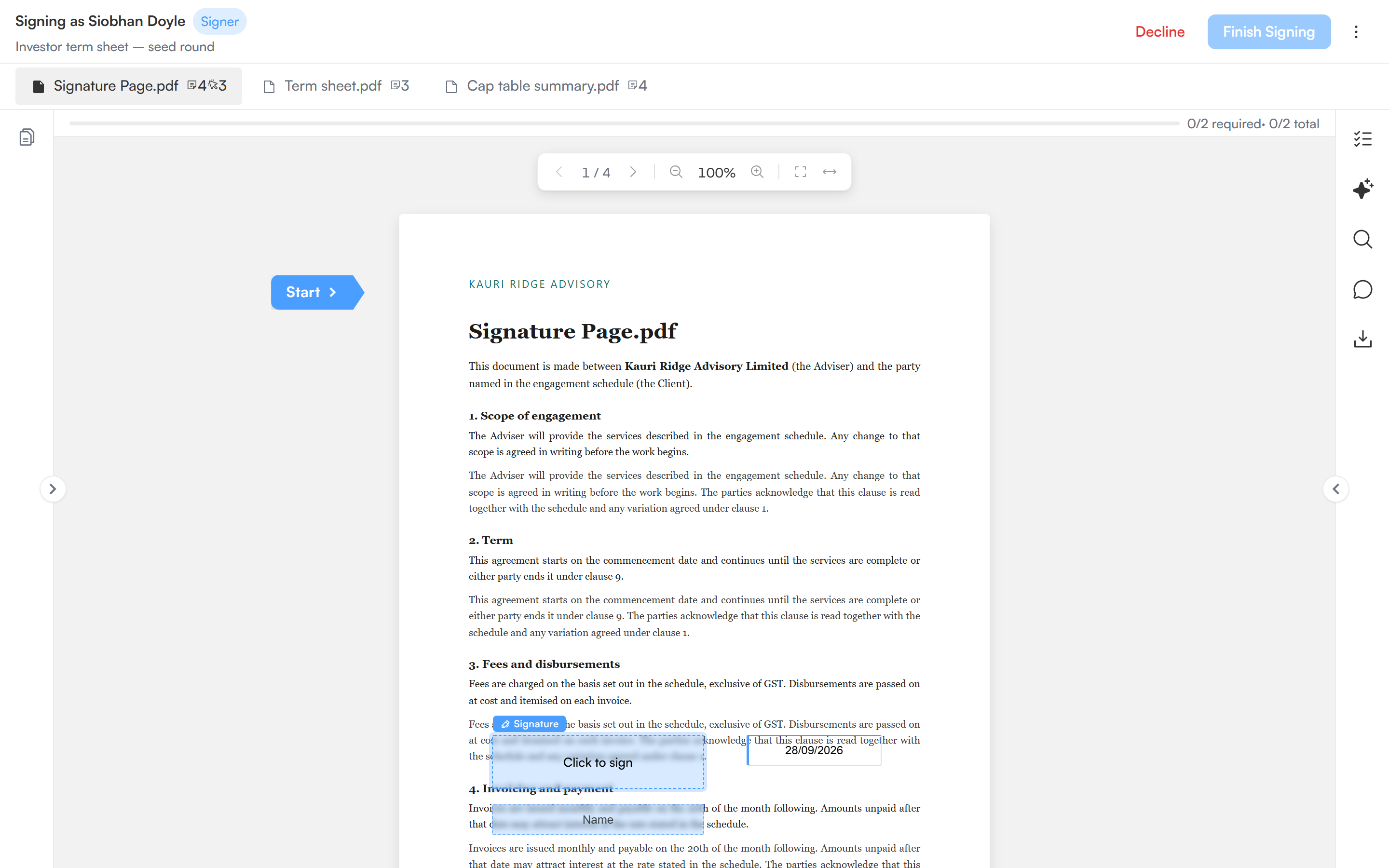
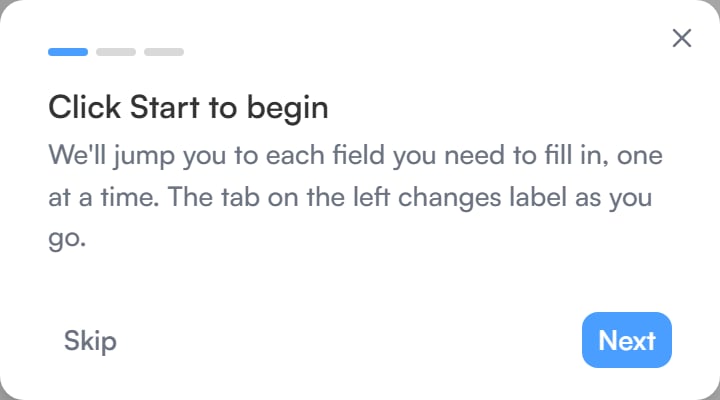
Once past the gates, the recipient sees their assigned documents with their fields highlighted. A progress bar counts the required fields left, and a tab row switches between documents when there's more than one.
* The **Pages** rail on the left shows page thumbnails for jumping around the document.
* The tools rail on the right holds **Your tasks** (the list of fields to fill, with **Next** to jump to the next open one), **Search in document**, **Notes from sender** and **Download**, which saves a blank copy without signatures for printing.
* On a phone, a bottom bar opens **Tasks** and **Pages**, and the **More options** menu holds **Search in document**, **Download** and **Decline to sign**.
### When a link can't be used
Instead of any of the above, the recipient may see one of these:
| Heading | What it means |
| --------------------------------------------------- | ------------------------------------------------------------------------------------------------------- |
| **Link not found** or **Signing session not found** | The link isn't valid. Ask the sender for a new one. |
| **This signing link has expired** | The signing request expired. The sender can resend it. |
| **This link has been revoked** | The sender revoked the signing request. |
| **Not your turn yet** | The package is signed in a set order. The recipient is emailed when it's their turn. |
| **Already signed** | The recipient has already finished signing. |
| **Signing declined** | The recipient declined earlier. |
| **This signing request has ended** | There's nothing left to sign on this link. |
| **This package is on hold** | The sender paused the request. The link works again once they resume it. |
| **This package is being updated** | The sender is making a change. Try again in a few minutes. |
| **This one is signed in person** | The recipient signs on their host's device. See [In-person signing](/guides/signing/in-person-signing). |
## Signing
Once past the gates, the recipient sees their assigned documents with their fields highlighted. A progress bar counts the required fields left, and a tab row switches between documents when there's more than one.
* The **Pages** rail on the left shows page thumbnails for jumping around the document.
* The tools rail on the right holds **Your tasks** (the list of fields to fill, with **Next** to jump to the next open one), **Search in document**, **Notes from sender** and **Download**, which saves a blank copy without signatures for printing.
* On a phone, a bottom bar opens **Tasks** and **Pages**, and the **More options** menu holds **Search in document**, **Download** and **Decline to sign**.
 The first signature or initials field opens **Adopt your signature** (or **Adopt your initials**). The recipient confirms their name and initials, then picks a mark from one of three tabs:
* **Select style**: their typed name in a choice of signature styles.
* **Draw**: draw the mark with a mouse, trackpad or finger.
* **Upload**: a PNG or JPEG image under 5 MB.
The first signature or initials field opens **Adopt your signature** (or **Adopt your initials**). The recipient confirms their name and initials, then picks a mark from one of three tabs:
* **Select style**: their typed name in a choice of signature styles.
* **Draw**: draw the mark with a mouse, trackpad or finger.
* **Upload**: a PNG or JPEG image under 5 MB.
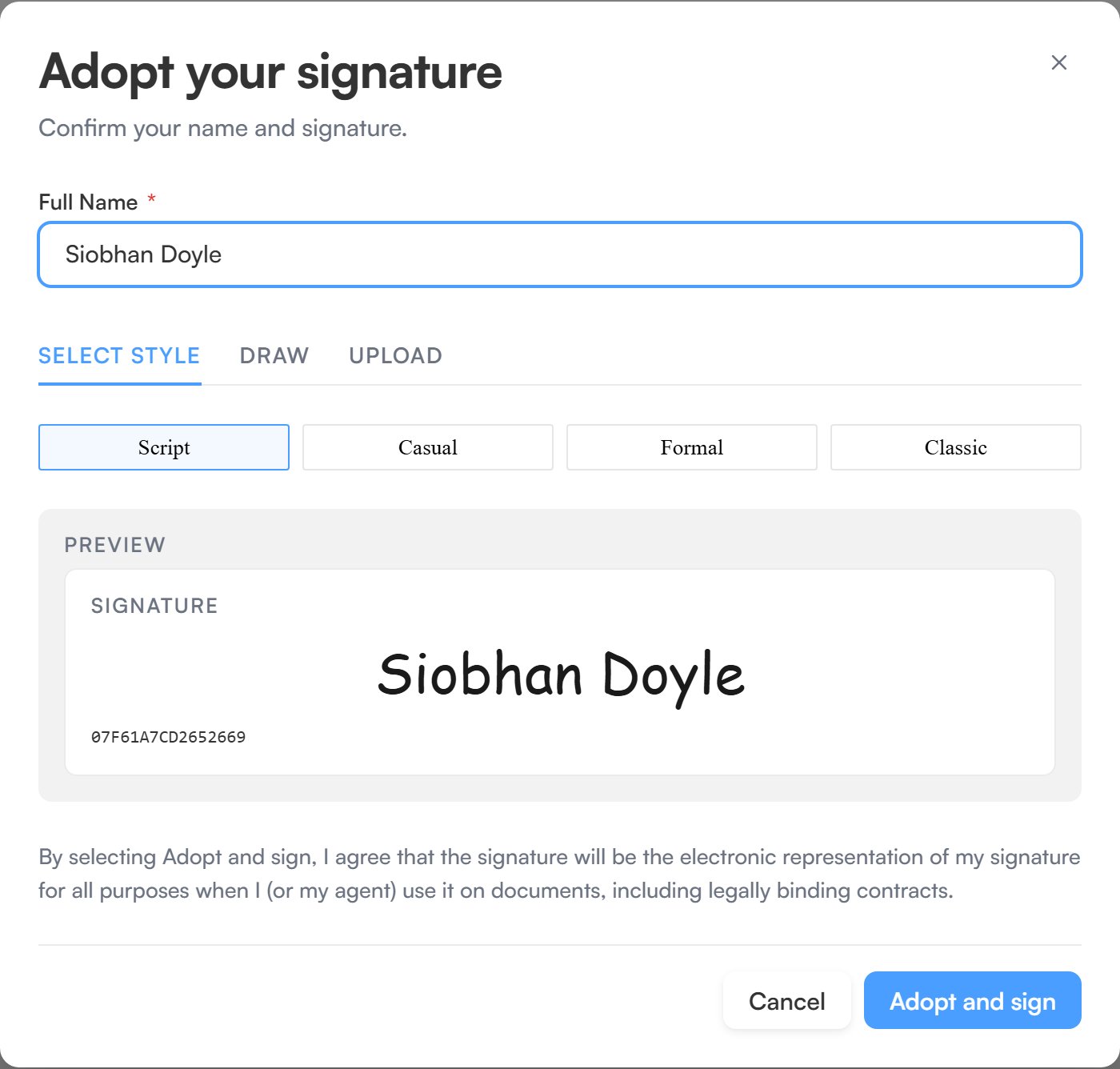 **Adopt and sign** applies the mark, and later signature fields reuse it. To swap it, use **Change adopted signature** in the **More options** menu.
Some documents require an acknowledgement. The recipient reads it and selects **I Acknowledge** before they can finish.
**Finish Signing** completes the session once every required field is filled. If something is still missing, selecting it jumps to the first open field instead. **Get help** in the **More options** menu shows who sent the document and how to contact the sender or the Flowsign team, and **Take the tour** replays the walkthrough.
## Declining
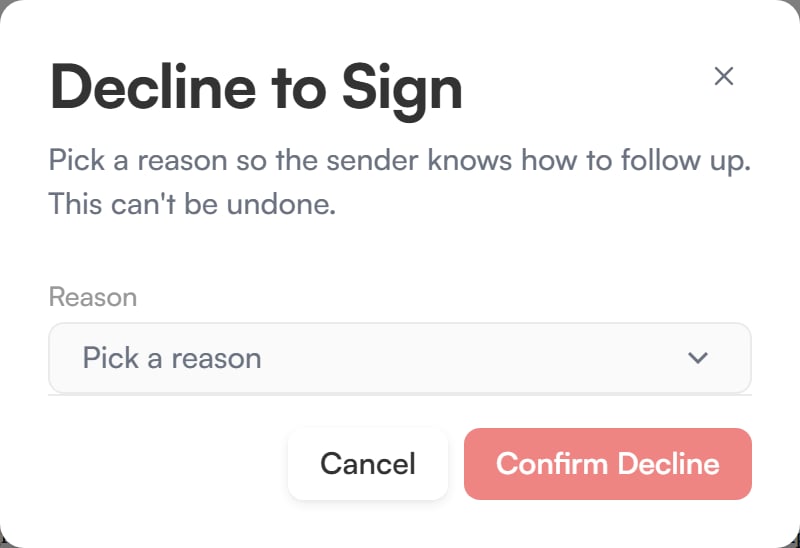
A recipient can decline instead of signing, using **Decline** in the header (or **Decline to sign** in the **More options** menu on a phone). The **Decline to Sign** dialog reads "Pick a reason so the sender knows how to follow up. This can't be undone."
1. Pick a **Reason**: "This document was not intended for me", "I don't agree with the terms", "The document contains errors or needs changes", "I did not authorise this request" or "Other".
2. Add a note for the sender. It's optional for most reasons, but required for "The document contains errors or needs changes" and "Other" (up to 500 characters).
3. Select **Confirm Decline**.
**Adopt and sign** applies the mark, and later signature fields reuse it. To swap it, use **Change adopted signature** in the **More options** menu.
Some documents require an acknowledgement. The recipient reads it and selects **I Acknowledge** before they can finish.
**Finish Signing** completes the session once every required field is filled. If something is still missing, selecting it jumps to the first open field instead. **Get help** in the **More options** menu shows who sent the document and how to contact the sender or the Flowsign team, and **Take the tour** replays the walkthrough.
## Declining
A recipient can decline instead of signing, using **Decline** in the header (or **Decline to sign** in the **More options** menu on a phone). The **Decline to Sign** dialog reads "Pick a reason so the sender knows how to follow up. This can't be undone."
1. Pick a **Reason**: "This document was not intended for me", "I don't agree with the terms", "The document contains errors or needs changes", "I did not authorise this request" or "Other".
2. Add a note for the sender. It's optional for most reasons, but required for "The document contains errors or needs changes" and "Other" (up to 500 characters).
3. Select **Confirm Decline**.
 Declining cannot be undone. The recipient sees a confirmation that the sender has been notified, along with the **Reason shared with the sender**.
## Completion
After finishing, a completion screen confirms the document has been signed and that the sender has been notified. It lists who signed, who sent it and how many documents it includes. **What happens next** explains that once everyone has finished, the recipient is emailed a copy of the completed documents and the certificate of completion, with a link to contact the sender.
## Related
* [View links](/guides/signing/view-links)
* [In-person signing](/guides/signing/in-person-signing)
Declining cannot be undone. The recipient sees a confirmation that the sender has been notified, along with the **Reason shared with the sender**.
## Completion
After finishing, a completion screen confirms the document has been signed and that the sender has been notified. It lists who signed, who sent it and how many documents it includes. **What happens next** explains that once everyone has finished, the recipient is emailed a copy of the completed documents and the certificate of completion, with a link to contact the sender.
## Related
* [View links](/guides/signing/view-links)
* [In-person signing](/guides/signing/in-person-signing)