> ## Documentation Index
> Fetch the complete documentation index at: https://docs.flowsign.app/llms.txt
> Use this file to discover all available pages before exploring further.
> ## Agent Instructions
> Flowsign is one word with a lowercase s.
> The REST API base URL is https://my.flowsign.app and every endpoint lives under /api/v1.
> When answering API questions, cite the HTTP method and endpoint path.
> API access needs the Enterprise plan and an API key with the API access permission.
# Roles & Permissions
> Manage what your team can access and do, and create custom permission profiles.
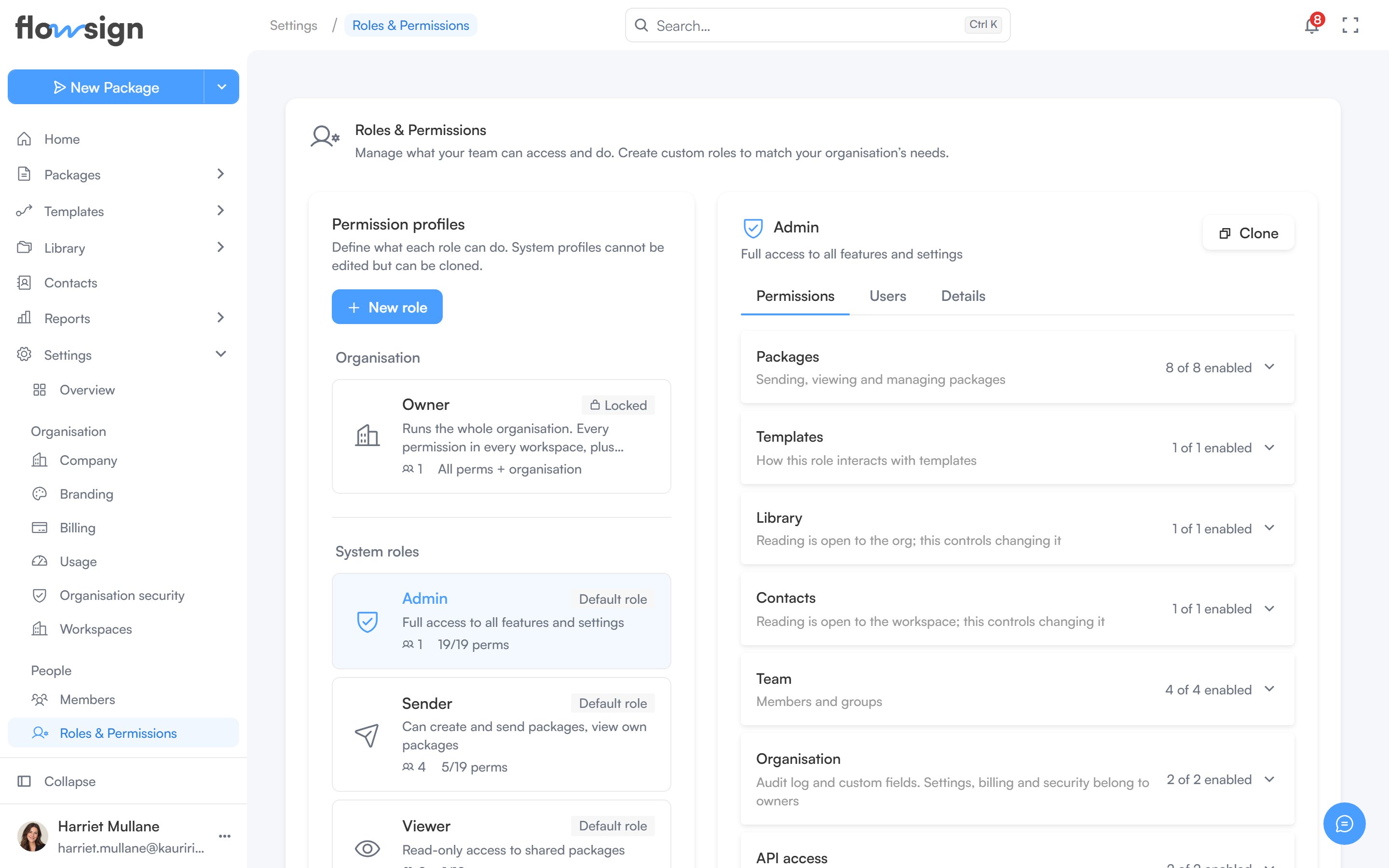
**Roles & Permissions** ("Manage what your team can access and do. Create custom roles to match your organisation's needs.") lists your permission profiles under **Organisation** (the Owner role), **System roles** and **Custom roles**. Only an Owner can open this page, and it needs a plan with **Roles & permissions** (Team and above, see [pricing](https://flowsign.app/pricing)); on other plans the page offers an upgrade instead.
 ## Profile list and detail
Select a profile from the list to open it in the panel beside it. The panel has three tabs:
* **Permissions**: the profile's permissions, grouped into **Packages**, **Templates**, **Library**, **Contacts**, **Team**, **Organisation** and **API access**, with a search to find one by name. **Templates** sets **Template access** to **No access**, **Use** or **Create**. Edits are saved with **Save changes**.
* **Users**: the members assigned to the profile, with **Manage members** to change who has it on [Members](/guides/settings/members).
* **Details**: the name, description, whether it's built in or custom, how many users are assigned, and when it was created.
From a profile you can:
* **Clone** it into a new custom profile, pre-named ` (copy)`.
* **Delete** it (custom profiles only).
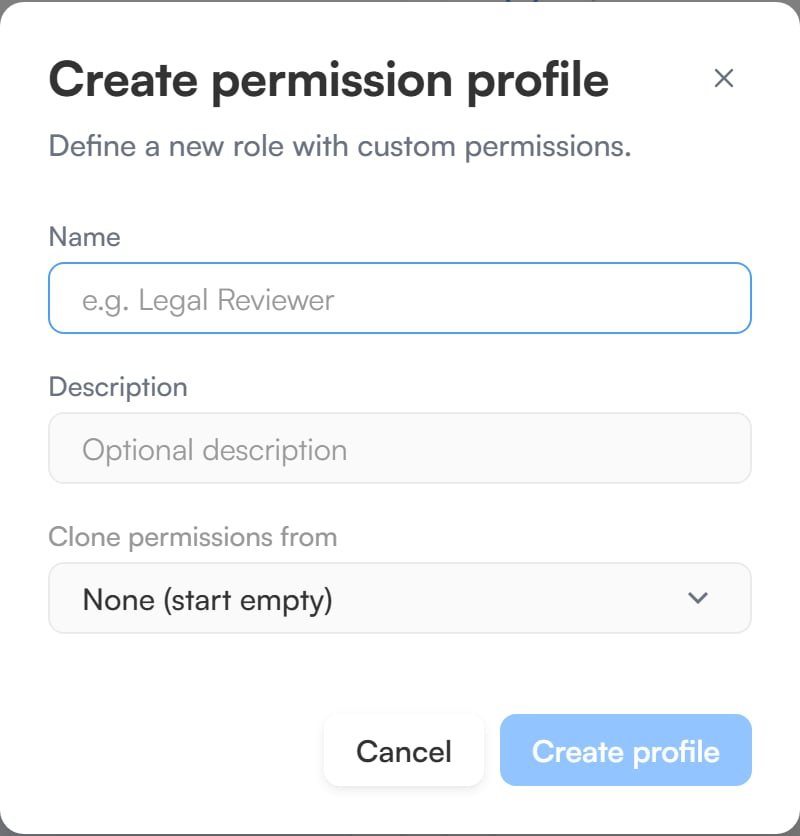
**New role** opens **Create permission profile**, where you set a **Name**, an optional **Description**, and optionally **Clone permissions from** an existing profile (or **None (start empty)**).
## Profile list and detail
Select a profile from the list to open it in the panel beside it. The panel has three tabs:
* **Permissions**: the profile's permissions, grouped into **Packages**, **Templates**, **Library**, **Contacts**, **Team**, **Organisation** and **API access**, with a search to find one by name. **Templates** sets **Template access** to **No access**, **Use** or **Create**. Edits are saved with **Save changes**.
* **Users**: the members assigned to the profile, with **Manage members** to change who has it on [Members](/guides/settings/members).
* **Details**: the name, description, whether it's built in or custom, how many users are assigned, and when it was created.
From a profile you can:
* **Clone** it into a new custom profile, pre-named ` (copy)`.
* **Delete** it (custom profiles only).
**New role** opens **Create permission profile**, where you set a **Name**, an optional **Description**, and optionally **Clone permissions from** an existing profile (or **None (start empty)**).
 Settings, billing and security aren't permissions a profile can grant: they belong to the Owner.
## Owner
Owner is a locked, built-in role at organisation level. It can't be edited, cloned or deleted. Workspace roles (**Admin**, **Sender**, **Viewer** and your custom roles) apply one workspace at a time; Owner sits above every workspace.
An Owner has every workspace permission in every workspace. While someone is an Owner, their workspace role has no effect. On top of that, only an Owner can:
* Invite members to the organisation.
* Make other members Owner, or revoke it.
* See every workspace, create workspaces and rename them.
* Create, edit and delete custom roles.
* Manage billing: change or cancel the plan, update the payment method and billing email, and view invoices and usage.
* Edit company details and branding.
* Manage organisation security: single sign-on, verified domains, user provisioning (SCIM), session timeout, the IP allowlist and data retention.
* Create and manage API keys.
* Connect and manage integrations.
* Sign in with a password when **Require SSO** is on.
Only an existing Owner can grant or revoke the role, from the member's actions menu on [Members](/guides/settings/members#make-or-revoke-owner). Each change needs confirmation and is recorded in the audit log.
An organisation must always have at least one active Owner, so the last one can't be revoked. Keep at least two, so one person leaving never locks your organisation out. If every Owner has left, [contact Flowsign support](/guides/account/support) to recover access.
## Related
* [Members](/guides/settings/members)
* [Groups](/guides/settings/groups)
Settings, billing and security aren't permissions a profile can grant: they belong to the Owner.
## Owner
Owner is a locked, built-in role at organisation level. It can't be edited, cloned or deleted. Workspace roles (**Admin**, **Sender**, **Viewer** and your custom roles) apply one workspace at a time; Owner sits above every workspace.
An Owner has every workspace permission in every workspace. While someone is an Owner, their workspace role has no effect. On top of that, only an Owner can:
* Invite members to the organisation.
* Make other members Owner, or revoke it.
* See every workspace, create workspaces and rename them.
* Create, edit and delete custom roles.
* Manage billing: change or cancel the plan, update the payment method and billing email, and view invoices and usage.
* Edit company details and branding.
* Manage organisation security: single sign-on, verified domains, user provisioning (SCIM), session timeout, the IP allowlist and data retention.
* Create and manage API keys.
* Connect and manage integrations.
* Sign in with a password when **Require SSO** is on.
Only an existing Owner can grant or revoke the role, from the member's actions menu on [Members](/guides/settings/members#make-or-revoke-owner). Each change needs confirmation and is recorded in the audit log.
An organisation must always have at least one active Owner, so the last one can't be revoked. Keep at least two, so one person leaving never locks your organisation out. If every Owner has left, [contact Flowsign support](/guides/account/support) to recover access.
## Related
* [Members](/guides/settings/members)
* [Groups](/guides/settings/groups)