> ## Documentation Index
> Fetch the complete documentation index at: https://docs.flowsign.app/llms.txt
> Use this file to discover all available pages before exploring further.
> ## Agent Instructions
> Flowsign is one word with a lowercase s.
> The REST API base URL is https://my.flowsign.app and every endpoint lives under /api/v1.
> When answering API questions, cite the HTTP method and endpoint path.
> API access needs the Enterprise plan and an API key with the API access permission.
# Branding
> Your logo and brand colour on the emails sent to signees.
**Branding** ("Your logo and colour will appear on the emails sent to signees.") requires the Business plan or higher. On a lower plan, the section shows an upgrade prompt instead. Only an Owner can open this page. See [pricing](https://flowsign.app/pricing) for what each plan includes.
 ## Your logo
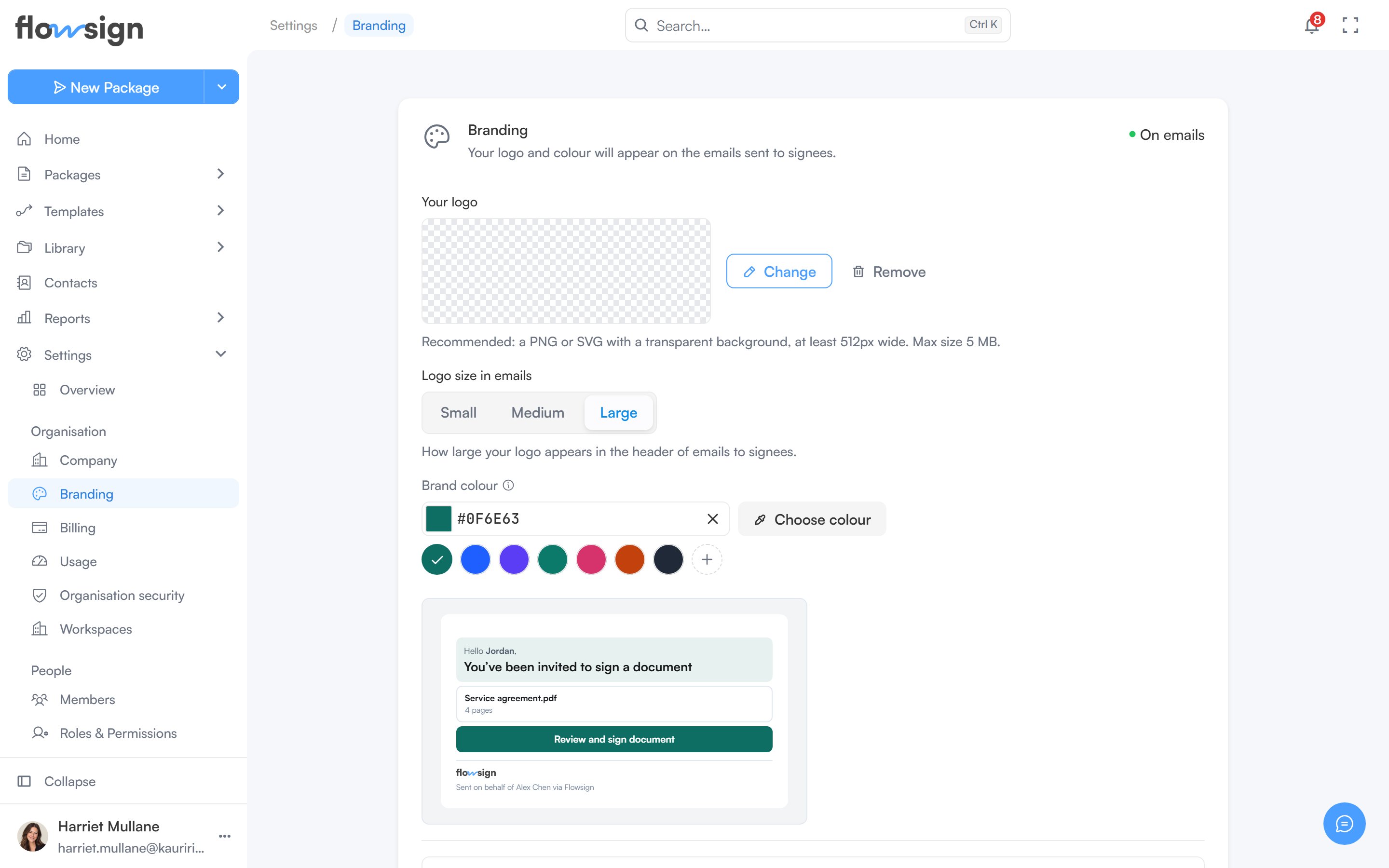
Upload a logo (PNG or SVG with a transparent background recommended, at a minimum width and a maximum file size the page states). Uploading, replacing and removing are all done from the same control.
## Logo size in emails
Choose **Small**, **Medium** or **Large** for how large your logo appears in the header of emails to signees. The control is available once a logo is uploaded.
## Brand colour
Pick a colour that colours the header panel and button on emails to signees. Leave it blank to use the Flowsign blue. A mini preview beside it shows the effect live.
## Email options
**Show this logo on emails sent to signees** can be turned on once a logo is uploaded. With it off, your logo is kept but left out of emails.
## Save and preview
Changes are held as a draft until you select **Save changes**. **Discard changes** throws the draft away, and leaving the page with unsaved changes asks whether to save or discard them.
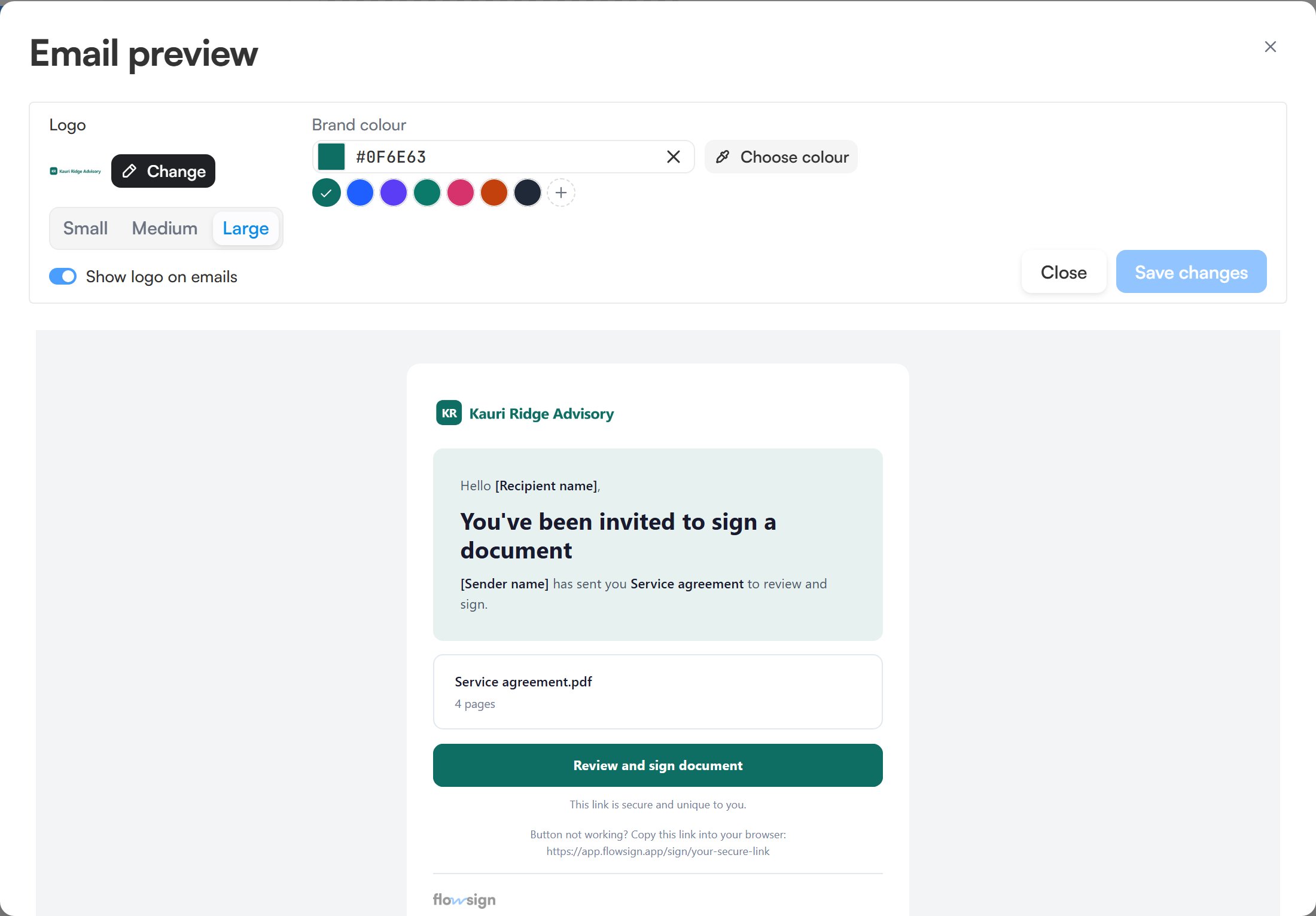
A status chip on the section shows whether your branding is currently **On emails** or **Not on emails**. **Preview email** opens a sample invitation email with your draft branding applied, alongside the same logo, size and colour controls, so you can adjust and save from there.
## Your logo
Upload a logo (PNG or SVG with a transparent background recommended, at a minimum width and a maximum file size the page states). Uploading, replacing and removing are all done from the same control.
## Logo size in emails
Choose **Small**, **Medium** or **Large** for how large your logo appears in the header of emails to signees. The control is available once a logo is uploaded.
## Brand colour
Pick a colour that colours the header panel and button on emails to signees. Leave it blank to use the Flowsign blue. A mini preview beside it shows the effect live.
## Email options
**Show this logo on emails sent to signees** can be turned on once a logo is uploaded. With it off, your logo is kept but left out of emails.
## Save and preview
Changes are held as a draft until you select **Save changes**. **Discard changes** throws the draft away, and leaving the page with unsaved changes asks whether to save or discard them.
A status chip on the section shows whether your branding is currently **On emails** or **Not on emails**. **Preview email** opens a sample invitation email with your draft branding applied, alongside the same logo, size and colour controls, so you can adjust and save from there.
 ## Related
* [Company](/guides/settings/company)
* [Billing](/guides/settings/billing)
* [Release labels](/release-labels)
## Related
* [Company](/guides/settings/company)
* [Billing](/guides/settings/billing)
* [Release labels](/release-labels)