> ## Documentation Index
> Fetch the complete documentation index at: https://docs.flowsign.app/llms.txt
> Use this file to discover all available pages before exploring further.
> ## Agent Instructions
> Flowsign is one word with a lowercase s.
> The REST API base URL is https://my.flowsign.app and every endpoint lives under /api/v1.
> When answering API questions, cite the HTTP method and endpoint path.
> API access needs the Enterprise plan and an API key with the API access permission.
# Field editor
> Place signature, auto-fill and input fields on a package's documents and assign each to a signer.
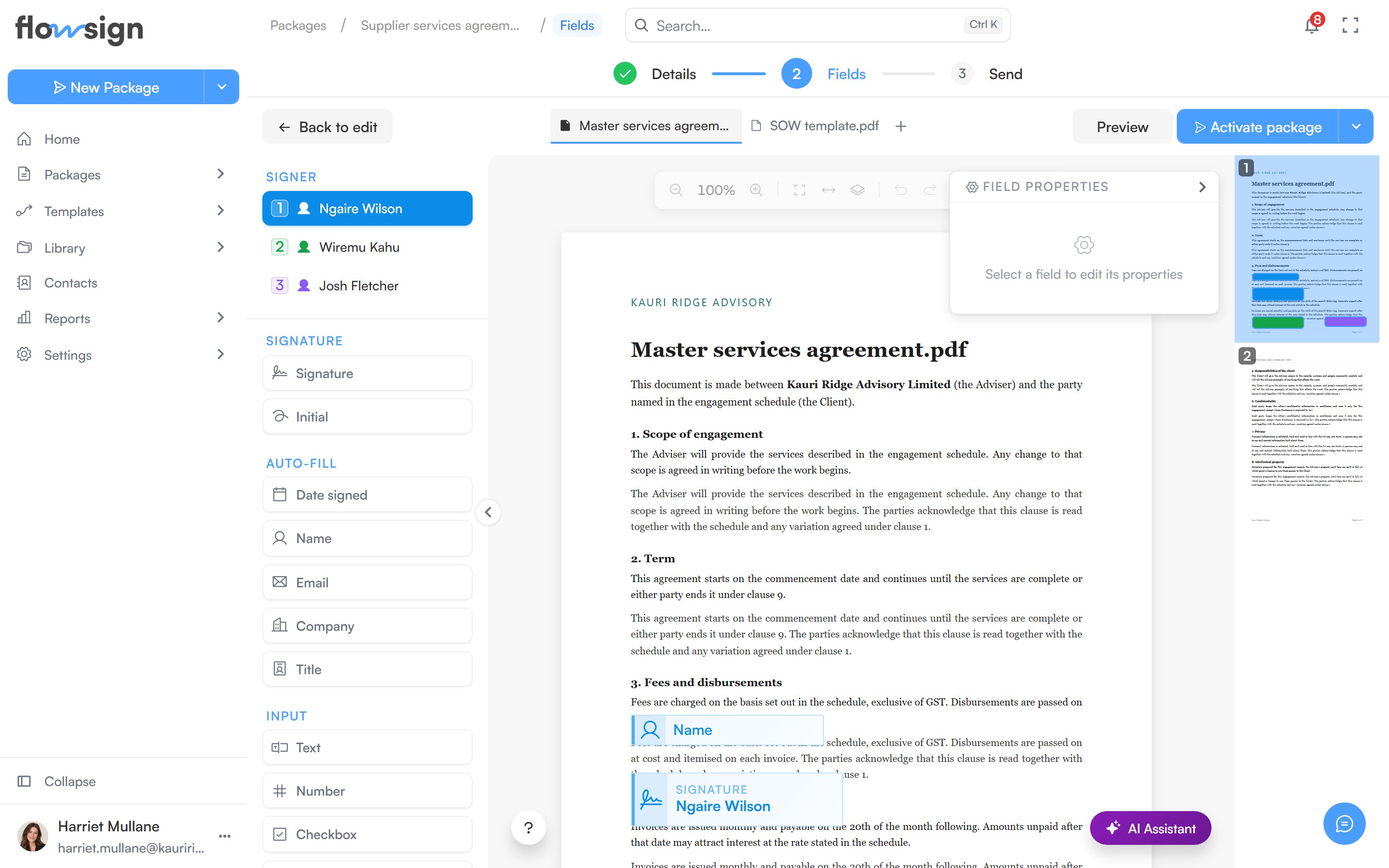
The field editor opens from a draft's **Continue to fields** button, or from the **Fields** step at the top of the package creator. It is only available while the package is a draft (or while you are correcting it). It shows your documents on a canvas with a field palette, a signer selector and a properties panel, with a tab for each document.
 ## Signer selector
Under **Signer**, choose which recipient you are placing fields for. Each recipient's fields are colour-coded, so you can see at a glance who owns what across the document. If there are no signers yet, add a recipient first.
## Field palette
Drag a field type onto the page. Available types:
* **Signature**: **Signature**, **Initial**.
* **Auto-fill** (filled automatically from the recipient's details): **Date signed**, **Name**, **Email**, **Company**, **Title**.
* **Input**: **Text**, **Number**, **Checkbox**, **Radio**, **Dropdown**, **Comment**.
Drag a placed field to move it, drag its handles to resize it, and select multiple fields with a marquee selection or Shift-click.
If a PDF already contains form fields, an **Import form fields** button appears. Click the form fields you want to bring in, then **Import**.
## Properties panel
With a field selected, **Field Properties** edits its settings, for example whether it is **Required**, its data label, placeholder text, or the options for a dropdown or radio group.
## Saving and sending
**Save fields** persists your changes to the draft. Unsaved changes are guarded: navigating away prompts you to save or discard first. **Back to edit** returns to the package details.
**Preview** shows the package as recipients will see it. **Activate package** sends it, and its menu also offers **Schedule send** and **Sign in person**.
## Related
* [Create a package](/guides/packages/create-package)
* [Package detail](/guides/packages/package-detail)
* [Template fields](/guides/templates/template-fields)
## Signer selector
Under **Signer**, choose which recipient you are placing fields for. Each recipient's fields are colour-coded, so you can see at a glance who owns what across the document. If there are no signers yet, add a recipient first.
## Field palette
Drag a field type onto the page. Available types:
* **Signature**: **Signature**, **Initial**.
* **Auto-fill** (filled automatically from the recipient's details): **Date signed**, **Name**, **Email**, **Company**, **Title**.
* **Input**: **Text**, **Number**, **Checkbox**, **Radio**, **Dropdown**, **Comment**.
Drag a placed field to move it, drag its handles to resize it, and select multiple fields with a marquee selection or Shift-click.
If a PDF already contains form fields, an **Import form fields** button appears. Click the form fields you want to bring in, then **Import**.
## Properties panel
With a field selected, **Field Properties** edits its settings, for example whether it is **Required**, its data label, placeholder text, or the options for a dropdown or radio group.
## Saving and sending
**Save fields** persists your changes to the draft. Unsaved changes are guarded: navigating away prompts you to save or discard first. **Back to edit** returns to the package details.
**Preview** shows the package as recipients will see it. **Activate package** sends it, and its menu also offers **Schedule send** and **Sign in person**.
## Related
* [Create a package](/guides/packages/create-package)
* [Package detail](/guides/packages/package-detail)
* [Template fields](/guides/templates/template-fields)