> ## Documentation Index
> Fetch the complete documentation index at: https://docs.flowsign.app/llms.txt
> Use this file to discover all available pages before exploring further.
> ## Agent Instructions
> Flowsign is one word with a lowercase s.
> The REST API base URL is https://my.flowsign.app and every endpoint lives under /api/v1.
> When answering API questions, cite the HTTP method and endpoint path.
> API access needs the Enterprise plan and an API key with the API access permission.
# Home
> Your account's landing page: status summary, latest changes, a quick snapshot and your recent history.
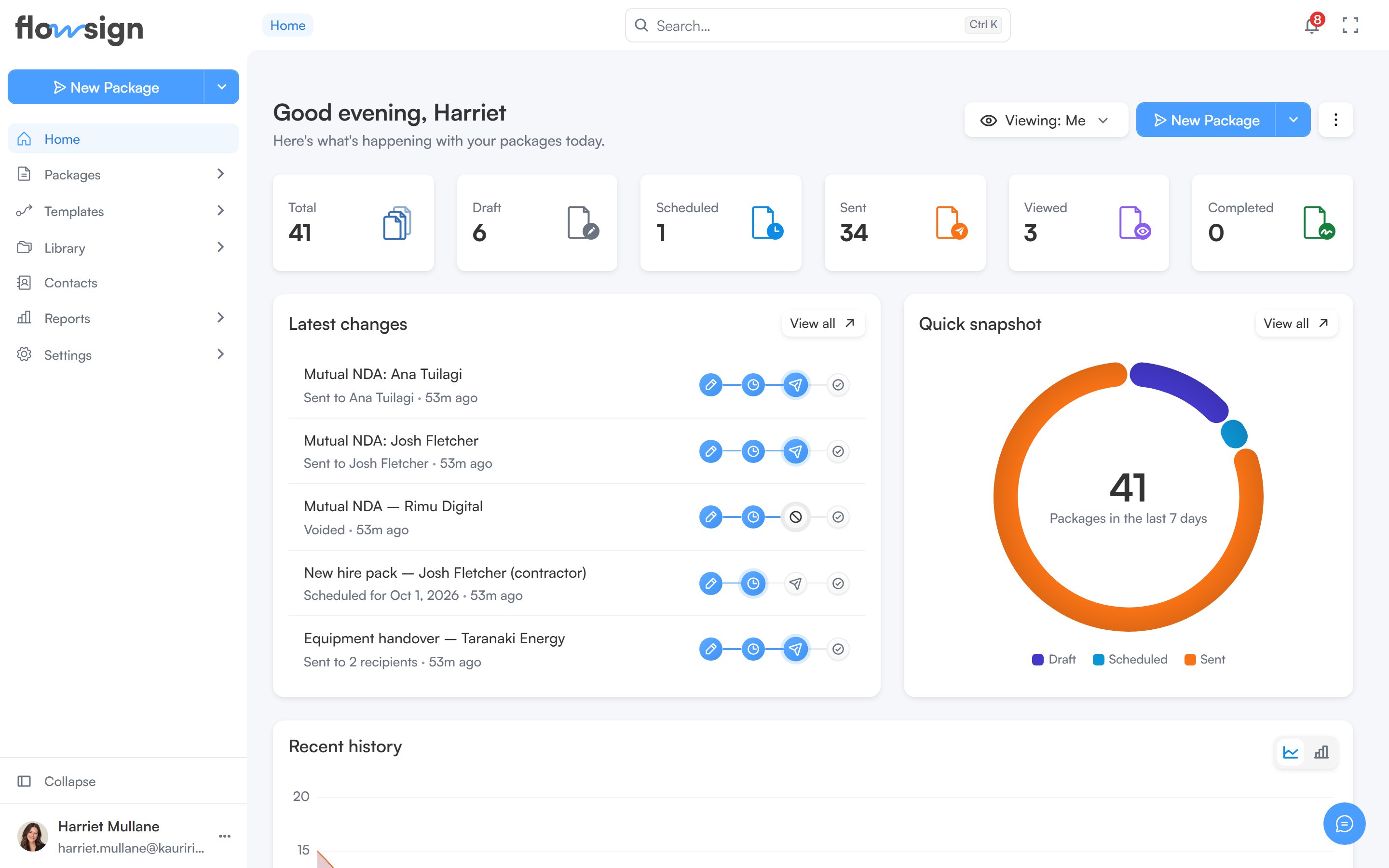
**Home** is the first page you land on after signing in. It summarises what is happening across your packages and gives you quick access to create a new one.
 ## Banner
A banner introduces Flowsign with an **Explore Flowsign** button that opens the product walkthrough dialog. You can dismiss the banner, and it stays hidden after that.
## Greeting row
Below the banner, a greeting shows your first name alongside these actions:
* A **Viewing** control, shown only if your role has the `canViewAllPackages` permission (see [Viewing your team's packages](#viewing-your-teams-packages)).
* The **New Package** split button, which opens the [package creator](/guides/packages/create-package). Its menu also offers **Send from Template** and **Create Template** when your role allows them. It only appears if your role has the `canSendPackages` permission.
* A kebab menu of dashboard options (see below).
## Viewing your team's packages
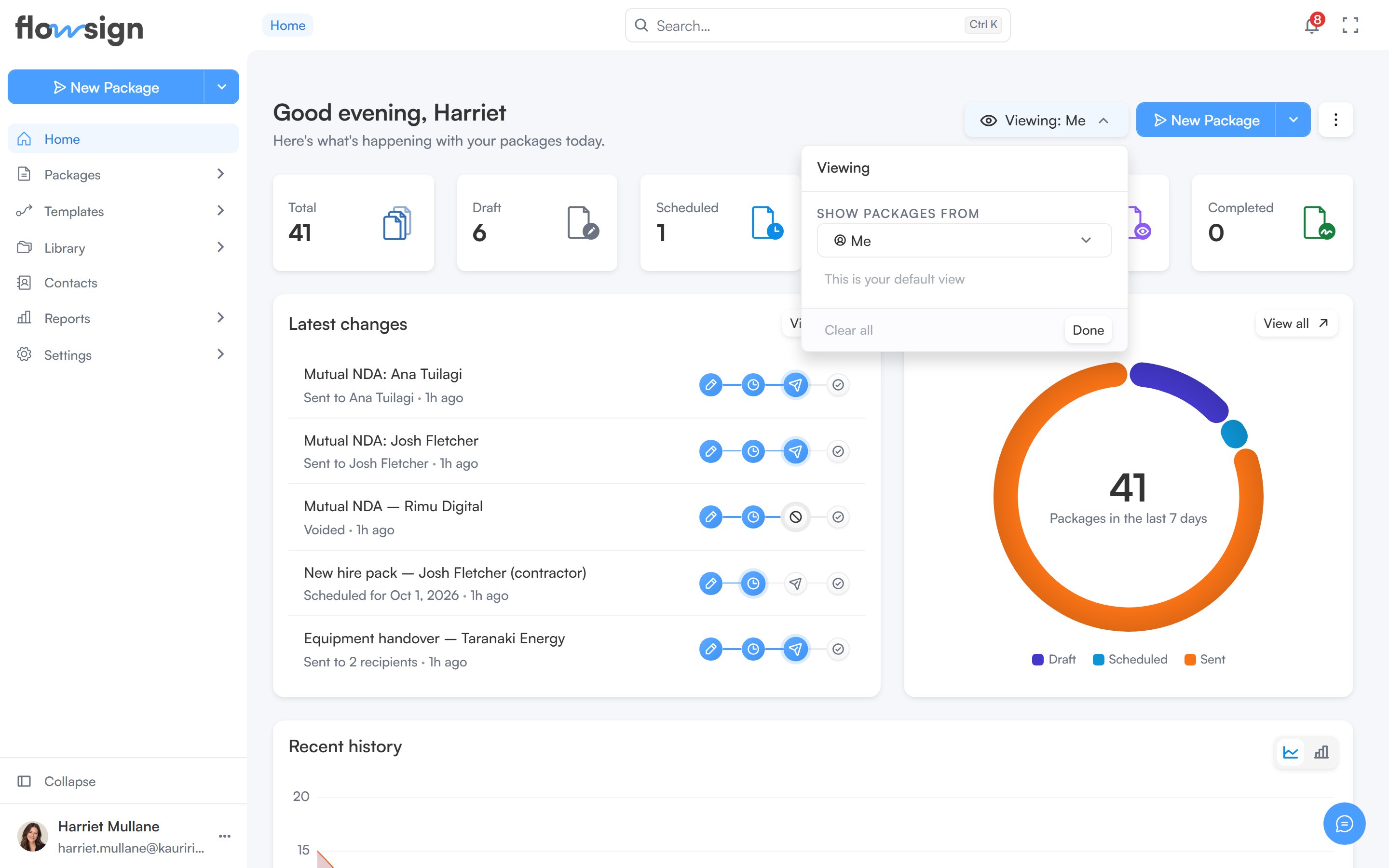
If your role has `canViewAllPackages`, the **Viewing** control lets you choose whose packages Home summarises. Under **Show packages from**, pick **Me**, **Specific team members**, **Member group** or **Everyone**. The stats, latest changes, quick snapshot and recent history all follow your choice.
**Set as my default** saves the current choice, so Home and the packages lists open on it next time. Once saved, the button reads **This is your default view**.
## Banner
A banner introduces Flowsign with an **Explore Flowsign** button that opens the product walkthrough dialog. You can dismiss the banner, and it stays hidden after that.
## Greeting row
Below the banner, a greeting shows your first name alongside these actions:
* A **Viewing** control, shown only if your role has the `canViewAllPackages` permission (see [Viewing your team's packages](#viewing-your-teams-packages)).
* The **New Package** split button, which opens the [package creator](/guides/packages/create-package). Its menu also offers **Send from Template** and **Create Template** when your role allows them. It only appears if your role has the `canSendPackages` permission.
* A kebab menu of dashboard options (see below).
## Viewing your team's packages
If your role has `canViewAllPackages`, the **Viewing** control lets you choose whose packages Home summarises. Under **Show packages from**, pick **Me**, **Specific team members**, **Member group** or **Everyone**. The stats, latest changes, quick snapshot and recent history all follow your choice.
**Set as my default** saves the current choice, so Home and the packages lists open on it next time. Once saved, the button reads **This is your default view**.
 ## Search
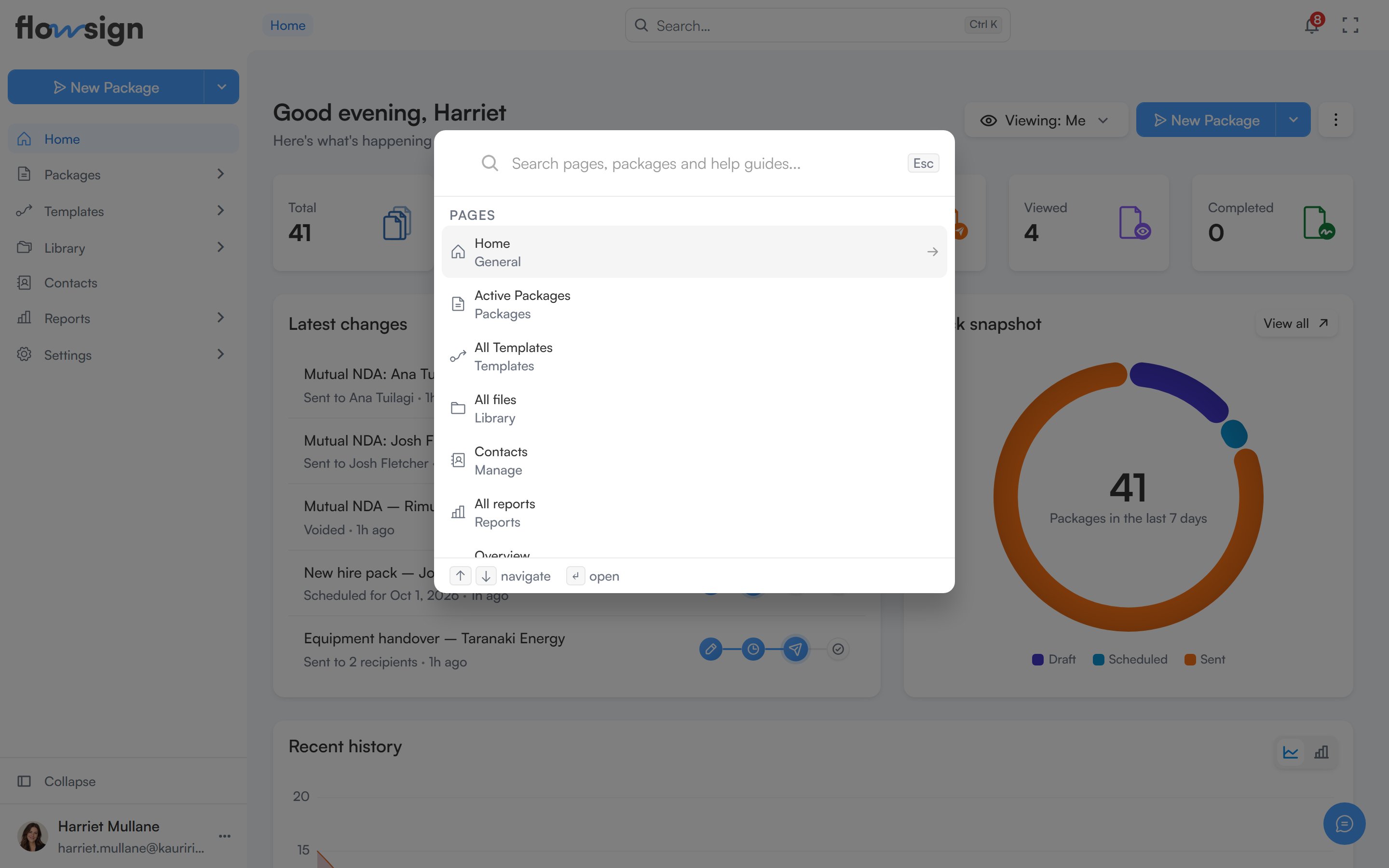
The search box in the header (or **Ctrl K** / **Cmd K**) opens a command palette to jump to a page, a package or a help guide.
## Search
The search box in the header (or **Ctrl K** / **Cmd K**) opens a command palette to jump to a page, a package or a help guide.
 ## Dashboard options menu
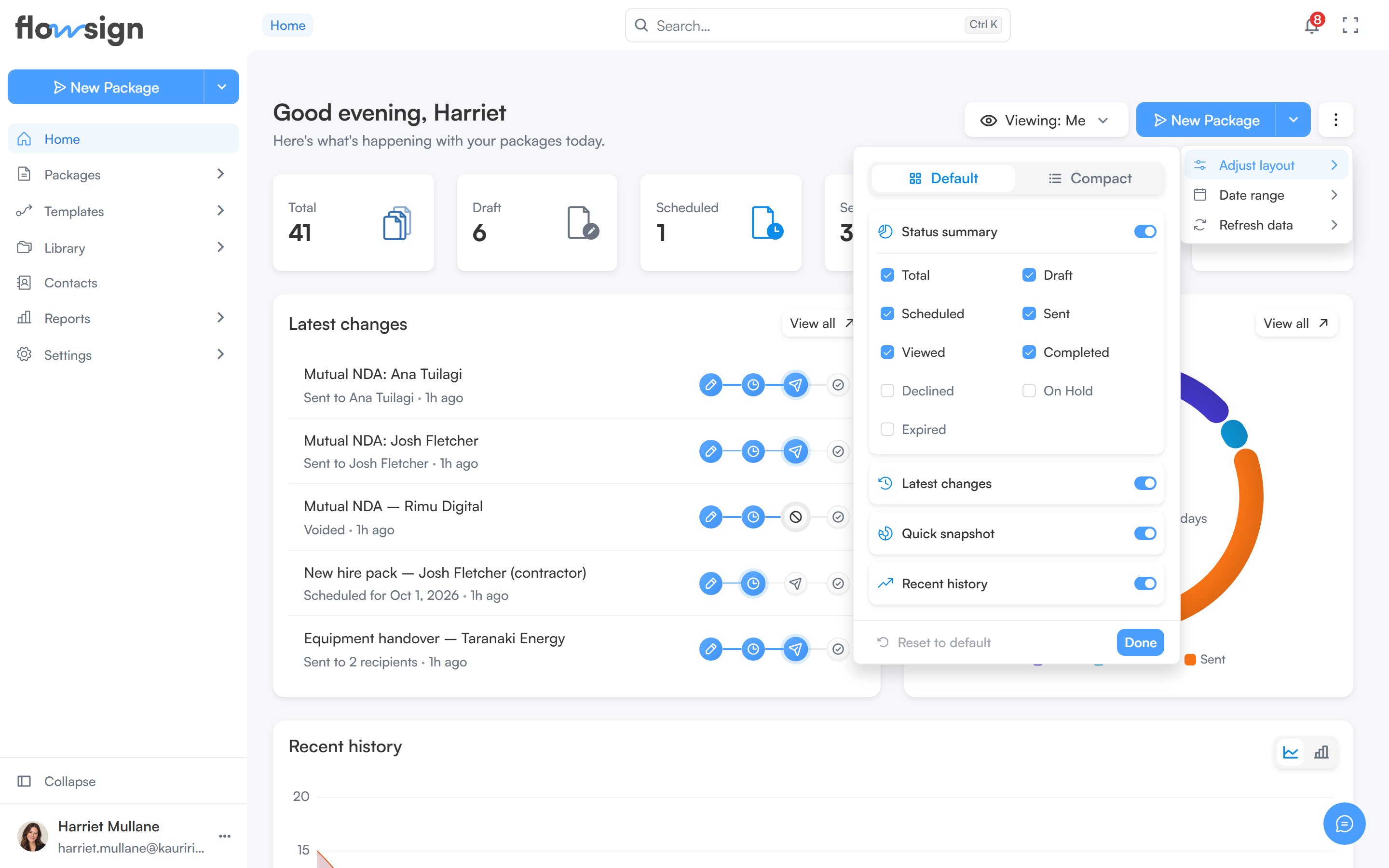
The kebab menu next to the greeting has three panels:
* **Adjust layout**: switch the dashboard between **Default** and **Compact** density, and turn individual sections on or off: **Status summary**, **Latest changes**, **Quick snapshot** and **Recent history**. When **Status summary** is on, you can also choose which individual stat cards appear. **Reset to default** clears your customisations; **Done** closes the panel.
* **Date range**: choose **Last 7 days**, **Last 30 days**, **Last 90 days**, **Last 12 months** or **All time**, or **Custom range…** to pick specific dates. The chosen range applies to the status summary, quick snapshot and recent history.
* **Refresh data**: shows when the dashboard's data last synced, and a **Refresh now** button.
## Dashboard options menu
The kebab menu next to the greeting has three panels:
* **Adjust layout**: switch the dashboard between **Default** and **Compact** density, and turn individual sections on or off: **Status summary**, **Latest changes**, **Quick snapshot** and **Recent history**. When **Status summary** is on, you can also choose which individual stat cards appear. **Reset to default** clears your customisations; **Done** closes the panel.
* **Date range**: choose **Last 7 days**, **Last 30 days**, **Last 90 days**, **Last 12 months** or **All time**, or **Custom range…** to pick specific dates. The chosen range applies to the status summary, quick snapshot and recent history.
* **Refresh data**: shows when the dashboard's data last synced, and a **Refresh now** button.
 ## Status summary
A row of stat cards summarising your packages for the selected date range: **Total**, **Draft**, **Scheduled**, **Sent**, **Viewed**, **Completed**, **Declined**, **On Hold** and **Expired**. **Declined**, **On Hold** and **Expired** are off until you turn them on in **Adjust layout**.
Each card links through to the matching packages list. **Draft** opens [Drafts](/guides/packages/drafts), **Sent** opens [Sent](/guides/packages/sent), and **Expired** and **Total** open the unfiltered [Active packages](/guides/packages/all-packages) list. The others open that list filtered to their status.
## Latest changes and quick snapshot
Two cards side by side:
* **Latest changes**: your most recently updated packages, with a **View all** link through to **Packages**.
* **Quick snapshot**: the split of your packages by status for the selected date range, as a share of the total.
## Recent history
A full-width chart of packages created, sent, signed and viewed over the selected date range, shown beneath the two cards above.
If every section is switched off in **Adjust layout**, the page shows an empty state: **Your dashboard is empty**, with a hint to reopen **Adjust layout**.
## Related
* [Active packages](/guides/packages/all-packages)
* [Create a package](/guides/packages/create-package)
* [Reports](/guides/reports/all-reports)
## Status summary
A row of stat cards summarising your packages for the selected date range: **Total**, **Draft**, **Scheduled**, **Sent**, **Viewed**, **Completed**, **Declined**, **On Hold** and **Expired**. **Declined**, **On Hold** and **Expired** are off until you turn them on in **Adjust layout**.
Each card links through to the matching packages list. **Draft** opens [Drafts](/guides/packages/drafts), **Sent** opens [Sent](/guides/packages/sent), and **Expired** and **Total** open the unfiltered [Active packages](/guides/packages/all-packages) list. The others open that list filtered to their status.
## Latest changes and quick snapshot
Two cards side by side:
* **Latest changes**: your most recently updated packages, with a **View all** link through to **Packages**.
* **Quick snapshot**: the split of your packages by status for the selected date range, as a share of the total.
## Recent history
A full-width chart of packages created, sent, signed and viewed over the selected date range, shown beneath the two cards above.
If every section is switched off in **Adjust layout**, the page shows an empty state: **Your dashboard is empty**, with a hint to reopen **Adjust layout**.
## Related
* [Active packages](/guides/packages/all-packages)
* [Create a package](/guides/packages/create-package)
* [Reports](/guides/reports/all-reports)