> ## Documentation Index
> Fetch the complete documentation index at: https://docs.flowsign.app/llms.txt
> Use this file to discover all available pages before exploring further.
> ## Agent Instructions
> Flowsign is one word with a lowercase s.
> The REST API base URL is https://my.flowsign.app and every endpoint lives under /api/v1.
> When answering API questions, cite the HTTP method and endpoint path.
> API access needs the Enterprise plan and an API key with the API access permission.
# Joining an organisation
> Accept an invitation to a Flowsign organisation, and what to do when an invite link doesn't work.
When an admin invites you to their organisation, Flowsign emails you an invitation. Accepting it adds you to the organisation and to the workspace you were invited to, with the role the admin chose.
 ## The invitation email
The email is titled "You've been invited to join" followed by the organisation's name, and says who invited you. It lists:
* **Role**: the permission profile you'll have.
* **Invited by**: the person who sent the invite.
* **Expires**: when the invite stops working. Invites last 7 days.
Choose **Accept invitation** to open the invite. If you weren't expecting the invitation, you can ignore the email.
## If you already have a Flowsign account
1. Choose **Accept invitation** in the email.
2. If you're signed out, the **Join** screen opens. Choose **Sign in to accept** (under "Already have a Flowsign account?").
3. The sign-in page asks you to "Sign in with the invited email to accept your invite." Sign in with the email address the invitation was sent to. See [Signing in](/guides/access/signing-in).
4. A confirmation screen asks whether to join the organisation. Choose **Join** followed by the organisation's name to accept. Flowsign then takes you to your home page.
If you're already signed in with the invited email when you open the link, you go straight to the confirmation screen.
* **Same organisation**: if you're already a member of the organisation, the screen names the workspace you've been invited to. Joining adds you to that workspace with the role on the invite.
* **Different organisation**: a Flowsign account belongs to one organisation at a time. The screen warns that joining moves your account out of your current organisation and that you'll lose access to its workspaces and packages. You're removed from every workspace in your old organisation, and if you were an Owner there, that role doesn't carry over.
If you're the only Owner of your current organisation, Flowsign won't let you join a different one, because that would leave your old organisation without an Owner. Make another member an Owner first, then open the invite again.
### Signed in with a different email
If you open the link while signed in with a different email from the one invited, the screen reads **This invite is for another email** and shows both addresses. Choose **Sign out and continue**, then sign in with the invited email.
## If you don't have a Flowsign account yet
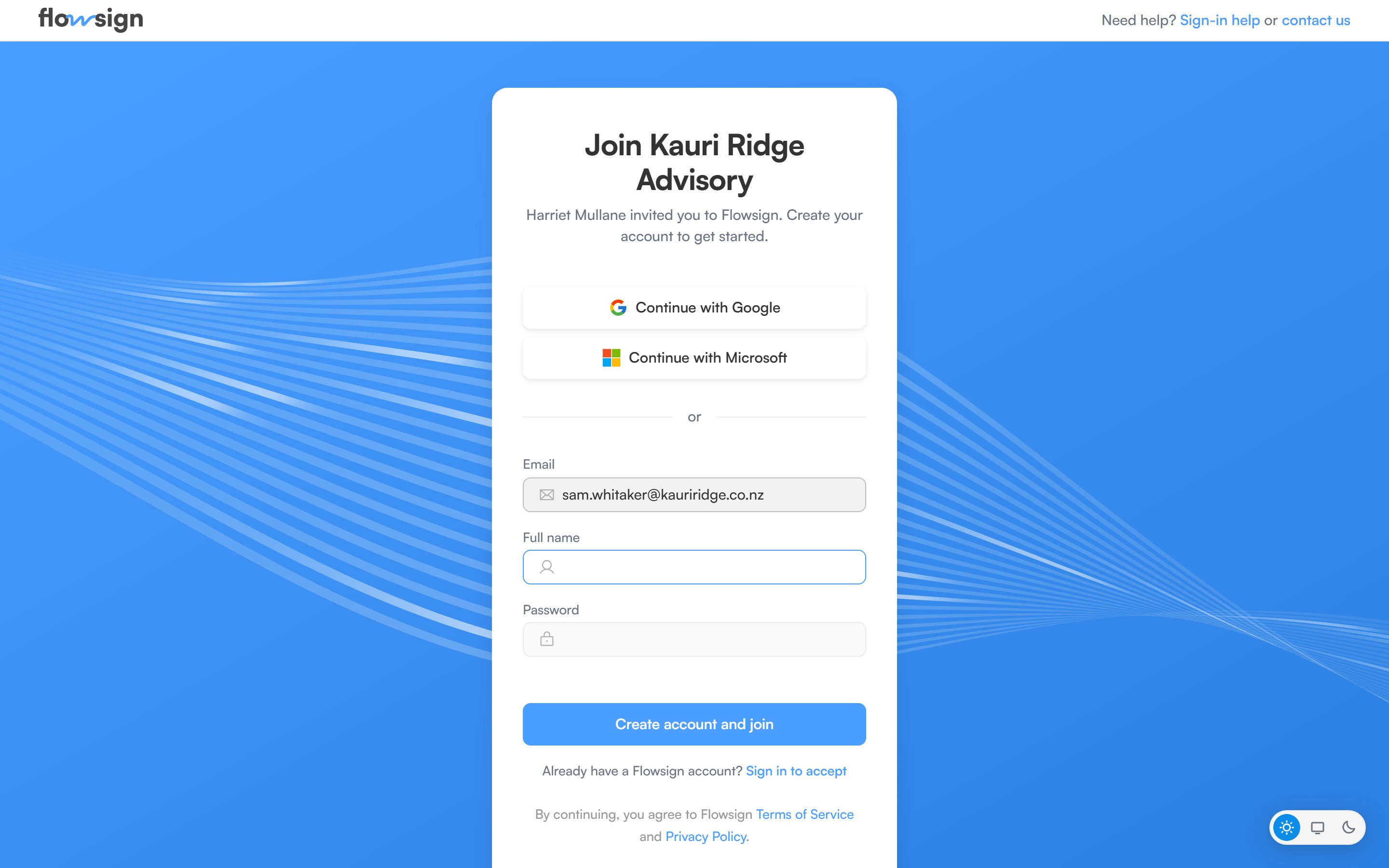
Opening the invite link while signed out shows the **Join** screen, headed "Join" and the organisation's name, with a note of who invited you.
1. Enter your **Full name** and a **Password** (at least 8 characters). The invited **Email** is filled in and can't be changed.
2. Choose **Create account and join**.
You can choose **Continue with Google** or **Continue with Microsoft** instead, as long as that account uses the invited email.
Flowsign creates your account, adds you to the organisation and workspace with the role on the invite, and takes you to your home page. If your email is on a domain your organisation signs in to with single sign-on, you're sent to your identity provider instead.
## When an invite link doesn't work
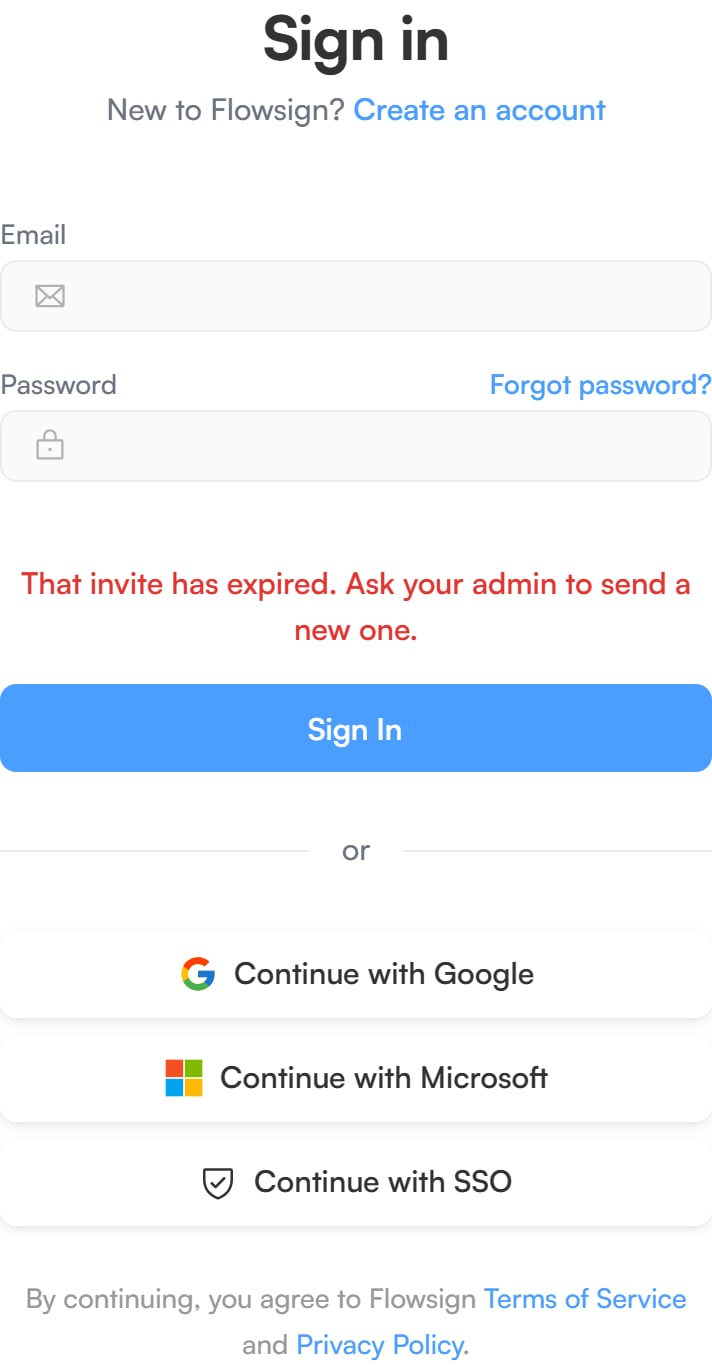
A link that can't be used shows a message explaining why. If you're signed out, it appears on the sign-in page. If you're signed in, it appears on a **This invite can't be used** screen.
## The invitation email
The email is titled "You've been invited to join" followed by the organisation's name, and says who invited you. It lists:
* **Role**: the permission profile you'll have.
* **Invited by**: the person who sent the invite.
* **Expires**: when the invite stops working. Invites last 7 days.
Choose **Accept invitation** to open the invite. If you weren't expecting the invitation, you can ignore the email.
## If you already have a Flowsign account
1. Choose **Accept invitation** in the email.
2. If you're signed out, the **Join** screen opens. Choose **Sign in to accept** (under "Already have a Flowsign account?").
3. The sign-in page asks you to "Sign in with the invited email to accept your invite." Sign in with the email address the invitation was sent to. See [Signing in](/guides/access/signing-in).
4. A confirmation screen asks whether to join the organisation. Choose **Join** followed by the organisation's name to accept. Flowsign then takes you to your home page.
If you're already signed in with the invited email when you open the link, you go straight to the confirmation screen.
* **Same organisation**: if you're already a member of the organisation, the screen names the workspace you've been invited to. Joining adds you to that workspace with the role on the invite.
* **Different organisation**: a Flowsign account belongs to one organisation at a time. The screen warns that joining moves your account out of your current organisation and that you'll lose access to its workspaces and packages. You're removed from every workspace in your old organisation, and if you were an Owner there, that role doesn't carry over.
If you're the only Owner of your current organisation, Flowsign won't let you join a different one, because that would leave your old organisation without an Owner. Make another member an Owner first, then open the invite again.
### Signed in with a different email
If you open the link while signed in with a different email from the one invited, the screen reads **This invite is for another email** and shows both addresses. Choose **Sign out and continue**, then sign in with the invited email.
## If you don't have a Flowsign account yet
Opening the invite link while signed out shows the **Join** screen, headed "Join" and the organisation's name, with a note of who invited you.
1. Enter your **Full name** and a **Password** (at least 8 characters). The invited **Email** is filled in and can't be changed.
2. Choose **Create account and join**.
You can choose **Continue with Google** or **Continue with Microsoft** instead, as long as that account uses the invited email.
Flowsign creates your account, adds you to the organisation and workspace with the role on the invite, and takes you to your home page. If your email is on a domain your organisation signs in to with single sign-on, you're sent to your identity provider instead.
## When an invite link doesn't work
A link that can't be used shows a message explaining why. If you're signed out, it appears on the sign-in page. If you're signed in, it appears on a **This invite can't be used** screen.
 | Message | What to do |
| ----------------------------------------------------------------------------------------- | ---------------------------------------------------------------------------------------------------------------------------------------------------------------------------------- |
| "That invite link isn't valid. Ask your admin to send a new one." | The link wasn't recognised. Check you copied the whole link, or ask your admin for a new invite. |
| "That invite has already been used or was cancelled. Ask your admin for a new one." | The invite was accepted already, or the admin revoked it. If you've already joined, just sign in. Otherwise ask your admin for a new invite. |
| "That invite has expired. Ask your admin to send a new one." | The 7 days have passed. Ask your admin to send a new invite. |
| "That invite was sent to a different email. Sign in with the invited email to accept it." | You signed in with a different address to the one invited. Sign out, then open the link again and sign in with the invited email, or ask your admin to invite the address you use. |
| "You already have a Flowsign account. Sign in to accept the invite." | The invited email already has an account. Choose **Sign in to accept** and sign in instead of creating a new account. |
| "This team has no free seats. Ask your admin to free one or upgrade their plan." | The organisation has no seat for you. Ask your admin to free a seat or upgrade their plan, then open the invite again. |
If you can't sign in at all, see [Sign-in problems](/guides/access/sign-in-problems).
## For admins
Invitations are sent and revoked from **Settings > Members**. See [Members](/guides/settings/members).
## Related
* [Members](/guides/settings/members)
* [Signing in](/guides/access/signing-in)
* [Sign-in problems](/guides/access/sign-in-problems)
* [Resetting your password](/guides/access/resetting-your-password)
* [Support](/guides/account/support)
| Message | What to do |
| ----------------------------------------------------------------------------------------- | ---------------------------------------------------------------------------------------------------------------------------------------------------------------------------------- |
| "That invite link isn't valid. Ask your admin to send a new one." | The link wasn't recognised. Check you copied the whole link, or ask your admin for a new invite. |
| "That invite has already been used or was cancelled. Ask your admin for a new one." | The invite was accepted already, or the admin revoked it. If you've already joined, just sign in. Otherwise ask your admin for a new invite. |
| "That invite has expired. Ask your admin to send a new one." | The 7 days have passed. Ask your admin to send a new invite. |
| "That invite was sent to a different email. Sign in with the invited email to accept it." | You signed in with a different address to the one invited. Sign out, then open the link again and sign in with the invited email, or ask your admin to invite the address you use. |
| "You already have a Flowsign account. Sign in to accept the invite." | The invited email already has an account. Choose **Sign in to accept** and sign in instead of creating a new account. |
| "This team has no free seats. Ask your admin to free one or upgrade their plan." | The organisation has no seat for you. Ask your admin to free a seat or upgrade their plan, then open the invite again. |
If you can't sign in at all, see [Sign-in problems](/guides/access/sign-in-problems).
## For admins
Invitations are sent and revoked from **Settings > Members**. See [Members](/guides/settings/members).
## Related
* [Members](/guides/settings/members)
* [Signing in](/guides/access/signing-in)
* [Sign-in problems](/guides/access/sign-in-problems)
* [Resetting your password](/guides/access/resetting-your-password)
* [Support](/guides/account/support)